

Whether Search returns asset-centric resources, data modeling resources, or both depends on the data modeling status of the CDF project.
Start a search
In the Flows workspace, navigate to the Home page or the Search tool:1
Search
Click the Search field, type what you’re looking for, and press Enter.Search returns data that matches your query precisely. For example, searching for
21-PT-10-19 returns results that contain all four parts (21, PT, 10, 19). If you find a pump, you’ll also find associated assets, documents, sensor data, and engineering diagrams.2
Refine results
Use filters to refine your search results further.
3
Preview and analyze
Select a result to preview more details and open in Charts or Canvas for further analysis.
Filter and sort your search results
To help you find exactly what you need, you can filter and sort your search results.
Preview your search results
Select a result to preview the details in the right-hand sidebar, and open the item in Charts or Canvas for further analysis.
Understanding categories and tree view
When you search for assets, you’ll notice different ways to organize and view your results.Categories help you focus your search
Categories group similar types of equipment or assets together. When you select a category like “Pumps” or “Sensors”, you’ll see only items of that type in your results.Tree view shows how assets connect
Tree view displays how your assets are organized hierarchically, for example, showing that a pump belongs to a specific system, which belongs to a plant location. Search results and Tree view show the full asset hierarchy even when it’s split across different categories. Items from other categories appear grayed out so you still have full context. For example, if you’re viewing “Pumps” but a pump’s parent system is in the “Systems” category, that parent appears grayed out. The grayed-out items are still clickable and interactive.Download instances and relationship lists
You can download lists of data instances from search results and from related data sections on the instance page as a CSV file. All CSV files include audit information: who downloaded, when, and a source URL that links back to the search page in CDF. Anyone with permission to view those search results can follow the link. Downloads from related data sections also include the properties (metadata) of the instance that owns the relationship.- Files: Only file metadata is exported, not the file itself.
- Time series: Data points are not exported.
Download instances
1
Search, filter, and sort your search results
Enter your search term in the Search field and press Enter. Then use filters, sorting, and column selection to refine your results.
2
Download
Click the download button to download the search results as a CSV file.
Download relationship lists
1
Select a related data section
Select a related data section on the instance page, for example, Assets > Path.
2
Download
Click the download button to download the relationship list as a CSV file.
Upload files
To upload files directly in Search, an admin must configure the space for file uploads.1
Configure a space for file uploads
Go to Admin > Project settings > Locations > Configure > Space for file upload, set the space for file uploads. Only one space can be set per location.
Upload is only available for data model views.
Work with PDF files
You can find information in PDF files using AI document analysis and text search.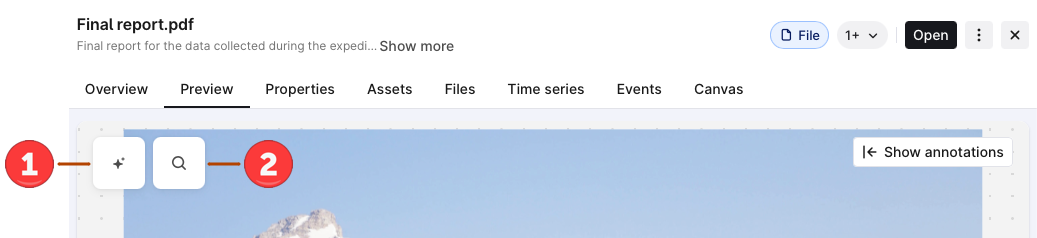
Not finding what you’re looking for?
Check your spelling and make sure you’ve selected the correct location. You’ll only see items that you have access to. Verify with your internal help desk or the CDF admin that you have access to the data you’re looking for.Supported file formats
Documents Preview supports the following file formats:Supported file formats
Supported file formats
Further reading
- Charts — visualize and analyze time series data.
- Canvas — collect and share data on a collaborative canvas.
- Browse 3D — explore physical assets in a 3D model.
- Flows workspace — work with AI document analysis and the other tools in the workspace.