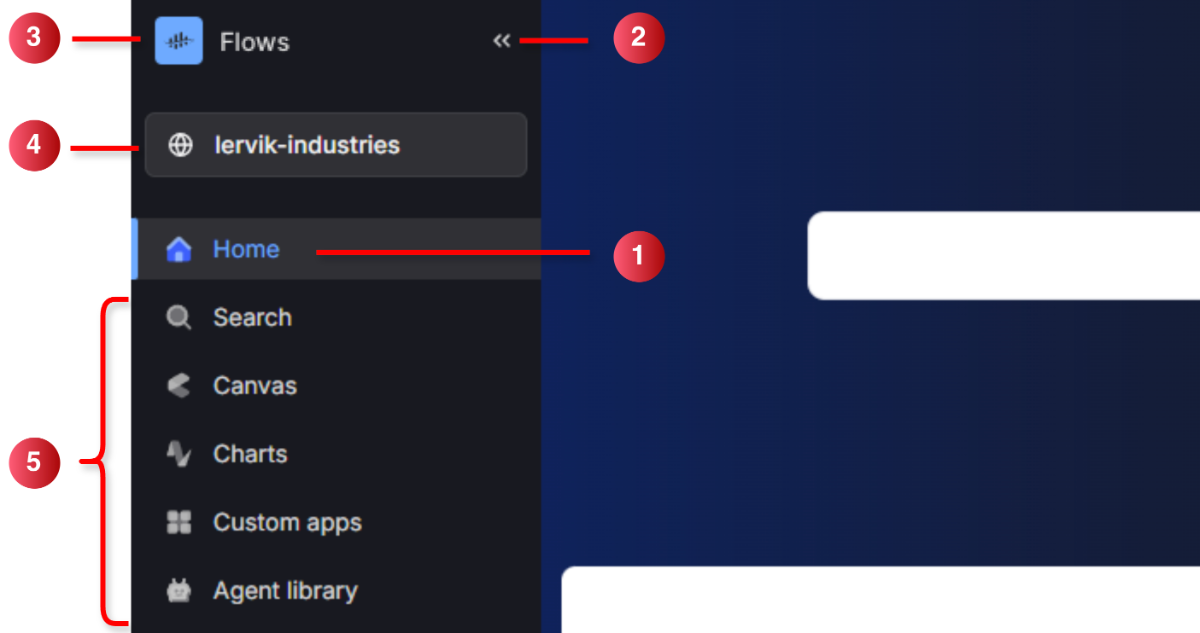
➀ Switch workspace — to switch to a different workspace, click the Flows workspace name and then a workspace from the menu.➁ Collapse/expand — click the icon to collapse (<<) or expand (>>) the sidebar, for example, to free up extra space while you’re viewing a chart.➂ Switch project — to switch to a different project, click the project name and then a project from the menu.➃ Home — go to the main workspace page to search or resume your activity.➄ Tools — select an industrial tool to find or analyze data.➅ Ask Atlas AI — open Cognite Atlas chat, which is available across the Flows workspace. Chat with the built-in Atlas agent, or choose one of your organization’s agents. Ask questions from Search, Canvas, Charts, custom apps, and other tools without leaving the work you are doing. See Chat with Cognite Atlas.
To pick up where you left off, select a recent chart or canvas under Resume your activity.
Find more information and settings in the lower left part of the sidebar.
➀ Help and resources — find links to documentation, training, and Cognite Support.➁ Settings — click your profile name to manage your profile and preferences.
Open Ask Atlas AI from the sidebar to ask questions about your industrial data. Chat with the built-in Atlas agent, or choose one of your own. The chat experience is the same in every Flows tool.In the chat, you can:
Mention a resource by typing @ to pin a specific asset, time series, file, document, or activity. A symbol shows the resource type. Mentions tell the agent which item you mean when names are similar.
Open a citation to preview the source, for example a document page, and jump to Search to verify it if needed.
Use a bar chart, KPI tile, table, or Charts time series in the reply. You can inspect the result in the conversation.
Rate a reply with thumbs up or down and an optional comment. Cognite uses this to improve quality.
To use Atlas AI, you need these capabilities. If your organization configured agents, open them from Agents.