

CogniteMigration data model.
Prerequisites
Before migrating assets, complete the following:- Creating a data model and mappings
- Deploying the CogniteMigration data model
- Migrating data sets
- Migrating source systems
Required capabilities
Migrating assets
Select assets by data set or by CSV file, then runcdf migrate assets twice: the first run creates assets and lineage; the second run establishes parent-child relationships.
1
Choose how to select assets
Use data set selection if all assets go to the same view, mapping, and instance space. Use CSV file selection if you need different views, such as the root asset and wind turbines in the Kelmarsh example.
2
Run `cdf migrate assets`
Run the command in interactive mode, or pass the options as arguments. See Run the command a second time so parent-child relationships are created after the assets exist.
cdf migrate assets --help.3
Verify the migration
Confirm that lineage nodes exist in the
InstanceSource view. See Verify the migration.Data set selection
To migrate all assets in a data set, run the command in interactive mode:cdf migrate assets --help for details.
The disadvantage of data set selection is that all assets must use the same resource view mapping, target view, and instance space. In the
Kelmarsh example, to migrate the root asset to a KelmarshAsset view and wind turbine assets to a WindTurbine view, use CSV file selection.
CSV file selection
To migrate assets using a CSV file, run:<path to csv file> with a path relative to your Cognite Toolkit project root.
This CSV file migrates the Kelmarsh wind farm assets:
migration.Assets.csv
space: The target instance space where the asset will be created.externalId: The external ID of the resulting asset.id: The integer internal ID of the source asset to migrate.
ingestionMapping: The resource view mapping to use. If omitted, the default mapping for assets is used (typically the CogniteAsset view in the CogniteCore model). The Cognite Toolkit reads mappings from theResourceViewMappingview in theCogniteMigrationdata model. Deploy custom mappings withcdf buildandcdf deployusing the Resource view mapping resource type.consumerViewSpace,consumerViewExternalId,consumerViewVersion: The preferred consumer view for the asset. Canvas and Charts use this setting when they display the asset.
wind_turbine_asset_mapping mapping and WindTurbine consumer view. The root asset Kelmarsh uses the default cdf_asset_mapping mapping and KelmarshAsset consumer view.
Verify the migration
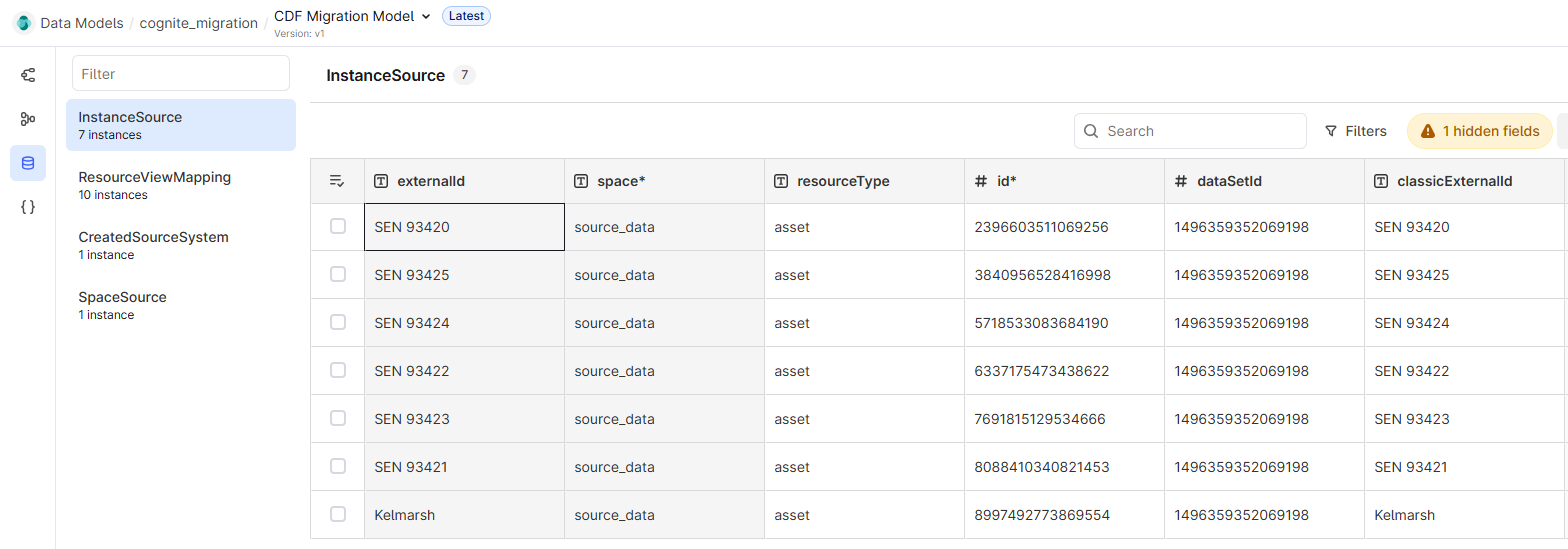
After a successful run, the Cognite Toolkit stores lineage for migrated assets in theInstanceSource view in the CogniteMigration data model.
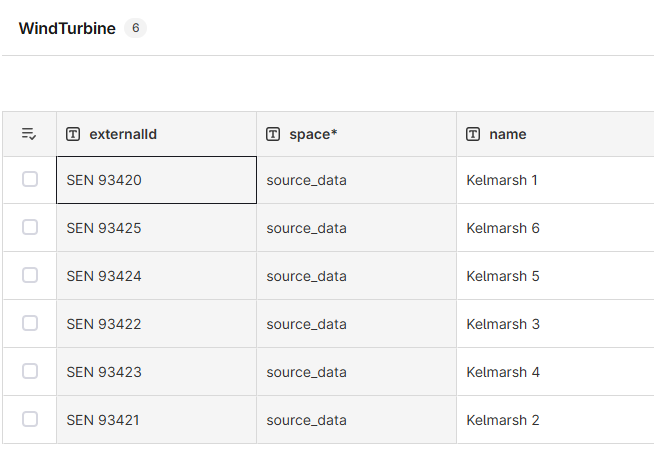
In the Kelmarsh example, lineage nodes for the wind turbine assets look like this:
WindTurbine assets:
What cdf migrate assets does
When you run cdf migrate assets, the migration plugin performs the following steps on batches of assets:
1
Download assets
The Cognite Toolkit reads assets from the asset-centric
/assets/byids or /assets/list endpoints, depending on the selection method.2
Convert assets to instance nodes
The Cognite Toolkit looks up the mapping and converts each asset to an instance node. Mappings are defined
by
externalId in the ResourceViewMapping view in the CogniteMigration data model. The mapping for each asset comes from the ingestionMapping column in the CSV file or from the --ingestion-mapping
CLI argument. If no mapping is specified, the default mapping is used.3
Write instance nodes to CDF
The Cognite Toolkit writes the created instance nodes to CDF using the
/models/instances endpoint.4
Create lineage nodes
While writing instances, the Cognite Toolkit creates lineage nodes in the
InstanceSource view in the CogniteMigration data model
to record the lineage from source assets to the created instance nodes.