$variable or [[variable]] syntax to insert the variable in queries.
Before you begin
- Create a dashboard that uses the Cognite Data Source for Grafana.
- Make sure the asset-centric features are turned on. The variable editor then shows an Assets tab. A variable that’s already saved on the Assets tab keeps that tab if you turn off the feature flag, so you can still edit existing dashboards.
Create a variable from an asset query
1
Open variables settings
Navigate to your dashboard’s settings, and select Variables from the left-hand side.
2
Configure the data source
Set Type to Query, and select your Cognite Data Source as the Data source. Then select the Assets tab.
3
Enter the query
In the Query field, enter the query to fetch and filter assets from Cognite Data Fusion (CDF).For example, this query requests assets with the parameter
parentIds=[123] and filters the results by name that matches the test-.* regular expression:4
Select the value
In the Value field, select the asset field the variable holds: Id, ExternalId, or Name.
5
Save the variable
Select Update.
Nested (chained) variables
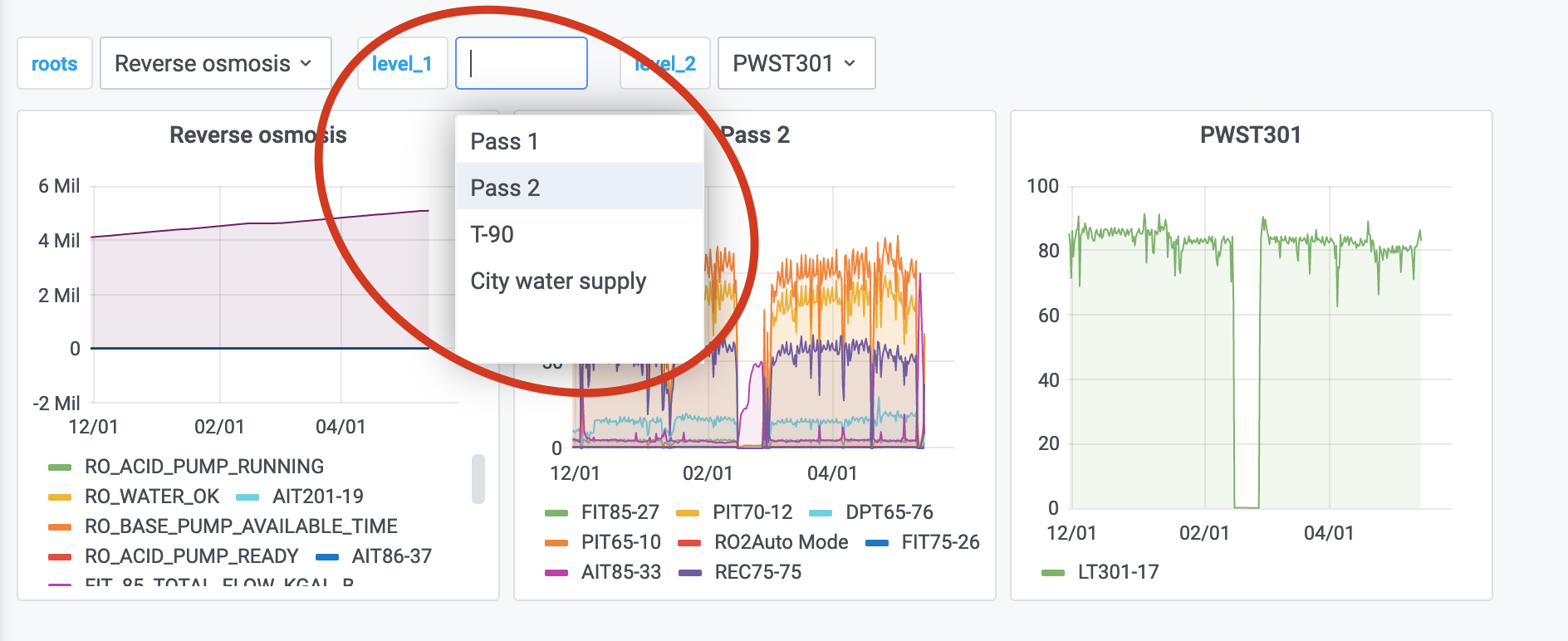
With nested variables, you can create a template to visualize time series related to a branch of the asset subtree and let users navigate the subtree. Nested variables use asset queries. For data models, chain GraphQL variables instead. See Chain variables.1
Create nested variables
Create the necessary nested variables.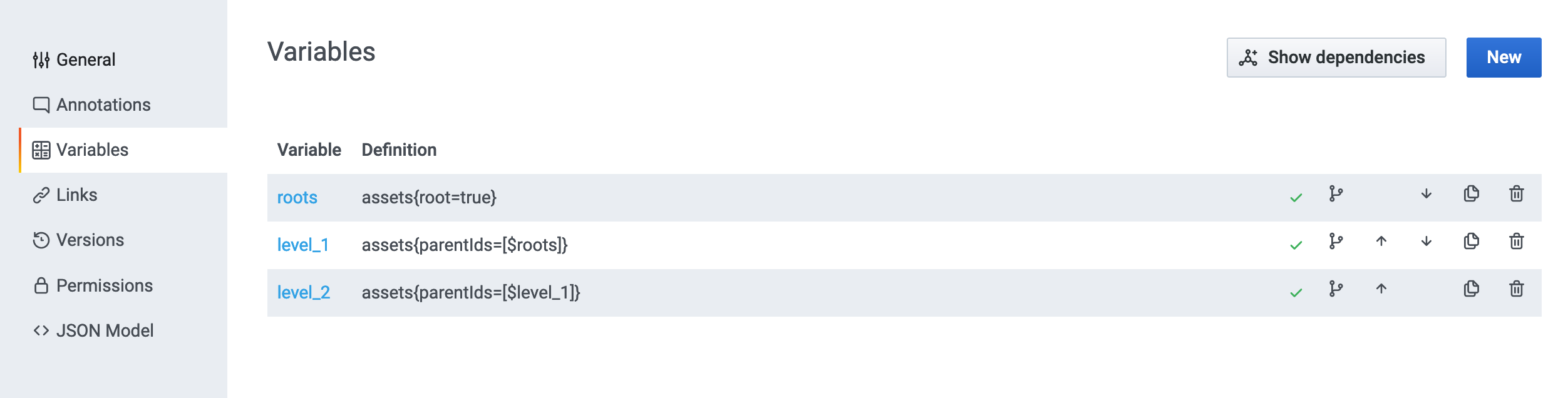
2
Use the variable as a filter
Use the variable as the asset filter on the dashboard.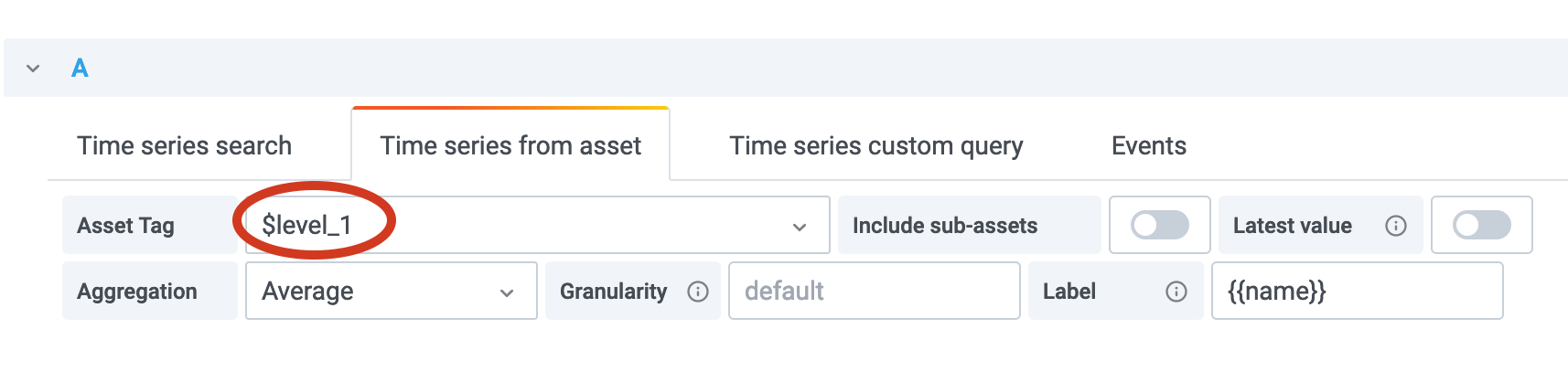
Users can choose assets on each level of the hierarchy.