Before you start
Before creating a scene, make sure you have:- Created and set up the scene data model (required the first time you create a scene for your project).
- Uploaded and processed all the 3D data you want to add to your scene. For more information, see Upload 3D models.
To use 3D in Search, you need to configure a scene and link it to a location. A location is the global location filter across Cognite Data Fusion (CDF).
Create a scene
1
Navigate to 3D management
Go to CDF > Data fusion > Configure > 3D.
2
Create a new scene
Select + Create scene and follow the wizard to create a scene.
Configure a scene
1
Open the scene overview
Select the newly created scene to open its overview.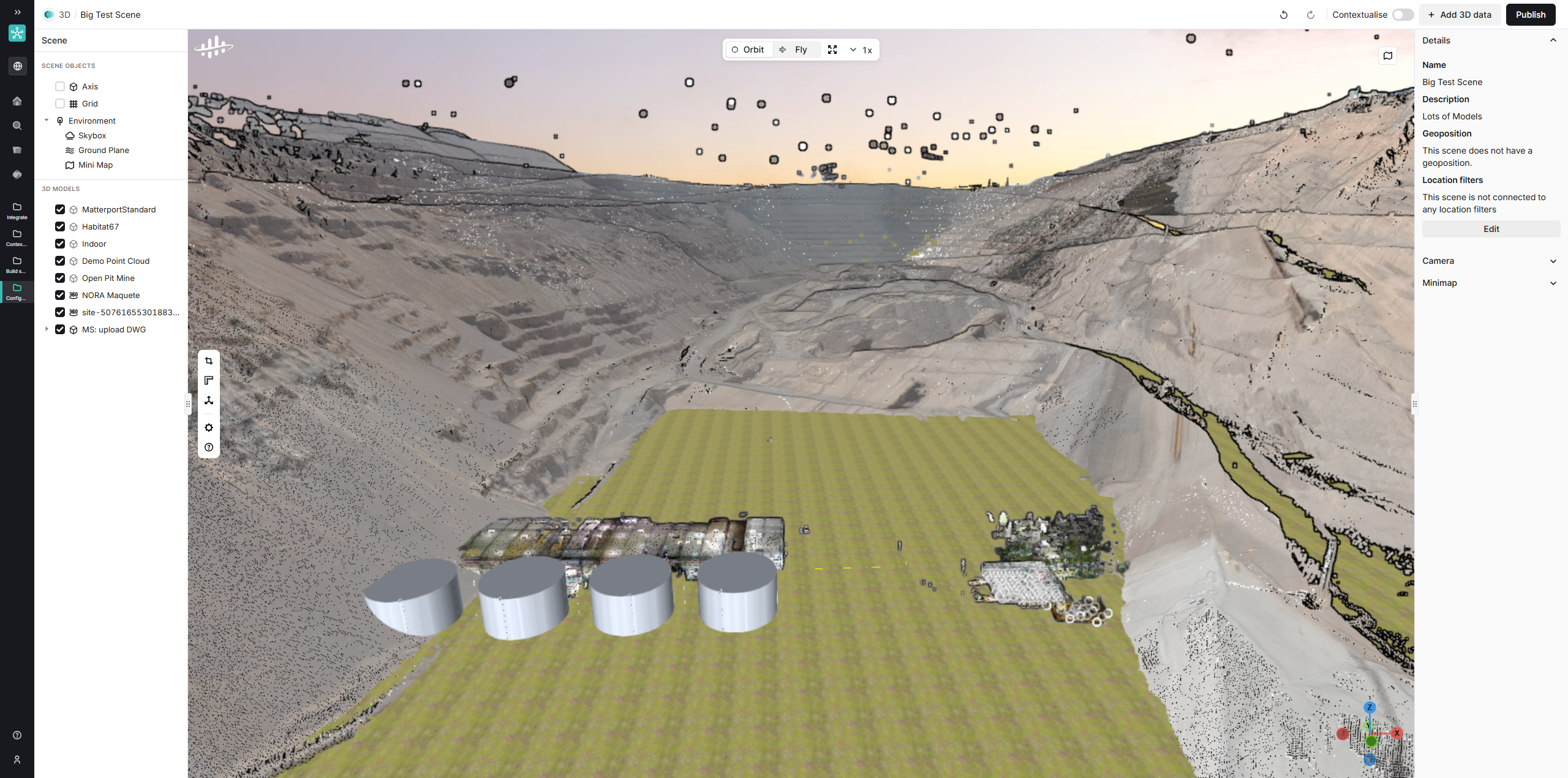
2
Add 3D data to the scene
Select + Add 3D data to open the dialog. You can add CAD, point cloud, or 360° images to your scene. Use the search box to find an existing 3D resource, then select Add.
Added resources appear in the tree view on the left-hand side. Selecting an item from the tree view opens its settings in the right-hand side panel.
3
Adjust the model position
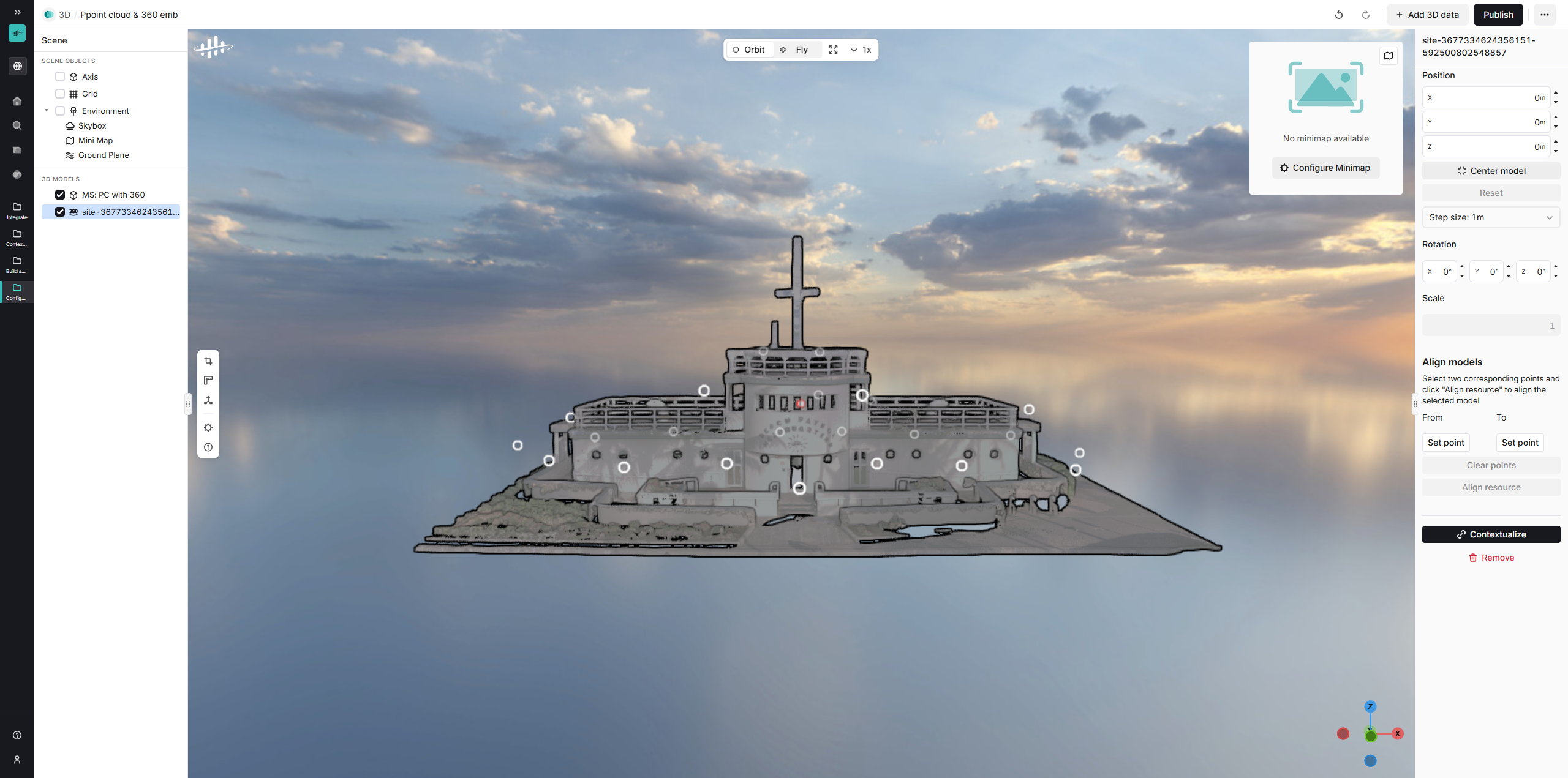
Select the added model from the tree view and adjust its position, rotation, and scale in the side panel.From the same panel, you can also contextualize 3D objects.
4
Access control for custom scene images
Custom skybox, ground plane, thumbnail, and minimap uploads are stored as files in CDF. How access control applies depends on your project type:
- Data modeling — Uses the scene’s space automatically. You can’t select a data set in the scene editor.
- Hybrid — One data set per session applies to all custom scene image uploads, not per image. With no data set selected, files are accessible across all data sets.
- In the scene side panel, expand Details and select Edit.
- In Advanced settings, select a data set, or leave No data set selected.
- Select Save.
5
Configure the scene environment
In the tree view, select Environment. You can configure textures and skyboxes for the selected 3D resource in the side panel.
To use custom images for textures, select Add custom and upload your images.
6
Configure the camera settings
Go to the default scene view, for example, by clicking the scene name in the top bar, and expand the Camera accordion in the side panel.Position the camera at the desired view and select Set camera position. The camera position is the view a user gets when they enter a scene.
If the Use default camera position for thumbnail option is turned on, a scene thumbnail is automatically set.
7
Set thumbnail
In the Camera accordion, you can set the scene thumbnail in three ways:
- Select the Use default camera position for thumbnail option.
- Position the camera to your desired view and select Set thumbnail.
- Upload a custom image by selecting Upload custom thumbnail.
8
Upload and configure a minimap
Expand the Minimap accordion in the side panel. The minimap is a customizable top-down view that helps you navigate in large scenes. It updates in real time based on the camera position.
- Select Upload minimap and upload a file that represents a top-down view of your scene, for example, a sitemap or aerial image.
- Once uploaded, configure the position, rotation, and scale of the minimap to align it with the scene.
9
Publish the scene
After configuring the minimap, Publish the scene to the project.
You have published the scene.
Edit a scene
You can modify an existing scene after it’s been published, such as updating the scene name, description, geoposition, or linking it to a location.1
Open scene details
Expand the Details accordion in the side panel of the scene overview.
2
Edit the scene
Select Edit and make the necessary changes.
3
Save changes
Select Save to publish the changes.
Toolbar tips
- Cropping tool : slice through the model to view cross-sections or create a crop box to define a custom 3D boundary.
- Measurements : measure point coordinates, point-to-point distances, areas (vertical, horizontal, and polygons), volumes, and circle diameters for pipes and tanks.
- Settings : set the rendering quality, configure point cloud settings, and change the units.
Default scene settingsYou can save your preferred model visibility, rendering quality, point cloud settings, and camera position as defaults. These settings persist across sessions, so you don’t need to manually adjust scene configurations each time.
- Ghost mode: gray out areas that are out of focus to help you concentrate on specific parts of the model.
- Help : view instructions for navigating in a 3D model.
Contextualize 3D objects
You can contextualize 3D objects (CAD, point cloud, or 360° images) within a scene using the unified 3D contextualization editor. To start contextualizing:1
Select the 3D model to contextualize
In the scene tree view, select the CAD model, point cloud, or 360° image collection you want to contextualize.
2
Start contextualization
In the right-hand panel, select Contextualize.