

Before you start
Make sure you have:- Access to a CDF project with permissions to view 3D models
- An active CDF license that allows token acquisition
- Power BI Desktop installed.
Step 1: Configure Microsoft Entra ID permissions
This allows the Power BI visual to securely connect to your CDF project.This step requires administrator permissions and is a one-time setup per tenant.
1
Prepare two consent URLs by replacing the placeholders with your information
- Replace TENANTID with your tenant ID (found in Azure Portal > Microsoft Entra ID > Overview)
- Replace CLUSTER with your Cognite cluster name
2
Grant permissions
Open both URLs in your browser and sign in with an admin account to grant permissions.
Step 2: Add data to your report
1
Prepare your data set
Prepare a data set that you’ll connect to your Power BI report. It should include the following 3D model information:
- Model name (string) — the name of the 3D model
- Model ID (number) — the unique identifier for the model in CDF
- Revision ID (number) — the revision identifier for the model
2
Connect to data
Select Get data from the Home ribbon in Power BI to connect to data. Once you load the data to the report, it’s visible in the Data pane.
Step 3: Add the 3D visual to your report
1
Open the Visualizations pane
In your Power BI report, select More options (…) in the Visualizations pane.
2
Add Cognite Data Fusion 3D Visual to your report
- Option 1: Import from local file
- Option 2: Download from AppSource
Import the visual from a local .pbiviz file.
- Select Import a visual from a file.
- Browse to your file location and select it.
- Confirm the import when prompted.
3
Activate the visual
Select the new visual icon in the Visualizations pane to use this visual in the report.
Step 4: Authenticate with CDF
Connect the visual to your CDF project.1
Start the authentication process
Select Get Started on the landing page.
2
Enter your credentials
In the authentication dialog, enter your CDF project name and cluster name.
3
Complete authentication
Select OK to authenticate.
If authentication fails, verify that your CDF project name and cluster name are correct, and that your access token is valid.
Step 5: Bind the data
1
Bind data fields
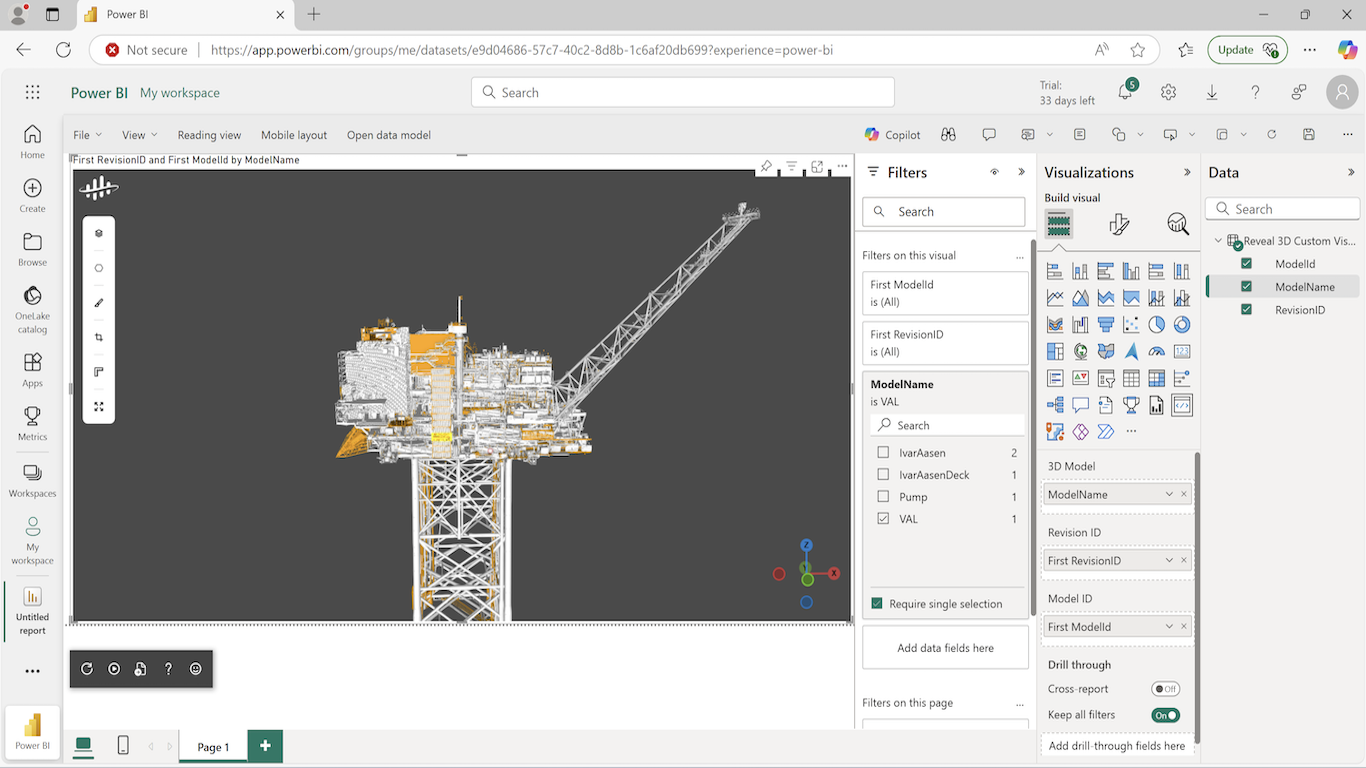
From the Data pane, drag Model name, Model ID, and Revision ID to the visual’s Filters section.
2
Verify that the model loads
After binding the data, verify that the visual loads the specified 3D model in the viewer.
Step 6: Interact with the 3D viewer
Once a 3D model is loaded, you can navigate and interact with it using the viewer’s toolbar. Toolbar features- Filter the list of available 3D models
- Analyze and measure objects
- View node properties of the selected CAD model components
Troubleshooting
Find information to help you troubleshoot common issues.Token acquisition issues
Token acquisition issues
If the authentication fails or you cannot acquire a token:
1
Verify license permissions
Verify your CDF license includes token acquisition permissions.
2
Refresh your access token
Check if your access token has expired:
- Sign out of Power BI.
- Sign back in to generate a new token.
No data available
No data available
If the visual displays No data available:
1
Verify data set columns
Check that your data set includes Model ID and Revision ID columns.
2
Verify data binding
Ensure the data is bound to the visual.
Server errors
Server errors
If you see a server error message:
1
Check cluster status
Verify the CDF cluster is operational.
2
Re-authenticate with CDF
- Select Get Started in the visual.
- Enter your credentials again.