

Before you start
To complete the configuration, you need to be a network administrator or use infrastructure-as-code automation, with permission to create Azure private endpoints.Step 1: Request a Private Link connection alias from Cognite
1
Contact Cognite support
If you have purchased Private Link, contact Cognite customer support and request a Private Link connection alias for your CDF projects.
2
Note the alias
Make a note of the alias you receive from Cognite. It’ll look similar to this:
cdf-api.361db72b-......-52a2bf4c6832.westeurope.azure.privatelinkserviceStep 2: Create a private endpoint in Azure
1
Create a private endpoint
Follow the Azure documentation to create a private endpoint.
2
Enter the connection alias
When prompted, select Connect to an Azure resource by resource ID or alias, and enter the connection alias you received from Cognite.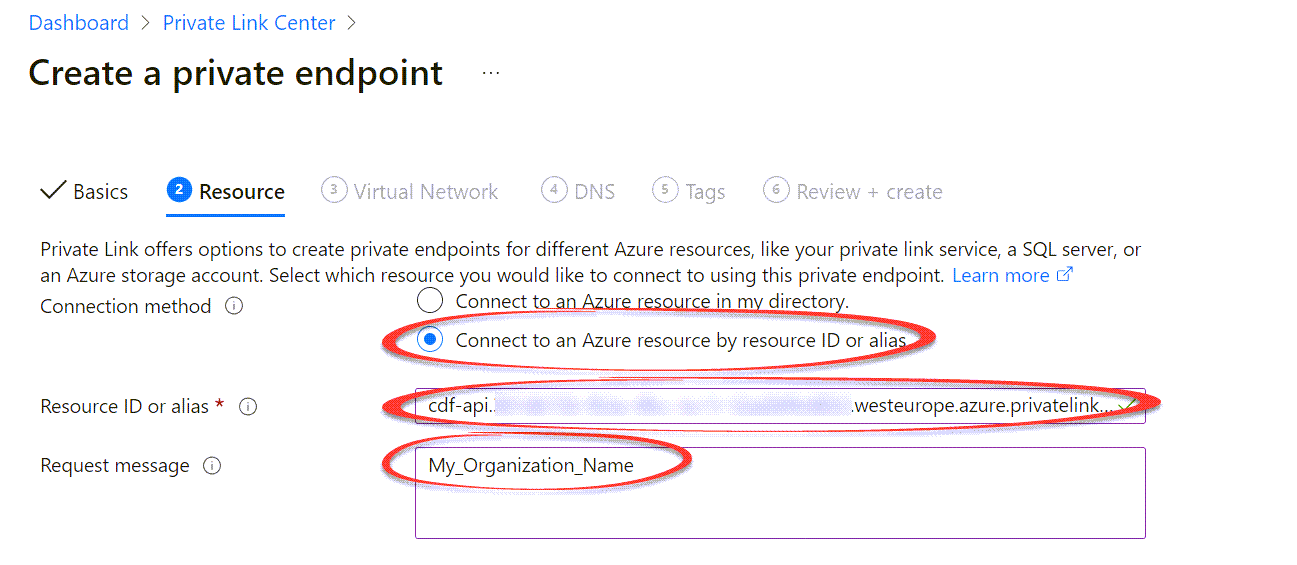
3
Enter the organization name
For Request message, enter the name of your CDF organization.
4
Complete configuration
Fill in the remaining information according to your organization’s preferences to create the private endpoint.
Step 3: Provide the private endpoint details to Cognite
Contact Cognite customer support and provide the private endpoint details to configure your CDF projects:- The Resource GUID of the private endpoint:
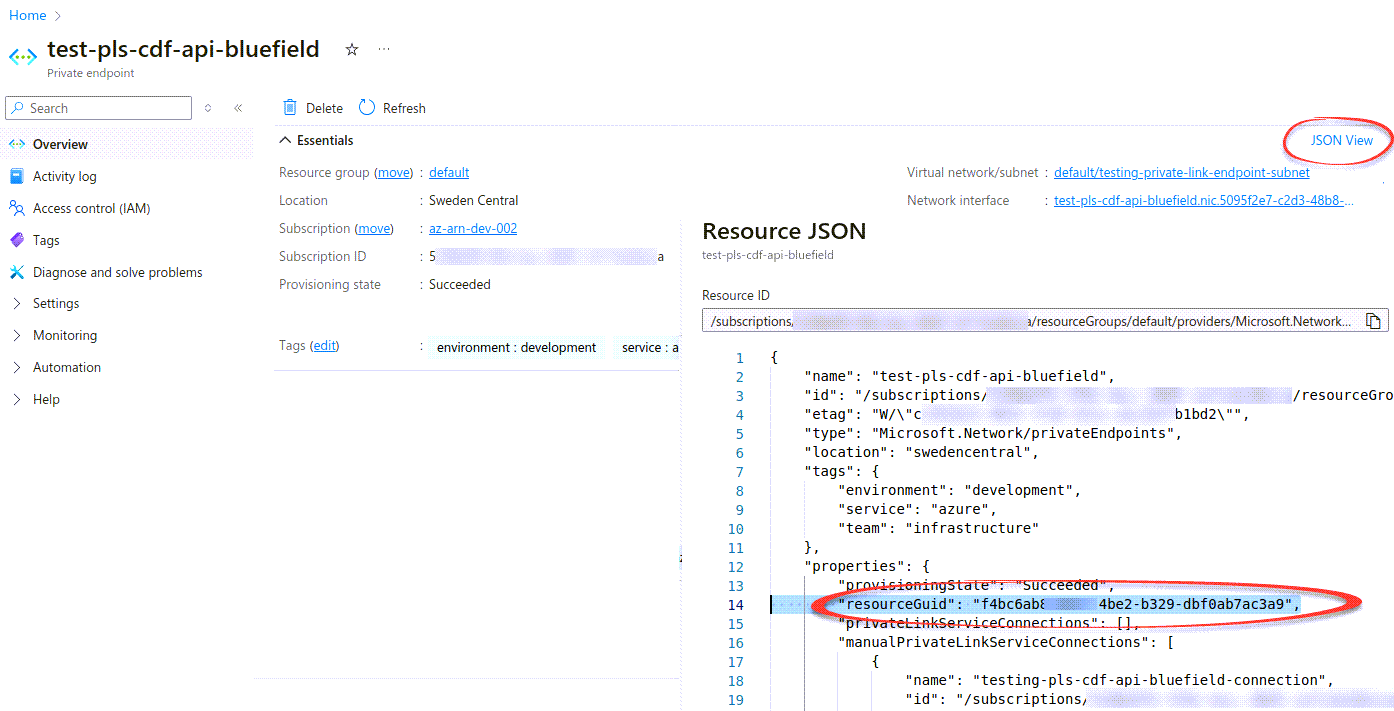
- The Private IPv4 address of the private endpoint network interface controller (NIC):
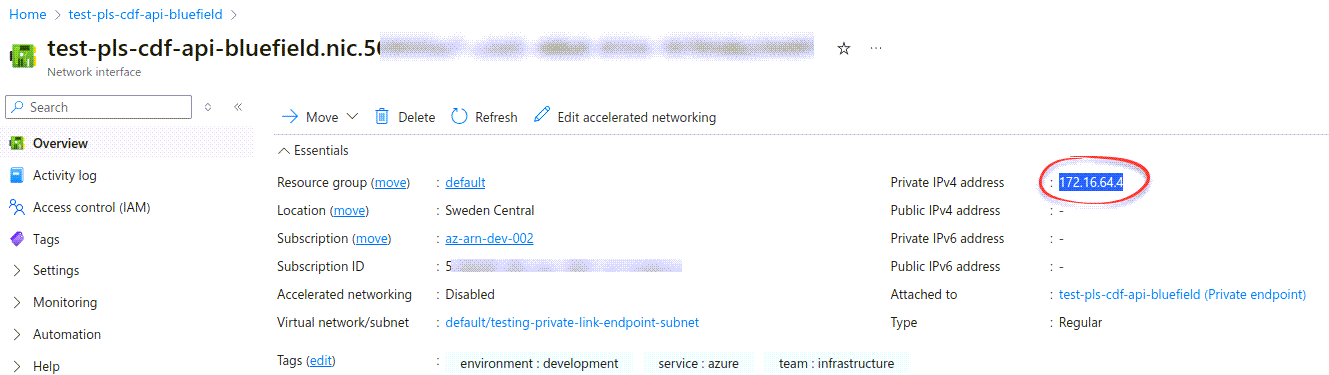
Step 4: Receive the base URL from Cognite
1
Copy the base URL
Make a note of the base URL you receive from Cognite. It’ll be in this format:
pNNN.plink.<cluster>.cognitedata.com2
Register the Cognite API and applications
Use the base URL to register the Cognite API and applications and to register and configure other applications and components.