cdf repo init. GitHub runs workflow files in .github/workflows/ after you commit them.
Prerequisites:
- A GitHub repository for the Cognite Toolkit project
- A Cognite Data Fusion (CDF) project with authentication configured
- The Cognite Toolkit installed and configured locally
Add workflows to your repository
1
Generate workflow files
In a terminal, run these commands and select GitHub Actions as the CI/CD provider:The command creates example deploy and dry-run workflows in
.github/workflows. Adapt the generated files to your branches and CDF environments. Pin the Cognite Toolkit version to [modules].version in cdf.toml.2
Adapt and commit the workflows
Use the Create a pull request to merge the branch into
on: section to specify when each workflow should run. The starter deploy workflow runs on every push to main. Protect main so that changes go through a pull request.You can add workflow_dispatch to trigger a workflow manually. See GitHub’s Events that trigger workflows.Use cdf build or cdf deploy --dry-run on pull requests to validate modules before merge.The environment property on a job lets you keep different variables and secrets for each CDF environment (for example, dev, test, prod). You can add flags such as --verbose to cdf build and cdf deploy.main.Add environment variables and secrets
1
Set up environment variables and secrets
To use the GitHub Actions, set up environment variables and secrets in your repository settings.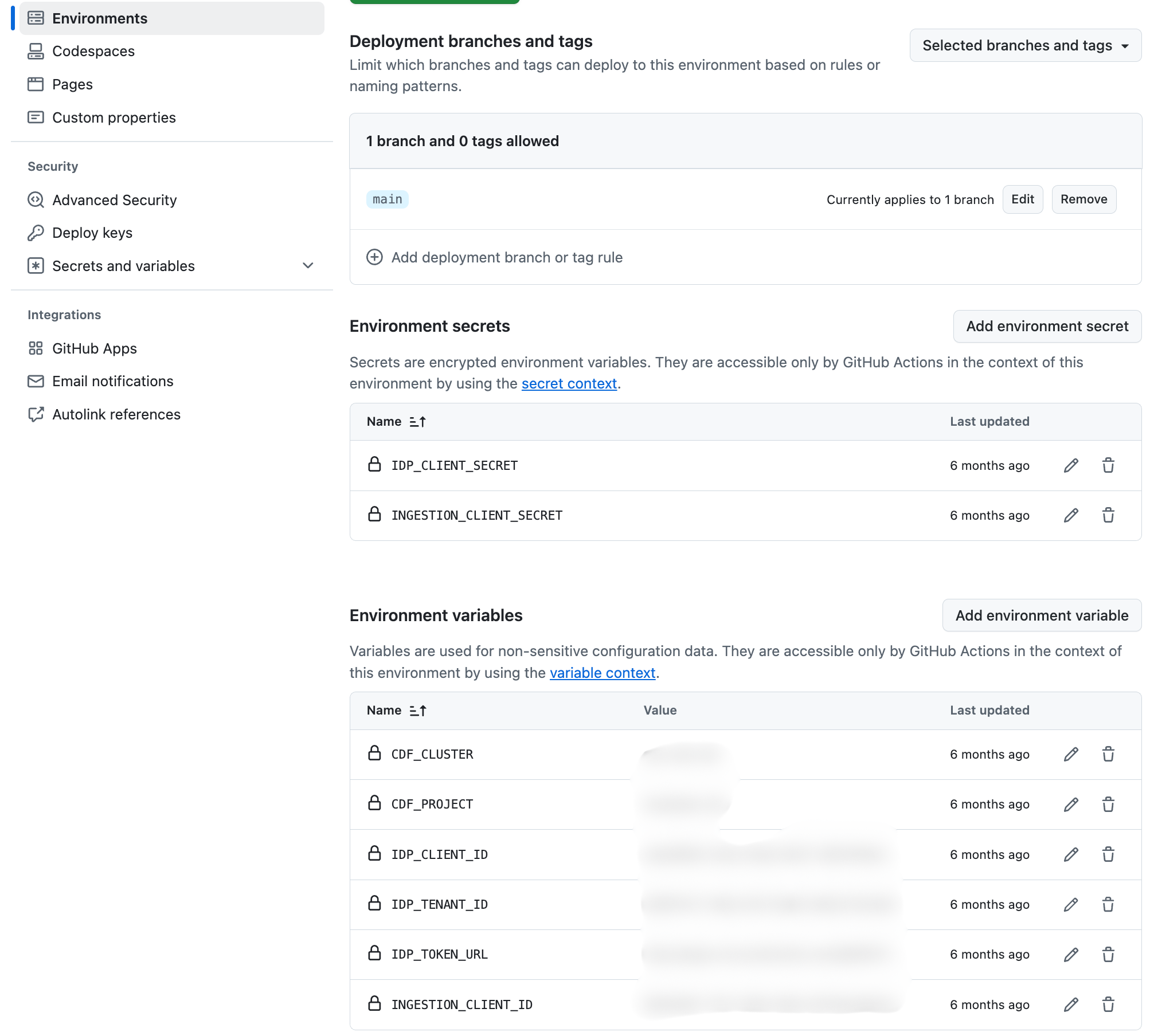 The workflow reads these values. Environment variables (for example
${{ vars.CDF_CLUSTER }}) are visible to anyone with access to the repository. Secrets (for example ${{ secrets.IDP_CLIENT_SECRET }}) are encrypted and only available to the workflow.A standard client credentials flow requires these environment variables and secrets:VariablesCDF_CLUSTERCDF_PROJECTLOGIN_FLOW(client_credentials)IDP_CLIENT_IDIDP_TENANT_IDIDP_TOKEN_URL(only if you are not using Microsoft Entra ID)
IDP_CLIENT_SECRET
View workflow run details
1
View workflow run details
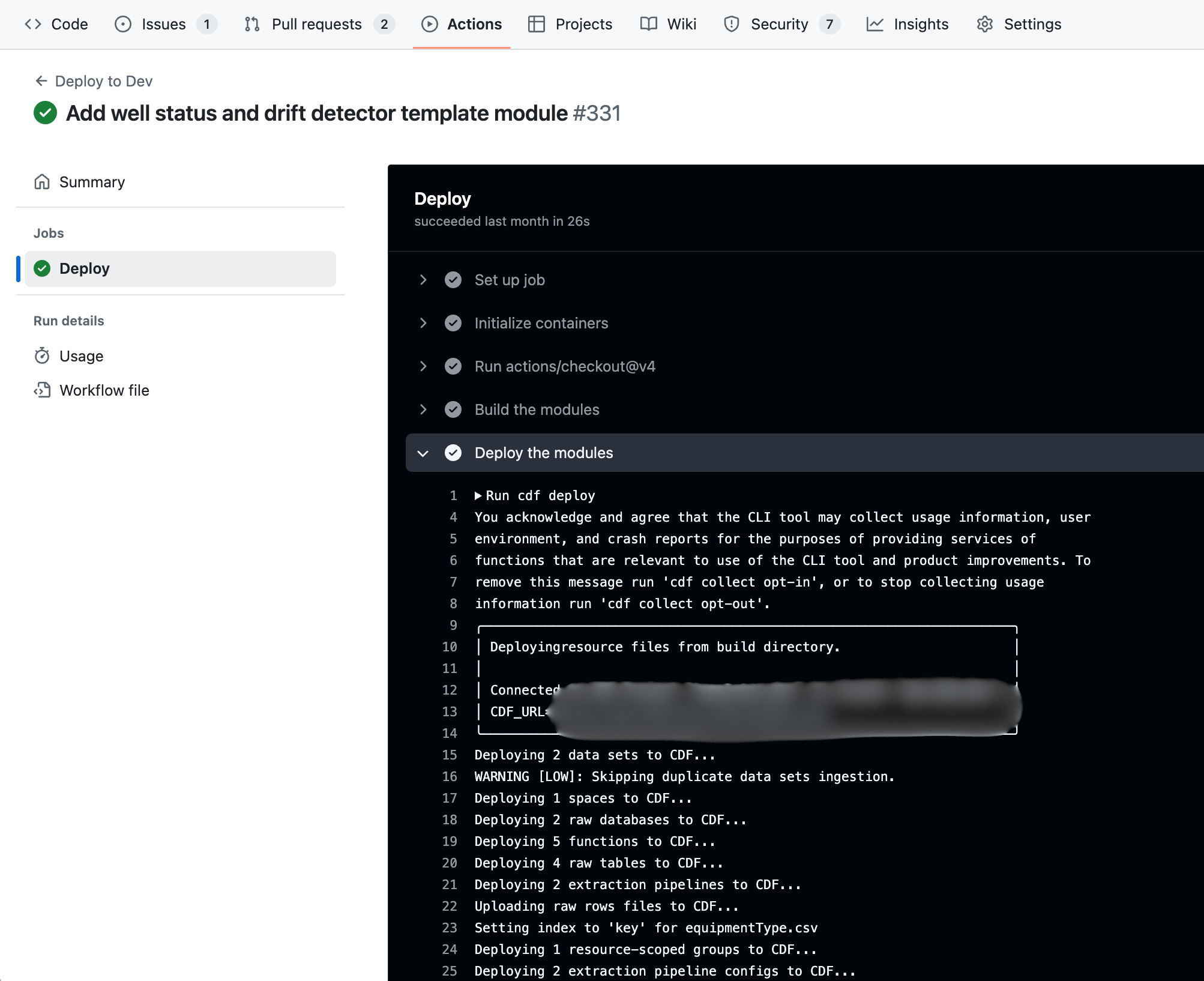
You can see the status of each run and step in the Actions tab of your repository. Open a step to see the logs.