

- Access to an Azure DevOps project with pipeline creation permissions
- A Cognite Data Fusion (CDF) project with authentication configured for the Cognite Toolkit
- The Cognite Toolkit installed and configured locally
- A Git repository connected to Azure DevOps
Add pipelines to your repository
1
Generate pipeline configuration files
In a terminal, run these commands and select Azure DevOps as the CI/CD provider to create a folder with example pipelines:The command writes the example pipelines to
.devops. Adapt the generated files to your branches and CDF environments. Pin the Cognite Toolkit version to [modules].version in cdf.toml.2
Customize and commit the pipelines
Adapt the pipelines to your needs, and then commit the changes to a new branch and push it to your repository:
3
Create a pull request
Create a pull request to merge the
add-ado-pipelines branch into main.After merging, the
.devops folder with pipeline configuration files is available in your main branch.Enable pull request validation (CI)
Automatic validation ensures that modules are valid before merging pull requests into the main branch.1
Create a dry-run pipeline
- In your DevOps project, navigate to Pipelines.
- Select New pipeline.
- Select the repository you pushed the changes to.
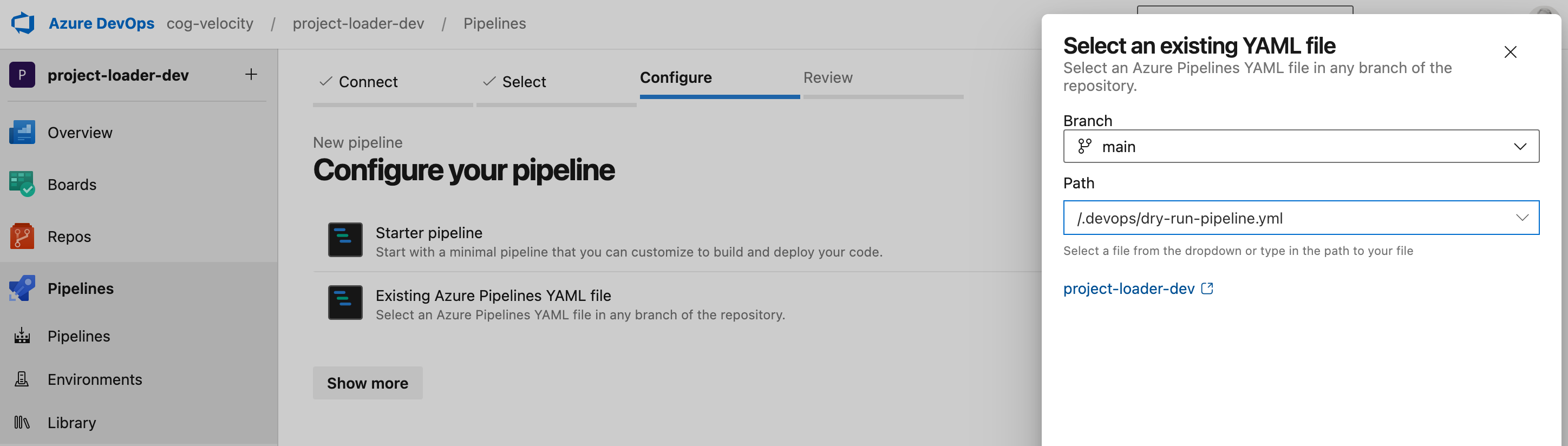
- Select Existing Azure Pipelines YAML file and specify:
- Branch: main
- Path:
./.devops/dry-run-pipeline.yml
- Select Save (alternative to the Run button).
- In the pipeline overview, click the three dots and select Rename/move to set a descriptive name, for example “Pull request checks”.
2
Create variable groups for the dev environment
- In your DevOps project, navigate to Pipelines > Library.
- Select + Variable group.
-
Create a variable group with the name
dev-toolkit-credentials. - Select Pipeline permissions and grant access to the pipelines that should use these credentials.
-
Add these variables with the correct values for your environment:
CDF_CLUSTER— your CDF cluster (for example,westeurope-1)CDF_PROJECT— your CDF project nameLOGIN_FLOW— set toclient_credentialsIDP_CLIENT_ID— your application client IDIDP_TENANT_ID— your Microsoft Entra ID tenant IDIDP_CLIENT_SECRET— your client secret (important: mark as secret using the padlock icon)IDP_TOKEN_URL— only if you are not using Microsoft Entra ID
3
Add the pipeline to branch policy
- In your DevOps project, navigate to Repos > Branches.
- Click the three dots next to the
mainbranch and select Branch policies. - Under Build Validation, click the
+button. - Select the dry-run pipeline you created.
- Set the minimum number of reviewers to 1.
All new pull requests now require a successful build and dry-run before merging.
Set up automatic deployment (CD)
Automatically deploy modules when changes are pushed to the main branch.1
Create a deployment pipeline
- In your DevOps project, navigate to Pipelines.
- Select New pipeline.
- Select your repository.
- Select Existing Azure Pipelines YAML file and specify:
- Branch: main
- Path:
./.devops/deploy-pipeline.yml
- Select Save (alternative to the Run button).
2
Create variable groups for the target environment
- In your DevOps project, navigate to Pipelines > Library.
- Select + Variable group.
-
Create a variable group with the name
<environment>-toolkit-credentials(e.g.,prod-toolkit-credentialsfor production). - Select Pipeline permissions and grant access to the deployment pipeline.
-
Add these variables with the correct values for your target environment:
CDF_CLUSTER— your CDF clusterCDF_PROJECT— your CDF project nameLOGIN_FLOW— set toclient_credentialsIDP_CLIENT_ID— your application client IDIDP_TENANT_ID— your Microsoft Entra ID tenant IDIDP_CLIENT_SECRET— your client secret (important: mark as secret using the padlock icon)IDP_TOKEN_URL— only if you are not using Microsoft Entra ID
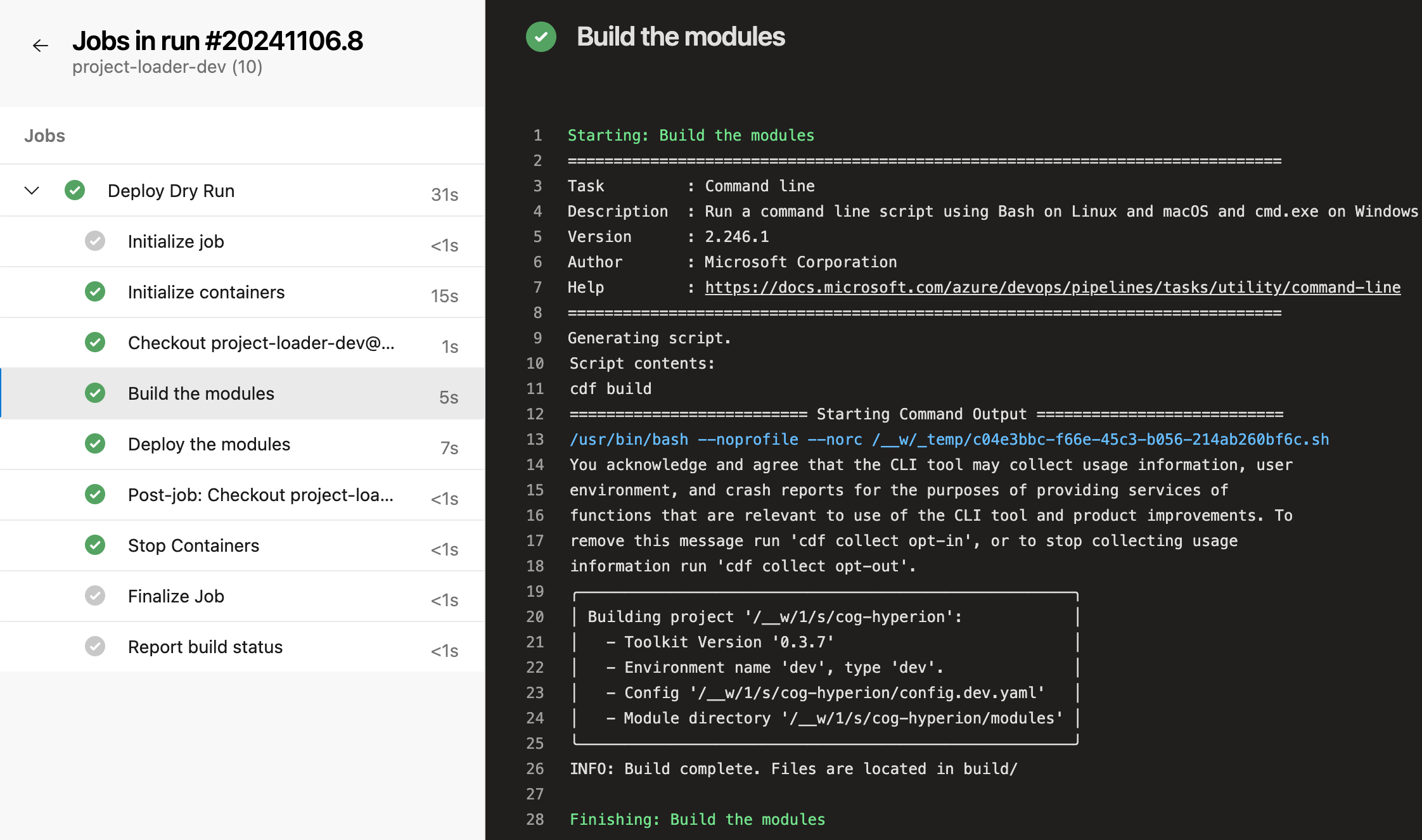
The pipeline now automatically deploys modules when changes are pushed to the main branch.
Troubleshooting
OAuth 2 MUST utilize https error
Error message:IDP_TOKEN_URL which must use HTTPS.