

This is the documentation MCP server. To give an AI tool access to industrial data in your CDF project, see Adding Industrial MCP to an AI tool.
Connect to the Model Context Protocol (MCP) server
The Model Context Protocol is an open standard that allows AI assistants to securely access external data sources and tools. To connect your IDE to Cognite’s MCP server:1
Access the MCP menu
Click the Copy MCP Server button at the top right of any documentation page. This opens a dropdown menu with connection options.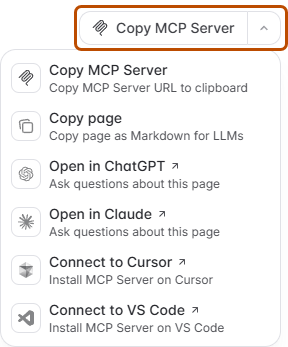
2
Choose your connection method
The dropdown menu provides several options:
- Cursor / VS Code
- Other tools
Click Connect to Cursor or Connect to VS Code to automatically configure the MCP server in your IDE.
3
Test the connection
After configuration, verify your AI-powered development tool can access Cognite documentation by asking it questions like:
- “What authentication methods does CDF support?”
- “Show me how to create a data model in Python.”
- “What are the rate limits for the CDF API?”
If your AI assistant provides specific, accurate answers with references to current documentation, your integration is working correctly.
Troubleshooting MCP server connection
My AI assistant doesn't respond to documentation questions
My AI assistant doesn't respond to documentation questions
Verify that the MCP server is properly configured:
- Check your IDE’s MCP server settings to confirm the Cognite server URL is listed.
- Restart your IDE after adding the MCP server.
- Ensure you’re connected to the internet (the MCP server requires network access).
- Try asking a simple, direct question like “What is CDF?” to test basic connectivity.
Automatic configuration fails for Cursor or VS Code
Automatic configuration fails for Cursor or VS Code
If the automatic setup doesn’t work:
- Use the manual configuration option from the “Other tools” tab.
- Verify you have the latest version of your IDE.
- Check that your IDE has permissions to modify configuration files.
- Manually add the MCP server URL to your IDE’s settings file (refer to your IDE’s MCP documentation).
Connection works but responses seem outdated
Connection works but responses seem outdated
The MCP server provides real-time access to documentation. If responses seem outdated:
- The documentation may not have been updated yet for the feature you’re asking about.
- Try being more specific in your questions.
- Verify which version of CDF or which product area you’re asking about.
- Check the documentation directly to compare information.
Install the SKILL.md capability file
The Agent Skills specification is a machine-readable format that describes what AI agents can accomplish with your product. Cognite automatically generates and maintains a SKILL.md file by analyzing our documentation. The file is discoverable through the Well-Known Uniform Resource Identifiers standard.- CLI installation
- Manual installation
1
Install the skill using the CLI
Run the following command to automatically discover and install Cognite’s SKILL.md file:The CLI automatically finds the SKILL.md file without needing to know the exact file path.
2
Select your AI tools
Choose to install the SKILL.md file for all tools at once or select specific ones.
Cognite updates the skill file with each documentation deployment. To get the latest version, re-run
npx skills add https://docs.cognite.com or integrate the command into your CI/CD pipeline for automatic updates.3
Verify enhanced assistance
Test that your AI-powered development tool understands CDF’s capabilities by asking questions like:
- “What can I do with Cognite Data Fusion?”
- “What inputs are required to create a transformation?”
- “What are common workflows for industrial data modeling?”
If your AI-powered development tool provides capability-aware responses that understand CDF’s feature set, the SKILL.md integration is working correctly.
Troubleshooting SKILL.md installation
'npx: command not found' or 'skills: command not found'
'npx: command not found' or 'skills: command not found'
This indicates Node.js or npm is not installed or not in your PATH:
- Install Node.js from the official download page (includes npm and npx).
- After installation, restart your terminal.
- Verify installation by running
node --versionandnpm --version. - Try the
npx skills addcommand again.
CLI reports 'No compatible tools detected'
CLI reports 'No compatible tools detected'
The CLI couldn’t find supported AI tools on your system:
- Ensure you have at least one compatible tool installed (Cursor, Claude Desktop, Windsurf, VS Code with Copilot).
- Verify the tool is properly installed and has been launched at least once.
- Check that the tool’s configuration directory exists in your home directory.
- You can still manually download the SKILL.md file from docs.cognite.com/skill.md and add it to your tool’s configuration.
Installation succeeds but AI doesn't understand CDF capabilities
Installation succeeds but AI doesn't understand CDF capabilities
The skill may not be loaded by your AI tool:
- Restart your AI tool after installation.
- Verify the skill file was installed by checking your tool’s skills directory.
- Some tools require explicit skill activation - check your tool’s documentation.
- Try asking explicitly: “What skills are available?” or “What is in the Cognite skill?”
- The skill describes capabilities but doesn’t replace the MCP server for detailed documentation queries.
How do I update to the latest SKILL.md version?
How do I update to the latest SKILL.md version?
To update your installed skill:
- Run
npx skills add https://docs.cognite.comagain (it will update existing installations). - Restart your AI tool to load the updated skill.
- For automated updates, add the command to your development environment setup script or CI/CD pipeline:
Privacy and security
Data privacy: Both the MCP server and SKILL.md file are read-only and provide access only to public documentation. They do not access your code, CDF projects, or any private data.
MCP server security
The MCP server provides read-only access to public Cognite documentation content, API reference specifications, and code examples. It operates with direct IDE integration without sharing your data with external services. The server does not access your source code, CDF projects, development environment, or API keys. It cannot execute code on your machine and serves only as a documentation lookup tool for your AI assistant.SKILL.md security
The SKILL.md file contains capability descriptions, required parameters, and common workflow patterns. It’s automatically generated from public documentation and provides your AI assistant with structured information about what CDF can do. The file does not contain executable code, scripts, or access to your projects or data. No credentials or sensitive information are included. Your AI agent may implement additional protections like sandboxing, confirmation prompts, and usage logging when working with skills.Next steps
- Adding Industrial MCP to an AI tool — Connect an AI tool to industrial data in your CDF project.
- Development quickstart — Start building with the CDF API using your newly connected tools.
- Python SDK — Begin integrating CDF with AI-assisted Python development.