

This guide describes diagram parsing for asset-centric resources. Asset-centric support in the diagram detect and convert endpoints is deprecated. Reference files with
fileInstanceId and store results in the core data model. See Diagram parsing for data modeling and Deprecated and retired features.- Tag type Diagrams: Tags to other engineering diagrams.
- Tag type Assets: Tags to other assets in CDF.
- Tag type Unlinked: Tags that are already manually linked to other resources.
Create interactive diagrams
1
Navigate to diagram parsing
Navigate to Data fusion > Contextualize > Diagram parsing.
2
Create interactive diagrams
Select Create interactive diagrams.
3
Select diagrams
Select the diagrams that you want to make interactive.You can filter the diagrams by Name, Data set, Label, or File type, such as PDF. For assets, you can also filter by Root asset.
4
Continue to next step
Select Next step to continue.
5
Optional. Link to other diagrams
Select the diagrams you want to link your diagrams to and select Next step.
6
Link to assets
Select the assets you want to link your diagrams to and select Next step. This limits the matching to assets from the same plant or unit as the selected diagrams.
7
Select contextualization model
Select a contextualization model: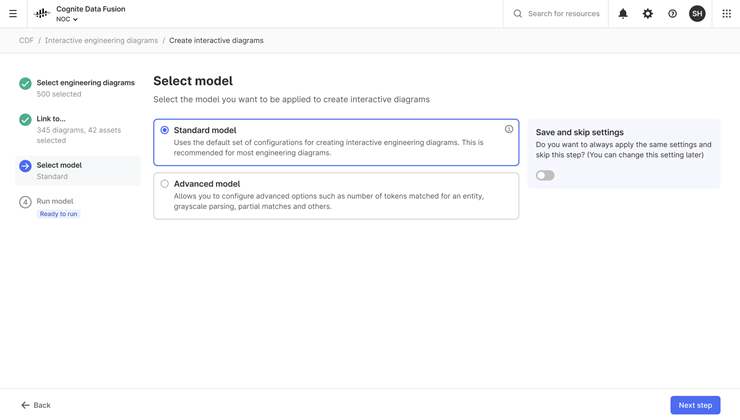
- The Standard model is selected by default as this model is recommended for most engineering diagrams.
- The Advanced model lets you configure options such as the number of tokens matched for an entity, partial matches, and field matching.
8
Continue and run model
Select Next step.Select Run model.
9
Review and approve results
Review the result of the model - newly detected tags on the interactive diagrams.Select Approve all, Preview all, or select a diagram to review it individually.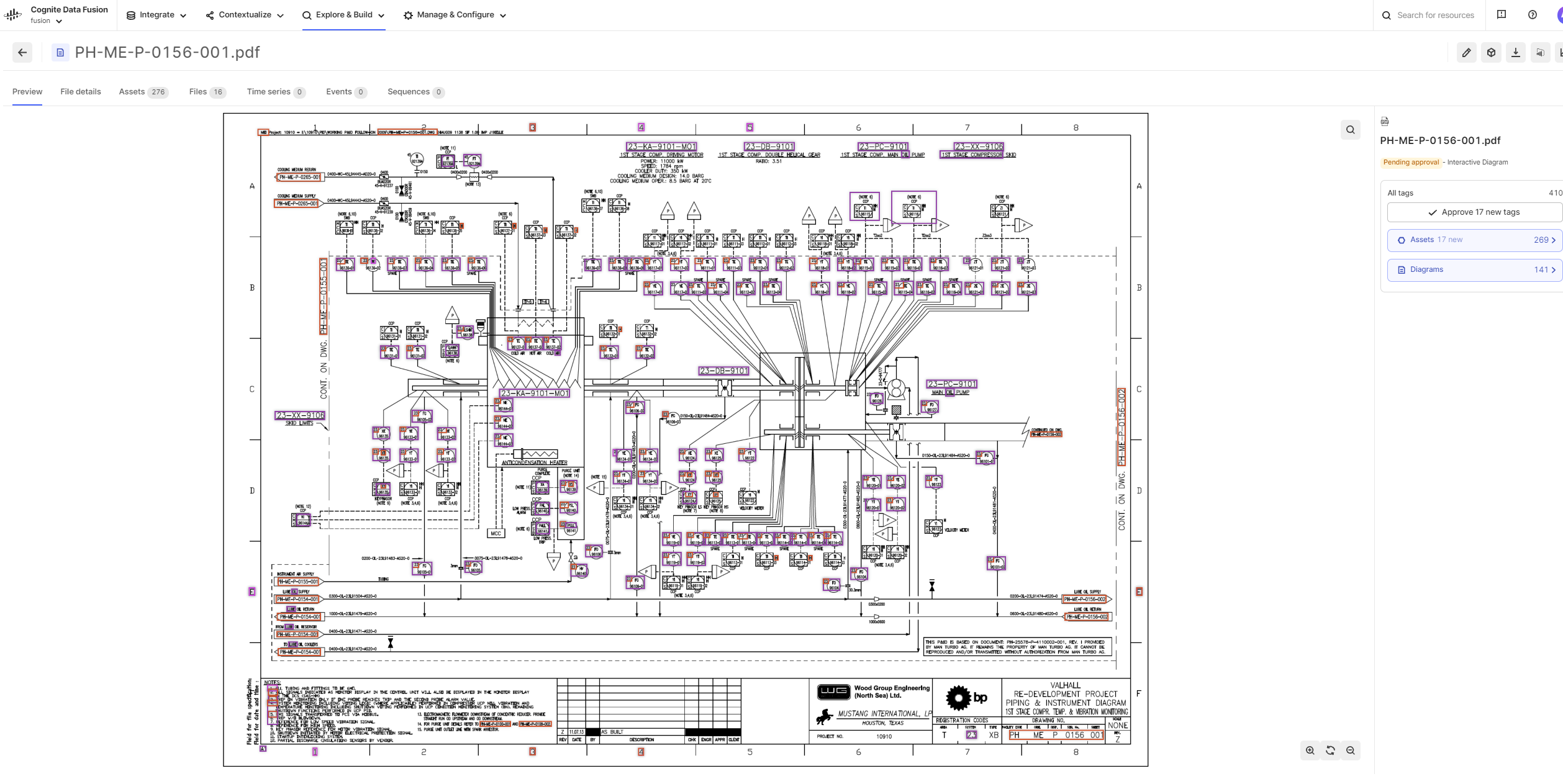
Approve or reject detected tags
1
Select detected tag
Select the bounding box around the detected tag in the diagram.
2
Approve or reject
Select Approve tag or Reject tag.
3
Save changes
Select Save.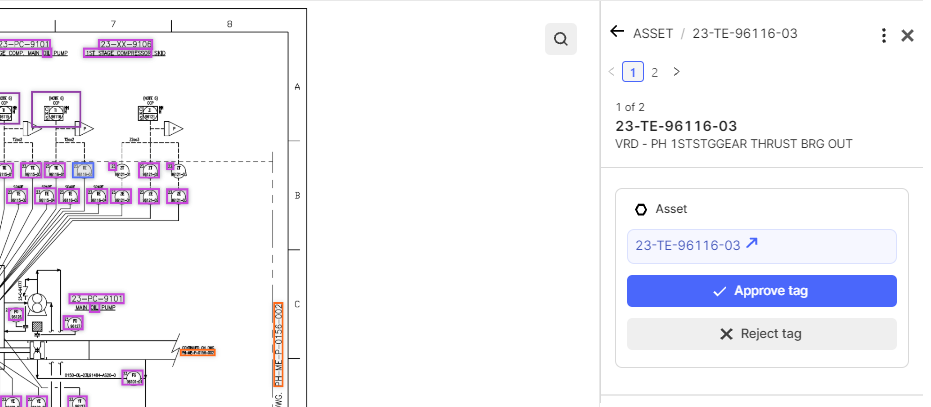
1
Select diagram
Select a diagram to review it individually.
2
Select tag type
If the diagram has tags, select Asset or Diagram on the right sidebar to review them.
3
Select pending tag
Select the pending tag - outlined in blue.
4
Select specific tag
Select the tag you want to review.
5
Approve or reject
Select Approve tag or Reject tag.
6
Save changes
Select Save.
Add new tags
1
Open edit mode
Select the pencil icon to open edit mode.
2
Draw bounding box
Use the mouse pointer to draw a bounding box around the tag you want to add.
3
Link to CDF resource
Select Add manually and select the CDF resource in the list you want to link to.
4
Save the tag
Select Save.
Review engineering diagrams pending approval
You can filter the diagrams that are pending approval by Name, Data set, or File type.1
Open diagram options
Select the More options icon on the diagram.
2
Choose action
Select Recontextualize diagram, Approve pending tags, Reject pending tags, or Clear all tags on the diagram. If you select Recontextualize diagram, you restart the process.
Save diagrams as SVG
1
Open save options
Select More options icon or select Save as SVG button.
2
Configure file names
You can save the files as SVG with the same names or specify a prefix.
3
Save the files
Select Save files.