> ## Documentation Index
> Fetch the complete documentation index at: https://docs.cognite.com/llms.txt
> Use this file to discover all available pages before exploring further.
# Jupyter Notebook
> Jupyter Notebook is integrated with Cognite Data Fusion (CDF) and you can create interactive notebook documents that can contain live code, equations, visualizations, and media.
**Public preview:** The features described in this section are in [public preview](/cdf/product_feature_status#public-preview) and may change.
You can store the notebooks permanently or temporarily:
* **Permanently** — all files are stored in Cognite Data Fusion and you can share them with other users. You can't change the default files and folders.
* **Temporarily** — all files are stored temporarily in your browser. Save your notebooks externally to avoid losing them when clearing the browser cache.
All notebooks operate in a secure and private sandbox environment and have no direct access to your computer.
To learn more, refer to the [Getting started guide for JupyterLab](https://jupyterlab.readthedocs.io/en/latest/getting_started/overview.html).
## Create a notebook and store it permanently
To create a notebook and store it **permanently**:
Navigate to Data fusion > Build solutions > Jupyter Notebook.
In the Stored in Cognite Data Fusion section, select the **Notebooks** folder, and then select the data set folder you want to work with.
Each sub-folder in the **Notebooks** folder is mapped to a [data set](/cdf/data_governance/concepts/datasets) that you need `read`/`write` access to. Only data sets where you have the proper access level will be listed. If the **Notebooks** folder is empty, request the necessary capabilities and [create a data set](/cdf/data_governance/guides/datasets/create_data_sets) to add your folder.
Select **+** and select the notebook Python file (.ipynb).
Save the changes before leaving Jupyter Notebook.
Each Python file (.ipynb) has an authentication helper to run the code with the current user's credentials, ensuring that they can work with data relevant to their role and projects.
```python theme={"languages":{"custom":["/_languages/kuiper.json","../_languages/kuiper.json"]}}
from cognite.client import CogniteClient
# Authenticate under current user credentials
client = CogniteClient()
```
If several users are working on the same file, Jupyter Notebook doesn't resolve conflicts and you risk losing changes.
Only files with the *.ipynb* extension are saved in Cognite Data Fusion. Other file types are deleted when you leave Jupyter Notebook.
## Create a notebook and store it temporarily
To create a notebook and store it **temporarily**:
Navigate to Data fusion > Build solutions > Jupyter Notebook.
On the starting page, select **+** and select the file to create.
Save the changes before leaving Jupyter Notebook.
Each Python file (.ipynb) has an authentication helper to run the code with the current user's credentials, ensuring that they can work with data relevant to their role and projects.
```python theme={"languages":{"custom":["/_languages/kuiper.json","../_languages/kuiper.json"]}}
from cognite.client import CogniteClient
# Authenticate under current user credentials
client = CogniteClient()
```
If several users are working on the same file, Jupyter Notebook doesn't solve conflicts and you risk losing changes.
## AI in code
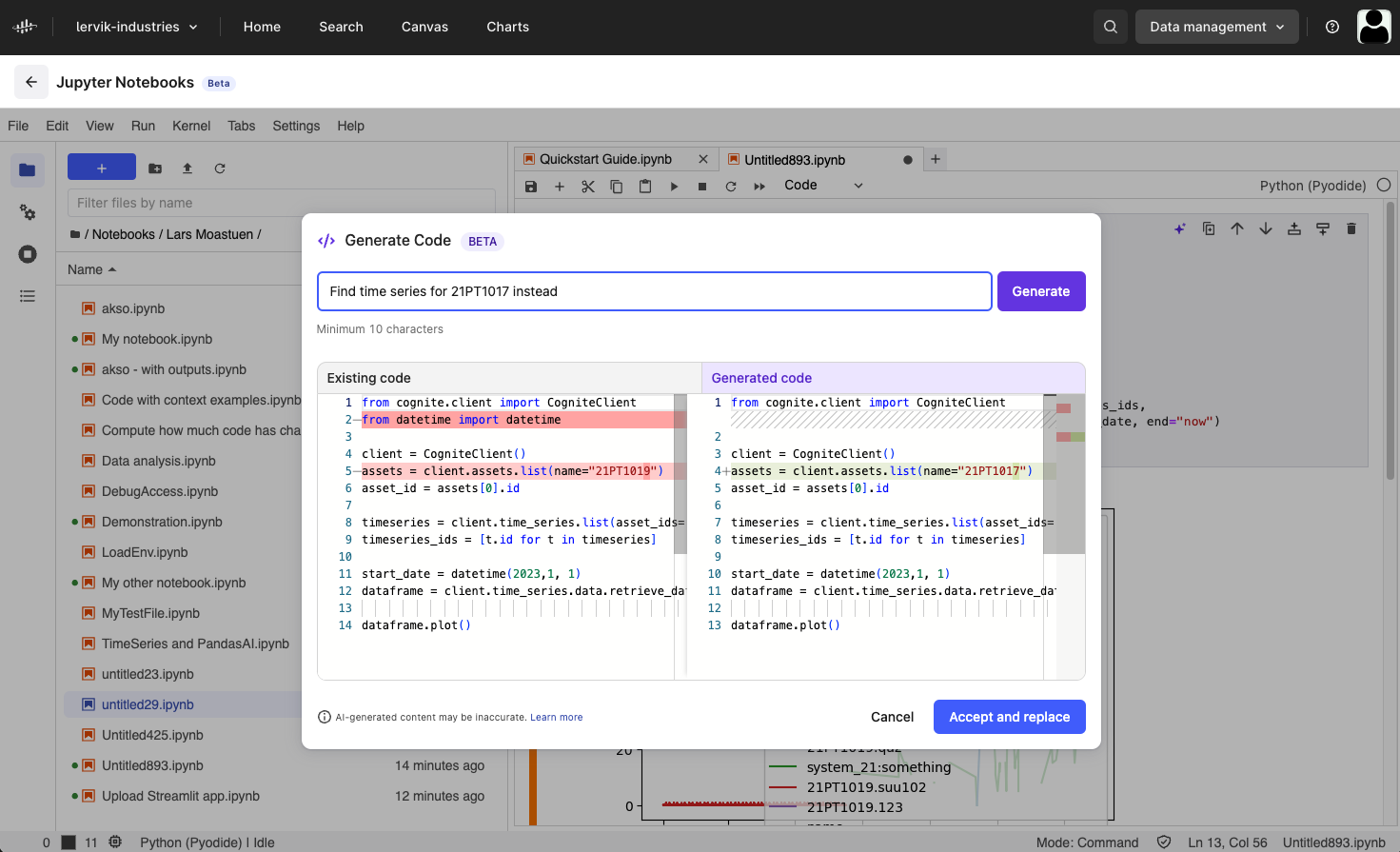
AI is integrated into Jupyter Notebook. It uses the Cognite Python SDK to help streamline your data analysis and engineering tasks.
You can use AI to:
* **Generate code snippets** — input your coding intentions in natural language to generate Python code snippets based on your description.
* **Change existing code** — change and improve the existing code with suggestions from AI.
Using AI doesn't guarantee that the code is error-free or that the answers are always accurate. To make sure the information you receive is accurate:
* Verify the source of the answers to make sure it's correct.
* Check the code just like you do with code written by engineers.
* Use clear instructions and code commands, for example, "Find P90 values for Dataframe rows."
* Split complex tasks, for example, have one small task per cell.
* Use the Cognite Data Fusion terminology.
To learn how AI complies with the existing privacy, security and compliance commitments, refer to the [Trust and security](/cdf/trust/index#cognite-ai) article.
### Use AI
In the notebooks with the *.ipynb* extension, select AI in the first empty cell or a cell with existing code > Generate code.
Write a short instruction prompt and select Generate.
AI has access to code in other cells and can understand what variables and functions you have in scope. You can also use it to update the code already in the cell.
 ## Limitations
The Jupyter Notebook environment in Cognite Data Fusion has these limitations:
* **Python package compatibility** — only packages written in Python are supported. The `Can't find a pure Python 3 wheel for ‘\’` error indicates that a package relies on native libraries incompatible with Pyodide. For more details and workarounds, refer to the [Pyodide documentation](https://pyodide.org/en/stable/index.html).
* **Network restrictions** — the browser environment limits network access due to cross-origin resource sharing (CORS) policies. This can affect the access to external data sources and services.
* **Hardware constraints** — your device's hardware resources can limit browser-based environments. This includes access to graphics processing units (GPUs) and constraints on available memory and processing power.
* **Execution limitations** — the platform doesn't support long-running processes, and users can't interrupt the execution of notebook cells once they've started. This can affect the management and control of running code.
* **Concurrency and timing** — multithreading isn't supported. Also, certain functions, such as `sleep()`, may not perform as expected under Pyodide.
* **Allowlist domains** — Jupyter Notebook requires access to CDNs for Python packages. Organizations with firewalls that block specific traffic, may need to [allow access to specific domains](/cdf/admin/allowlist).
## Limitations
The Jupyter Notebook environment in Cognite Data Fusion has these limitations:
* **Python package compatibility** — only packages written in Python are supported. The `Can't find a pure Python 3 wheel for ‘\’` error indicates that a package relies on native libraries incompatible with Pyodide. For more details and workarounds, refer to the [Pyodide documentation](https://pyodide.org/en/stable/index.html).
* **Network restrictions** — the browser environment limits network access due to cross-origin resource sharing (CORS) policies. This can affect the access to external data sources and services.
* **Hardware constraints** — your device's hardware resources can limit browser-based environments. This includes access to graphics processing units (GPUs) and constraints on available memory and processing power.
* **Execution limitations** — the platform doesn't support long-running processes, and users can't interrupt the execution of notebook cells once they've started. This can affect the management and control of running code.
* **Concurrency and timing** — multithreading isn't supported. Also, certain functions, such as `sleep()`, may not perform as expected under Pyodide.
* **Allowlist domains** — Jupyter Notebook requires access to CDNs for Python packages. Organizations with firewalls that block specific traffic, may need to [allow access to specific domains](/cdf/admin/allowlist).