> ## Documentation Index
> Fetch the complete documentation index at: https://docs.cognite.com/llms.txt
> Use this file to discover all available pages before exploring further.

# Set up extraction pipelines

> Create and configure extraction pipelines to monitor data integration into Cognite Data Fusion (CDF).

You need to add data set, name, and external ID on the **Create extraction pipeline** page. You can add or edit additional information later on the **Extraction pipelines overview** page.

## Before you start

* A [data set](/cdf/data_governance/guides/datasets/create_data_sets) must exist for the data you want to add to an extraction pipeline.

* Navigate to <span class="ui-element">Access</span> and set any of these capabilities for **users**, **extractors**, and **third-party actors**, such as GitHub Actions:

<table>
  <tr>
    <th>User</th>
    <th>Action</th>
    <th>Capability</th>
    <th>Description</th>
  </tr>

  <tr>
    <th rowspan="5">End-user</th>
    <td>Create and edit extraction pipelines</td>
    <td><code>extractionpipelines:write</code></td>
    <td>Gives access to create and edit individual pipelines and edit notification settings. Ensure that the pipeline has <code>read</code> access to the data set being used by the extraction pipeline.</td>
  </tr>

  <tr>
    <td>View extraction pipelines</td>
    <td><code>extractionpipelines:read</code></td>
    <td>Gives access to list and view metadata of the pipeline.</td>
  </tr>

  <tr>
    <td>Create and edit extraction configurations</td>
    <td><code>extractionconfigs:write</code></td>
    <td>Gives access to create and edit an extractor configuration in an extraction pipeline.</td>
  </tr>

  <tr>
    <td>View extraction configurations</td>
    <td><code>extractionconfigs:read</code></td>
    <td>Gives access to view an extractor configuration in an extraction pipeline.</td>
  </tr>

  <tr>
    <td>View extraction logs</td>
    <td><code>extractionruns:read</code></td>
    <td>Gives access to view run history reported by the extraction pipeline runs.</td>
  </tr>

  <tr>
    <th rowspan="2">Extractor</th>
    <td>Read extraction configurations</td>
    <td><code>extractionconfigs:read</code></td>
    <td>Gives access to read an extractor configuration from an extraction pipeline.</td>
  </tr>

  <tr>
    <td>Post extraction logs</td>
    <td><code>extractionruns:write</code></td>
    <td>Gives access to post run history reported by the extraction pipeline runs.</td>
  </tr>

  <tr>
    <th rowspan="2">Third-party actors</th>
    <td>Create and edit extraction pipelines</td>
    <td><code>extractionpipelines:write</code></td>
    <td>Gives access to create and edit individual pipelines and edit notification settings. Ensure that the pipeline has <code>read</code> access to the data set being used by the extraction pipeline.</td>
  </tr>

  <tr>
    <td>Create and edit extraction configurations</td>
    <td><code>extractionconfigs:write</code></td>
    <td>Gives access to create and edit the extractor configuration from an extraction pipeline.</td>
  </tr>
</table>

## Create extraction pipelines

<Steps>
  <Step title="Navigate to extraction pipelines">
    Navigate to <span class="ui-element">Data fusion</span> > <span class="ui-element">Integrate</span> > **Extraction pipelines**, or

    <span class="ui-element">Data fusion</span> > **Data catalog**. Then select a data set and open the **Lineage** tab to add a pipeline to the **selected data set**.
  </Step>

  <Step title="Create the pipeline">
    Select **Create extraction pipeline**, where you will be requested to fill in the mandatory fields for creating a pipeline.
  </Step>

  <Step title="Open pipeline overview">
    Select **Create** to open the **Extraction pipeline overview**. On this page, you can add additional information to give contexts and insights about the pipeline.

    <Check>
      You'll see successful or failed runs when the connected extractor starts ingesting data into CDF. See the extractors' configuration articles for setup.
    </Check>
  </Step>
</Steps>

## Enable email notifications

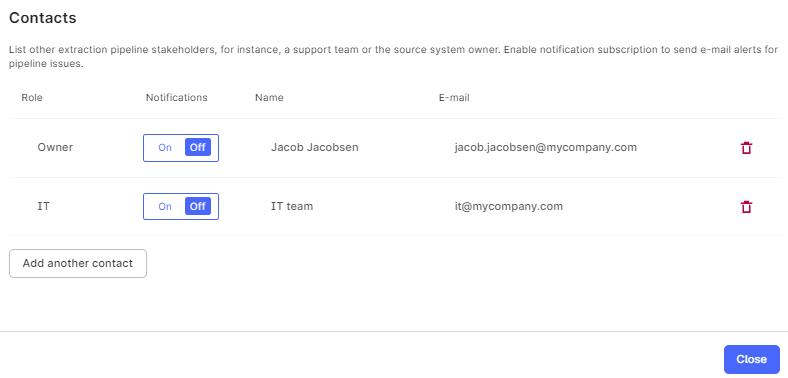
Data owners and other stakeholders can receive email notifications about the extraction pipeline runs. The notifications are triggered when an extraction pipeline reports a **failed run to CDF** or an extraction pipeline with continuous data flow **stops communicating** with CDF. The notification is sent when a predefined time condition is reached.

<Steps>
  <Step title="Add contact email">
    Under **Contacts**, enter the **email address** for the data owner.
  </Step>

  <Step title="Add additional contacts">
    Optionally, add other contacts for the extraction pipeline.
  </Step>

  <Step title="Enable notifications">
    Turn on the **Notification** toggle.
  </Step>

  <Step title="Confirm settings">
    Select **Confirm**.
  </Step>
</Steps>

<Frame>
  <img src="https://apps-cdn.cogniteapp.com/@cognite/docs-portal-images/1.0.0/images/cdf/integrations/interfaces/email_notifications.png" alt="Email notification settings showing contact fields and notification toggle" />
</Frame>

<Info>
  Email notifications are only sent when an extraction pipeline status changes state or CDF has not registered any communication with the pipeline after a predefined time condition. This is to prevent multiple emails for ongoing incidents.

  For new incidents, emails are only sent for the first reported failed run and when the incident is resolved. Multiple reported failures in succession are ignored.
</Info>

## Edit the extractor configuration file

When you set up the Cognite extractors, you must create a configuration file that fits your requirements. Refer to the [extractor documentation](/cdf/integration/concepts/extraction/index) for details.

You can create or edit the configuration in the **Configuration file for extractor** section to test and verify the settings, preferably in testing and staging environments. When applying the configuration to a production environment, we recommend setting up [remote configuration files](/cdf/integration/guides/interfaces/configure_integrations) stored in the cloud using versioned files and continuous integration systems, such as [GitHub Actions](https://github.com/cognitedata/upload-config-action), or directly with the [Cognite API](/api-reference/concepts/20230101/api-description).

<Steps>
  <Step title="Create or edit configuration">
    Select **Create configuration** to create a file or copy and paste an existing file onto the canvas.
  </Step>

  <Step title="Publish configuration">
    Make your changes and select **Publish** to save. The extractor now reads the configuration from CDF.
  </Step>

  <Step title="Test settings">
    Test and verify the changed settings in the upcoming extractor run.
  </Step>

  <Step title="Deploy to production">
    Deploy the changed settings in a production environment, for instance, by committing the configuration file to GitHub for versioning and a [continuous integration pipeline](/cdf/integration/guides/interfaces/configure_integrations) using GitHub Actions.
  </Step>
</Steps>

## Best practice for documenting extraction pipelines

It is good practice to enter comprehensive information about a pipeline to simplify troubleshooting and administration of pipelines. The minimum information you need to record is **Data set**, **Name**, and **External ID**.

Monitor the pipeline status by setting up **email notifications** for failed and interrupted pipelines and add **contact details** for the pipeline owner and other stakeholders. You'll find the switch for activating email notifications when you add a contact.

Select the **schedule** set up in the extractor to document how often the extractor is expected to update the data in CDF and check the **Last connected** to make sure CDF and the extractor are communicating. It's useful to record the **source system name** and the **RAW database tables** to keep track of where your data is extracted from and ingested into.

Information specific to your organization can be added using the metadata fields with key/value pairs.

You can **enter all contexts and other insights** about the pipeline to **speed up troubleshooting issues**. Enter free text using the **Documentation** field for this purpose. This is displayed as a ReadMe section on the **Extraction pipeline overview** page. Make sure to keep this content updated at all times. You can format the text using [Markdown](https://www.markdownguide.org/cheat-sheet).