> ## Documentation Index
> Fetch the complete documentation index at: https://docs.cognite.com/llms.txt
> Use this file to discover all available pages before exploring further.
# Set up the Studio for Petrel extractor
> Install and configure the Cognite Studio for Petrel extractor as a Windows service.
The Cognite Studio for Petrel extractor is distributed as a Windows installer (.msi file). When you run the .msi file, a setup wizard guides you through the installation process. The installer creates a Windows service and installs the binary files needed to run the extractor.
## Before you start
* Check the [server requirements](/cdf/integration/guides/extraction/petrel_studio/petrel_studio_requirements) for the extractor.
* Assign [access capabilities](/cdf/access/guides/capabilities#studio-for-petrel-extractor) in a Cognite Data Fusion (CDF) project.
You can use OpenID Connect and your existing identity provider (IdP) framework to manage access to CDF data securely. [Read more](/cdf/integration/guides/extraction/admin_oidc).
* Set up a Windows Update schedule. Note that the update may reboot the machine, causing extractor downtime.
## Install and configure the extractor
Navigate to Data fusion > Integrate > Extractors and download and run the latest Studio for Petrel extractor .msi file.
In the installation folder, you'll also find log files, caches, the configuration file, and local state databases to keep track of which data that's transferred. All relative paths you see in these articles are relative to this folder.
**Set modify permissions**: Set Modify permission under Properties in the installation folder to avoid permission issues.
Create a `config` folder within the installation folder.
Create a configuration file according to the [configuration settings](/cdf/integration/guides/extraction/petrel_studio/petrel_studio_configuration). The file must be in YAML format.
## Run as a Windows service
Start the Studio for Petrel extractor using the Windows service or with a command line:
```yml theme={"languages":{"custom":["/_languages/kuiper.json","../_languages/kuiper.json"]}}
net start ConnectorService
```
The Windows service is named **Connector**.
Check that the service is running properly. You should see the configuration directory structure:
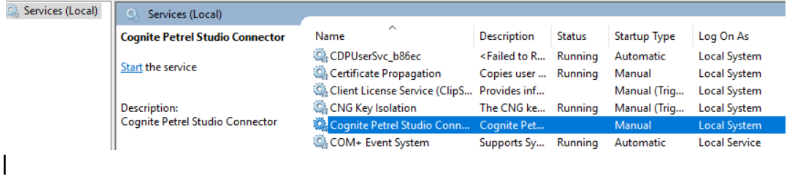 The logs from the extractor startup depend on the configuration but are similar to:
```yaml theme={"languages":{"custom":["/_languages/kuiper.json","../_languages/kuiper.json"]}}
[02:43:06.667 INF] Setup to read/persist list of last (object, version) checked against the API from/to 'state\api-version-cache.dat'
[02:43:09.782 INF] Preheating API version cache from state\api-version-cache.dat
[02:43:09.797 INF] Preheating cache with 14734 entries
[02:43:10.332 INF] Compatible Studio server installation found.
[02:43:20.716 INF] Repositories available on server petrel-studio-001.domain: COG_DEV, COG_INTEGRATION_TEST, TEST_CDF_DATA_XFER
[02:43:25.933 INF] Persisting objects to remote API for COG_DEV.
[02:43:25.933 INF] Processing repository 'COG_DEV'
```
The extractor sequentially checks all configured [repositories](/cdf/integration/guides/extraction/petrel_studio/petrel_studio_configuration#petrel-studio). Select the interval between iterations of rechecking repositories with the [`throttle-time`](/cdf/integration/guides/extraction/petrel_studio/petrel_studio_configuration#petrel-studio) configuration setting.
When stopping the service, this is logged as:
```yaml theme={"languages":{"custom":["/_languages/kuiper.json","../_languages/kuiper.json"]}}
[02:42:49.057 INF] Windows service signalled stop, stopping extractor.
[02:42:49.217 INF] Releasing licence.
[02:42:49.257 INF] Licence released.
```
## Run from a command line
You can run the extractor from a command line.
Navigate to the installation folder in a command line window.
Start the command line window as the user that normally runs the service. This triggers latent permission issues and avoids local permission issues when you want to create files inside the installation folder.
Run *Connector.exe*. The extractor reads and configures the extractor according to the configuration settings.
If you've configured the `log to file` parameter, the extractor logs to the command line window and the matching log under the `logs` folder.
## Check the extracted data
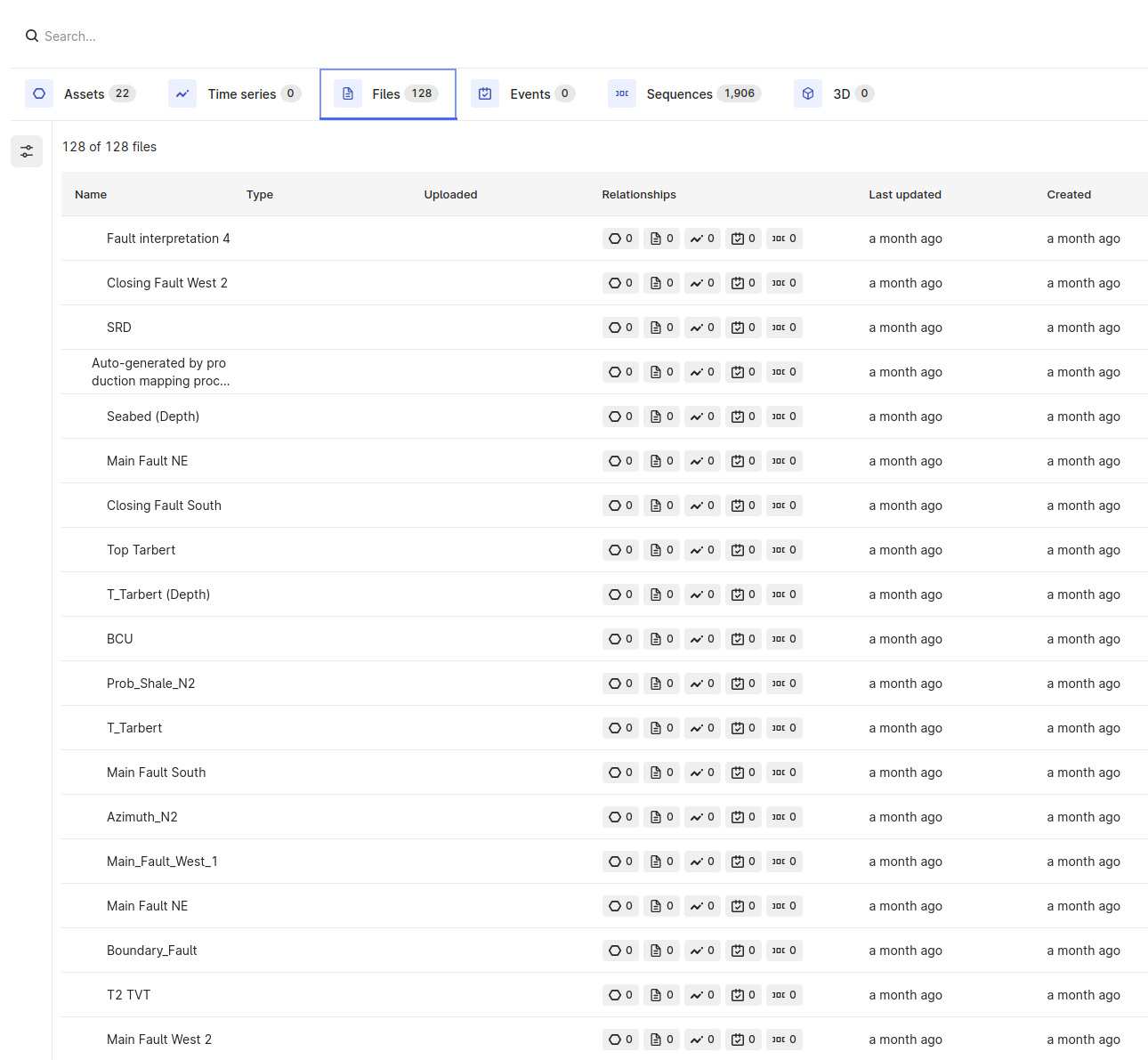
The extractor saves Studio for Petrel records as protobuf objects in CDF files. The records are loaded incrementally since the extractor checks for changes in Studio for Petrel and only sends the modified records to CDF.
The logs from the extractor startup depend on the configuration but are similar to:
```yaml theme={"languages":{"custom":["/_languages/kuiper.json","../_languages/kuiper.json"]}}
[02:43:06.667 INF] Setup to read/persist list of last (object, version) checked against the API from/to 'state\api-version-cache.dat'
[02:43:09.782 INF] Preheating API version cache from state\api-version-cache.dat
[02:43:09.797 INF] Preheating cache with 14734 entries
[02:43:10.332 INF] Compatible Studio server installation found.
[02:43:20.716 INF] Repositories available on server petrel-studio-001.domain: COG_DEV, COG_INTEGRATION_TEST, TEST_CDF_DATA_XFER
[02:43:25.933 INF] Persisting objects to remote API for COG_DEV.
[02:43:25.933 INF] Processing repository 'COG_DEV'
```
The extractor sequentially checks all configured [repositories](/cdf/integration/guides/extraction/petrel_studio/petrel_studio_configuration#petrel-studio). Select the interval between iterations of rechecking repositories with the [`throttle-time`](/cdf/integration/guides/extraction/petrel_studio/petrel_studio_configuration#petrel-studio) configuration setting.
When stopping the service, this is logged as:
```yaml theme={"languages":{"custom":["/_languages/kuiper.json","../_languages/kuiper.json"]}}
[02:42:49.057 INF] Windows service signalled stop, stopping extractor.
[02:42:49.217 INF] Releasing licence.
[02:42:49.257 INF] Licence released.
```
## Run from a command line
You can run the extractor from a command line.
Navigate to the installation folder in a command line window.
Start the command line window as the user that normally runs the service. This triggers latent permission issues and avoids local permission issues when you want to create files inside the installation folder.
Run *Connector.exe*. The extractor reads and configures the extractor according to the configuration settings.
If you've configured the `log to file` parameter, the extractor logs to the command line window and the matching log under the `logs` folder.
## Check the extracted data
The extractor saves Studio for Petrel records as protobuf objects in CDF files. The records are loaded incrementally since the extractor checks for changes in Studio for Petrel and only sends the modified records to CDF.
 ### Internal tables
The extractor uses two internal tables for execution configuration and monitoring:
* `StudioRepos`: Configuration table that stores Studio for Petrel `instances` and the list of repositories to be extracted inside `studioRepositoryName`. The list of repositories is the same as the list configured in the YAML file.
* StudioRepositoryName: This table is automatically created using the values set in `studioRepositoryName`. For example, if you have configured `Gullfaks` as the repository to be extracted, a table called `Gullfaks` is created in the RAW database. This table stores the data revisions and timestamp of the last extraction for the related Studio for Petrel objects.
### Internal tables
The extractor uses two internal tables for execution configuration and monitoring:
* `StudioRepos`: Configuration table that stores Studio for Petrel `instances` and the list of repositories to be extracted inside `studioRepositoryName`. The list of repositories is the same as the list configured in the YAML file.
* StudioRepositoryName: This table is automatically created using the values set in `studioRepositoryName`. For example, if you have configured `Gullfaks` as the repository to be extracted, a table called `Gullfaks` is created in the RAW database. This table stores the data revisions and timestamp of the last extraction for the related Studio for Petrel objects.