> ## Documentation Index
> Fetch the complete documentation index at: https://docs.cognite.com/llms.txt
> Use this file to discover all available pages before exploring further.
# Set up the OSDU extractor
> Install and configure the OSDU extractor as a Windows executable, Windows service, or Docker container.
The Cognite OSDU extractor is available as a Windows executable file (.exe file), a Windows installer (.msi file), and as a Docker container.
## Before you start
* Check the [server requirements](/cdf/integration/guides/extraction/osdu/osdu_requirements).
* Assign [access capabilities](/cdf/access/guides/capabilities#osdu-extractor) for the extractor to write data to the respective CDF destination resources.
* Set up a [CDF RAW database](/cdf/integration/guides/extraction/raw_explorer#set-up-databases-and-tables-in-cdf-raw) to serve as a target for the records ingested from OSDU. Make a note of the name.
* Set up a [data set](/cdf/data_governance/guides/datasets/create_data_sets) to serve as a target for the data files transferred from OSDU. Make a note of the data set ID.
* Create an environment file (`.env`) in the folder where you'll run the extractor. This file holds the credentials for connecting to CDF and OSDU. You can use the *.env\_example* file or this template as a starting point:
```bash .env theme={"languages":{"custom":["/_languages/kuiper.json","../_languages/kuiper.json"]}}
COGNITE_BASE_URL=https://api.cognitedata.com
COGNITE_TENANT_ID=1d0fffff-1fff-4fff-bfff-5fffffffffff
COGNITE_CLIENT_ID=5a4fffff-3fff-5fff-afff-7fffffffffff
COGNITE_CLIENT_SECRET=JZZ1Z~YwZzZzZ~NZz9zzZZ9zZzzz9zzZ_9zZZ
COGNITE_TOKEN_URL=https://login.microsoftonline.com/1d0fffff-1fff-4fff-bfff-5fffffffffff/oauth2/v2.0/token
COGNITE_CDF_CLUSTER_ID=api
COGNITE_PROJECT=name_of_cdf_project
OSDU_API_URL=https://api.osduv012.cognite.ai
OSDU_TENANT_ID=1d2fffff-8fff-4fff-bfff-6fffffffffff
OSDU_CLIENT_ID=f03fffff-9fff-4fff-9fff-2fffffffffff
OSDU_CLIENT_SECRET=tPZ9Z~z~9zZZzzZZ9zZzzZ.Z9z_ZzzzZ9Zz9zzZZ
OSDU_TOKEN_URL=https://login.microsoftonline.com/1d2fffff-8fff-4fff-bfff-6fffffffffff/oauth2/v2.0/token
OSDU_SCOPE=f03fffff-9fff-4fff-9fff-2fffffffffff/.default openid profile offline_access
OSDU_PARTITION=example-opendes
```
## Install the extractor
Navigate to **Data fusion** > **Integrate** > **Extractors** and find the OSDU extractor's package for your operating system.
Download the zip file and decompress it to the same folder where you created the `.env` file.
Create a [configuration file](/cdf/integration/guides/extraction/osdu/osdu_configuration).
Open a command line window and run the executable file.
You stop the extractor by pressing **Ctrl+C** on your keyboard. The log file is stored in the [configured path](/cdf/integration/guides/extraction/osdu/osdu_configuration#logger).
Navigate to **Integrate** > **Extract data** in CDF and find the OSDU extractor installation package for your operating system.
Download and install the .msi file.
We recommend that you don't change the default installation path.
Open the installation folder and edit the configuration file according to the [configuration settings](/cdf/integration/guides/extraction/osdu/osdu_configuration).
Set Modify permission under **Properties** in the installation folder to avoid permission issues.
Add the environment file (`.env`) you created above to the installation folder.
Run *installer.exe* to install the service as an automatic startup service.
* To manage the service, run *starter.exe*, *stopper.exe*, and *log\_presenter.exe*.
* To remove the extractor, run *remover.exe*.
## Explore the extracted data
You can explore the extracted data in [CDF RAW](/cdf/integration/guides/extraction/raw_explorer) and browse the files in the configured CDF data set.
### Data stored in CDF RAW
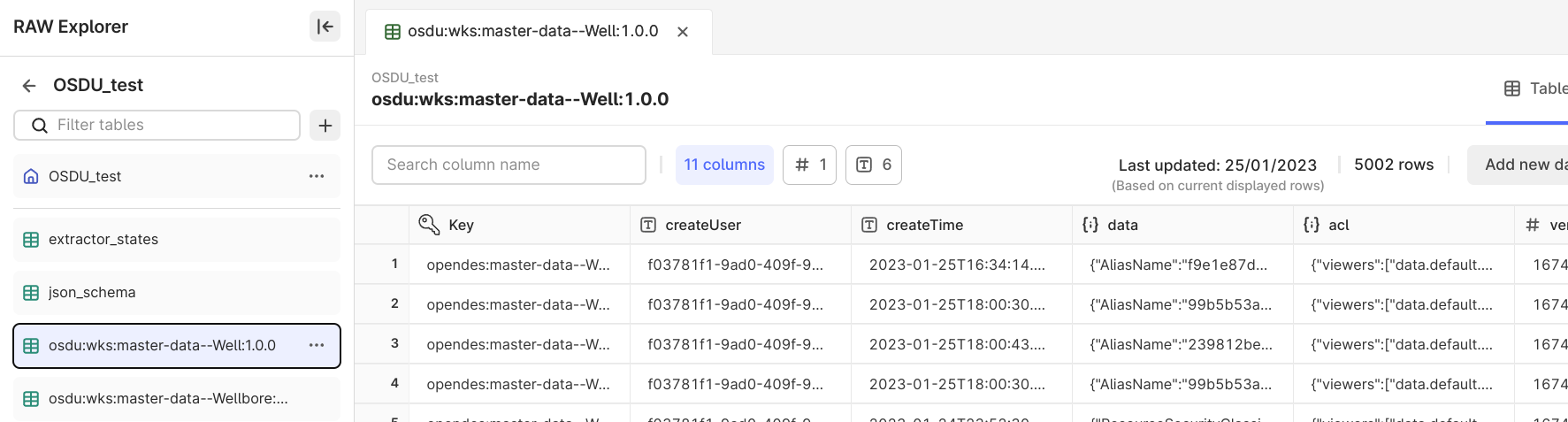
Records ingested from OSDU are stored in the configured CDF RAW database. Adjust and clean up the data before transforming it into the [CDF resource types](/dev/concepts/resource_types).
A RAW table is automatically created for each configured OSDU kind, and a row is added for each extracted record. The record ID is used as the row key. Each root key in the record becomes a column.
 ### Data stored in CDF Files
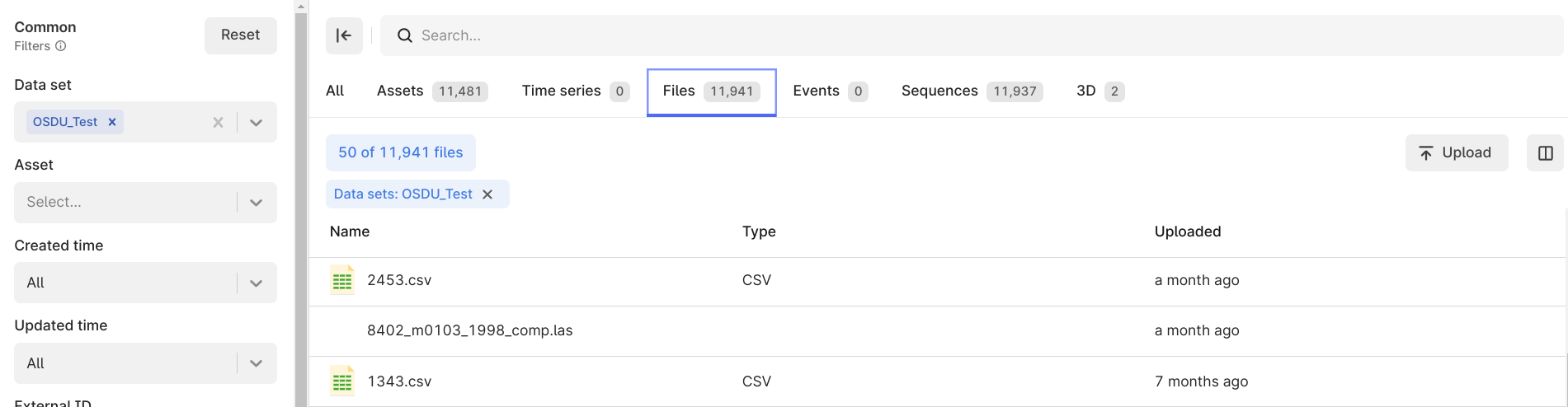
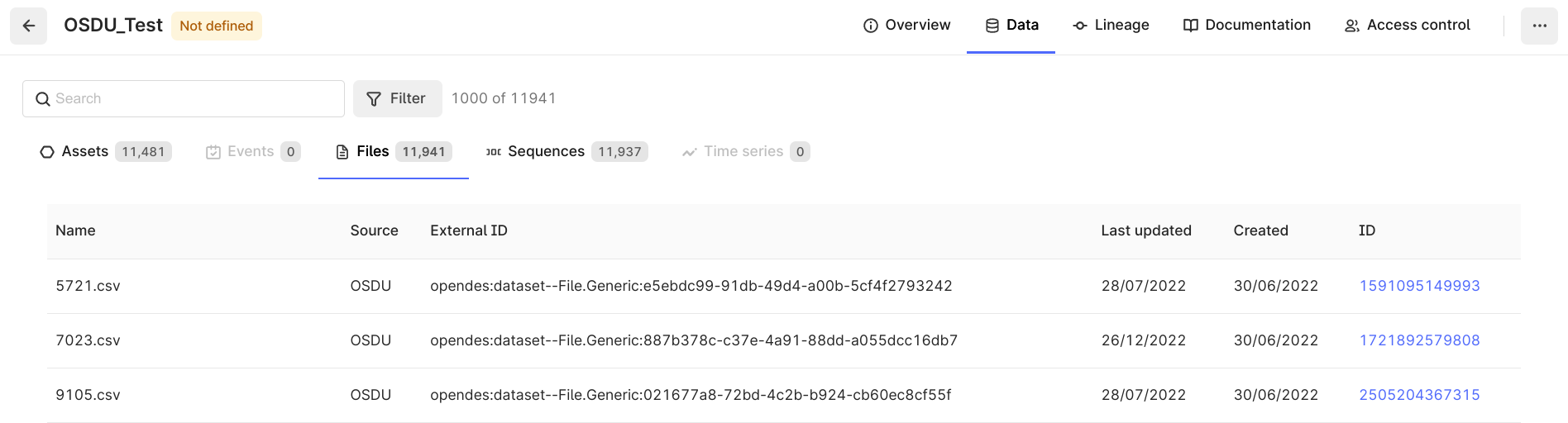
The OSDU files linked to the extracted records are saved in [CDF Files](/api-reference/concepts/20230101/files). For instance, this can be CSV, LAS, or LIS files with the row data for a well-log record. You can [transform the data](/cdf/integration/guides/transformation/transformations) to insert the rows into the corresponding [CDF Sequence](/api-reference/concepts/20230101/sequences).
The extractor saves the files in CDF as is from the OSDU generic file service API or the DDMS API. The files are not further processed.
| Files extracted from OSDU in the [Data explorer](/cdf/integration/guides/exploration/data_explorer) | Files extracted from OSDU in the configured [data set](/cdf/data_governance/guides/datasets/edit_explore_data_sets#explore-data-sets) |
| ---------------------------------------------------------------------------------------------------------------------------------------------------------------------------------------------------------------------- | -------------------------------------------------------------------------------------------------------------------------------------------------------------------------------------------------------------------- |
|
### Data stored in CDF Files
The OSDU files linked to the extracted records are saved in [CDF Files](/api-reference/concepts/20230101/files). For instance, this can be CSV, LAS, or LIS files with the row data for a well-log record. You can [transform the data](/cdf/integration/guides/transformation/transformations) to insert the rows into the corresponding [CDF Sequence](/api-reference/concepts/20230101/sequences).
The extractor saves the files in CDF as is from the OSDU generic file service API or the DDMS API. The files are not further processed.
| Files extracted from OSDU in the [Data explorer](/cdf/integration/guides/exploration/data_explorer) | Files extracted from OSDU in the configured [data set](/cdf/data_governance/guides/datasets/edit_explore_data_sets#explore-data-sets) |
| ---------------------------------------------------------------------------------------------------------------------------------------------------------------------------------------------------------------------- | -------------------------------------------------------------------------------------------------------------------------------------------------------------------------------------------------------------------- |
|  |
|  |
## Monitor extractions
Set up [extraction pipelines](/cdf/integration/guides/interfaces/about_integrations) and set the [external ID](/cdf/integration/guides/extraction/osdu/osdu_configuration#cognite) in the configuration file. The first time you run the extractor, it creates the extraction pipeline entries and logs succeeding runs with a success or failed status.
You'll see the extraction runs as two sections on the **Run history** tab on the **Extraction pipeline** page.
|
## Monitor extractions
Set up [extraction pipelines](/cdf/integration/guides/interfaces/about_integrations) and set the [external ID](/cdf/integration/guides/extraction/osdu/osdu_configuration#cognite) in the configuration file. The first time you run the extractor, it creates the extraction pipeline entries and logs succeeding runs with a success or failed status.
You'll see the extraction runs as two sections on the **Run history** tab on the **Extraction pipeline** page.