> ## Documentation Index
> Fetch the complete documentation index at: https://docs.cognite.com/llms.txt
> Use this file to discover all available pages before exploring further.
# Set up the DB extractor
> Install and configure the Cognite DB extractor to connect to databases and load data into Cognite Data Fusion (CDF).
## Before you start
* Assign access capabilities for the extractor to write data to the respective CDF destination resources.
* If the database you're connecting to requires the extractor to use ODBC, download and install the ODBC drivers for your database.
Navigate to **Data fusion** > **Integrate** > **Extractors** > **Cognite DB extractor** in CDF to see all supported sources and the recommended approach.
* Review the server requirements for the extractor.
* Create a configuration file according to the configuration settings. The file must be in YAML format.
## Connect to a database
### Native
The extractor has native support for some databases and doesn't require any additional drivers.
### ODBC
To connect via ODBC, you must install an ODBC driver for your database system on the machine where you're running the extractor.
Here are links to ODBC drivers for some source systems:
* MS SQLServer
* MySQL
* Oracle
Consult the documentation for your database or contact the vendor if you need help finding ODBC drivers.
### ODBC connection strings
ODBC uses connection strings to reference databases. The connection strings contain information about which ODBC driver to use, where to find the database, sign-in credentials, etc.
### Set up a Data Source Name (DSN)
We recommend setting up a DSN for the database if you're running the extractor against an ODBC source on Windows. The Windows DSN system handles password storage instead of keeping it in the configuration file or as an environment variable. In addition, the connection strings will be less complex.
Open the **ODBC Data Sources** tool on the machine you're running the extractor from.
Select **Add** and the ODBC driver you want to use. In this example, we're configuring a PostgreSQL database.
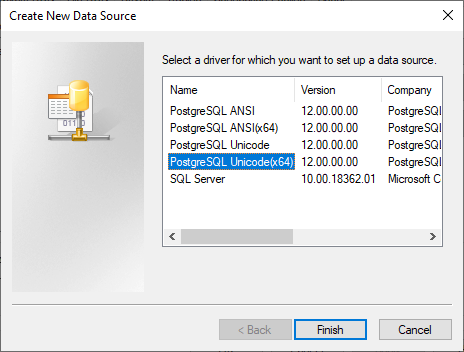 Select **Finish**.
Enter the connection information and the database name.
The configuration dialog may differ depending on which database type you are configuring a DSN for.
Select **Finish**.
Enter the connection information and the database name.
The configuration dialog may differ depending on which database type you are configuring a DSN for.
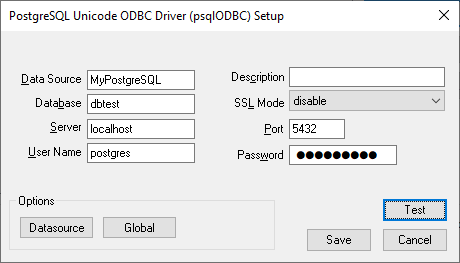 Select **Test** to verify that the information is correct, then **Save**.
Use the simplified connection string in your configuration file:
```yaml theme={"languages":{"custom":["/_languages/kuiper.json","../_languages/kuiper.json"]}}
databases:
- name: my-postgres
connection-string: 'DSN=MyPostgreSQL'
```
## Run the extractor
Download the `dbextractor-standalone-{VERSION}-win32.exe` file via the download links available from the Cognite DB extractor section on the **Extract data** page in CDF.
Save the file in a folder.
Open a command line window and run the file with a configuration file as an argument.
In this example, the configuration file is named `config.yml` and saved in the same folder as the executable file:
```bash theme={"languages":{"custom":["/_languages/kuiper.json","../_languages/kuiper.json"]}}
dbextractor-standalone--win32.exe ./config.yml
```
Download the `dbextractor-service-{VERSION}-win32.exe` file via the download links available from the Cognite DB extractor section on the **Extract data** page in CDF.
Save the file to the same directory as a configuration file named `config.yml`. This must be the exact name of the file.
As an administrator, open the command line window in the folder you placed the executable file and the configuration file and run the following command:
```bash theme={"languages":{"custom":["/_languages/kuiper.json","../_languages/kuiper.json"]}}
.\dbextractor-winservice--win32.exe install
```
Open the **Services** app in Windows and find the **Cognite DB Extractor Executor** service.
Right-click the service and select **Properties**. Configure the service according to your requirements.
Use a Docker container to run the DB extractor on Mac OS or Linux systems. This article describes how to create file-specific bindings with the container. You should consider sharing a folder if a deployment uses more than one file, for example, logs and local state files.
### ODBC only: Create a custom docker image
If you're using ODBC to connect to your database, you first need to create a docker image that contains the ODBC driver for your database. Cognite ships a base image for the DB extractor that contains the extractor and ODBC libraries, but not specific drivers.
This example uses a PostgreSQL database.
This example uses PostgreSQL since the driver is easily available in Debian's package repository. When you're connecting to a PostgreSQL database, use the native PostgreSQL support in the DB extractor.
Create a Dockerfile and extend the `cognite/db-extractor-base` image. We recommend locking the version to a major release. Then, install your ODBC drivers. For example, for PostgreSQL:
```dockerfile theme={"languages":{"custom":["/_languages/kuiper.json","../_languages/kuiper.json"]}}
FROM cognite/db-extractor-base:3
RUN apt-get update \
&& apt-get install -y odbc-postgresql \
&& apt-get clean -y \
&& rm -rf /var/lib/apt/lists/* \
&& rm -rf /tmp/*
```
Save the Docker file with a descriptive name. In this example, we use `postgres.Dockerfile`.
Build the Docker image. Give the image a tag with the `-t` argument to make it easy to refer to the image.
```bash theme={"languages":{"custom":["/_languages/kuiper.json","../_languages/kuiper.json"]}}
docker build -f postgres.Dockerfile -t db-extractor-postgres .
```
Replace `postgres.Dockerfile` with the name of your Docker file.
Replace `db-extractor-postgres` with the tag you want to assign to this Docker image.
Run this image to create a Docker container:
```bash theme={"languages":{"custom":["/_languages/kuiper.json","../_languages/kuiper.json"]}}
docker run db-extractor-postgres
```
Replace `db-extractor-postgres` with the tag you created above.
**Run on a local host on Docker**
When a Docker container runs, the `localhost` address points to the container, not the host. This creates an issue if the container runs against a local database. For development and test environments, you can use the `host.docker.internal` DNS name to resolve to the host. Don't use this approach for production environments.
You also need the local database to accept connections from outside the localhost for the container to access the database connection.
## Load data incrementally
If the database table has a column containing an incremental field, you can set up the extractor to only process new or updated rows since the last extraction. An incremental field is a field that increases for new entries, such as time stamps for the latest update or insertions if the rows never change, or a numerical index.
To load data incrementally for a query:
Include the `state-store` parameter in the `extractor` section of the configuration.
Include the `incremental-field` and `initial-start` parameters in the query configuration.
Update the SQL query with a `WHERE` statement using `{incremental-field}` and `{start-at}`. For example:
```sql theme={"languages":{"custom":["/_languages/kuiper.json","../_languages/kuiper.json"]}}
SELECT * FROM table WHERE {incremental-field} >= '{start-at}' ORDER BY {incremental-field} ASC
```
If the query returns many rows, consider paging the results with the `LIMIT` statement. Be aware that this demands a well-defined paging strategy. Consider this example:
```sql theme={"languages":{"custom":["/_languages/kuiper.json","../_languages/kuiper.json"]}}
SELECT * FROM data WHERE {incremental-field} >= '{start-at}' ORDER BY {incremental-field} ASC LIMIT 10
```
**Multiple rows with identical values in the incremental field**
If 10 or more rows have the same time, the `start-at` field won't be updated since the largest value of the incremental field didn't increase in the run. The next run will start with the same value, and the extractor is stuck in a loop. However, changing the query from `>=` to `>` can cause data loss if many rows have the same value for the incremental field.
Therefore, set a sufficiently high limit if there are duplicates in the incremental field and you're using result paging.
There might be a slight boost in the extractor runtime if the database has an index on the incremental field. However, for a standard run of the DB extractor, network delays are often the main bottleneck for performance, so usually, the difference is minimal.
Select **Test** to verify that the information is correct, then **Save**.
Use the simplified connection string in your configuration file:
```yaml theme={"languages":{"custom":["/_languages/kuiper.json","../_languages/kuiper.json"]}}
databases:
- name: my-postgres
connection-string: 'DSN=MyPostgreSQL'
```
## Run the extractor
Download the `dbextractor-standalone-{VERSION}-win32.exe` file via the download links available from the Cognite DB extractor section on the **Extract data** page in CDF.
Save the file in a folder.
Open a command line window and run the file with a configuration file as an argument.
In this example, the configuration file is named `config.yml` and saved in the same folder as the executable file:
```bash theme={"languages":{"custom":["/_languages/kuiper.json","../_languages/kuiper.json"]}}
dbextractor-standalone--win32.exe ./config.yml
```
Download the `dbextractor-service-{VERSION}-win32.exe` file via the download links available from the Cognite DB extractor section on the **Extract data** page in CDF.
Save the file to the same directory as a configuration file named `config.yml`. This must be the exact name of the file.
As an administrator, open the command line window in the folder you placed the executable file and the configuration file and run the following command:
```bash theme={"languages":{"custom":["/_languages/kuiper.json","../_languages/kuiper.json"]}}
.\dbextractor-winservice--win32.exe install
```
Open the **Services** app in Windows and find the **Cognite DB Extractor Executor** service.
Right-click the service and select **Properties**. Configure the service according to your requirements.
Use a Docker container to run the DB extractor on Mac OS or Linux systems. This article describes how to create file-specific bindings with the container. You should consider sharing a folder if a deployment uses more than one file, for example, logs and local state files.
### ODBC only: Create a custom docker image
If you're using ODBC to connect to your database, you first need to create a docker image that contains the ODBC driver for your database. Cognite ships a base image for the DB extractor that contains the extractor and ODBC libraries, but not specific drivers.
This example uses a PostgreSQL database.
This example uses PostgreSQL since the driver is easily available in Debian's package repository. When you're connecting to a PostgreSQL database, use the native PostgreSQL support in the DB extractor.
Create a Dockerfile and extend the `cognite/db-extractor-base` image. We recommend locking the version to a major release. Then, install your ODBC drivers. For example, for PostgreSQL:
```dockerfile theme={"languages":{"custom":["/_languages/kuiper.json","../_languages/kuiper.json"]}}
FROM cognite/db-extractor-base:3
RUN apt-get update \
&& apt-get install -y odbc-postgresql \
&& apt-get clean -y \
&& rm -rf /var/lib/apt/lists/* \
&& rm -rf /tmp/*
```
Save the Docker file with a descriptive name. In this example, we use `postgres.Dockerfile`.
Build the Docker image. Give the image a tag with the `-t` argument to make it easy to refer to the image.
```bash theme={"languages":{"custom":["/_languages/kuiper.json","../_languages/kuiper.json"]}}
docker build -f postgres.Dockerfile -t db-extractor-postgres .
```
Replace `postgres.Dockerfile` with the name of your Docker file.
Replace `db-extractor-postgres` with the tag you want to assign to this Docker image.
Run this image to create a Docker container:
```bash theme={"languages":{"custom":["/_languages/kuiper.json","../_languages/kuiper.json"]}}
docker run db-extractor-postgres
```
Replace `db-extractor-postgres` with the tag you created above.
**Run on a local host on Docker**
When a Docker container runs, the `localhost` address points to the container, not the host. This creates an issue if the container runs against a local database. For development and test environments, you can use the `host.docker.internal` DNS name to resolve to the host. Don't use this approach for production environments.
You also need the local database to accept connections from outside the localhost for the container to access the database connection.
## Load data incrementally
If the database table has a column containing an incremental field, you can set up the extractor to only process new or updated rows since the last extraction. An incremental field is a field that increases for new entries, such as time stamps for the latest update or insertions if the rows never change, or a numerical index.
To load data incrementally for a query:
Include the `state-store` parameter in the `extractor` section of the configuration.
Include the `incremental-field` and `initial-start` parameters in the query configuration.
Update the SQL query with a `WHERE` statement using `{incremental-field}` and `{start-at}`. For example:
```sql theme={"languages":{"custom":["/_languages/kuiper.json","../_languages/kuiper.json"]}}
SELECT * FROM table WHERE {incremental-field} >= '{start-at}' ORDER BY {incremental-field} ASC
```
If the query returns many rows, consider paging the results with the `LIMIT` statement. Be aware that this demands a well-defined paging strategy. Consider this example:
```sql theme={"languages":{"custom":["/_languages/kuiper.json","../_languages/kuiper.json"]}}
SELECT * FROM data WHERE {incremental-field} >= '{start-at}' ORDER BY {incremental-field} ASC LIMIT 10
```
**Multiple rows with identical values in the incremental field**
If 10 or more rows have the same time, the `start-at` field won't be updated since the largest value of the incremental field didn't increase in the run. The next run will start with the same value, and the extractor is stuck in a loop. However, changing the query from `>=` to `>` can cause data loss if many rows have the same value for the incremental field.
Therefore, set a sufficiently high limit if there are duplicates in the incremental field and you're using result paging.
There might be a slight boost in the extractor runtime if the database has an index on the incremental field. However, for a standard run of the DB extractor, network delays are often the main bottleneck for performance, so usually, the difference is minimal.