> ## Documentation Index
> Fetch the complete documentation index at: https://docs.cognite.com/llms.txt
> Use this file to discover all available pages before exploring further.
# Parse diagrams
> Step-by-step guide to extract information from engineering diagrams by detecting and mapping assets and files in Cognite Data Fusion (CDF).
This procedure is for data engineers who need to parse engineering diagrams and map assets and files in Cognite Data Fusion (CDF). You can parse all assets and files from a location or configure detection parameters to narrow the subset.
[Review and verify](#review-parsed-diagrams) the automatic mappings as part of the process.
## Before you start
* Make sure the files you want to parse are ingested into a data model.
* Add [access capabilities](/cdf/access/guides/capabilities#diagram-parsing) for parsing.
* [Configure a location](/cdf/locations/guides/index) for the engineering diagrams.
* Set the `mime_type` to *application/pdf*, *image/jpeg*, *image/png*, or *image/tiff* in [CogniteFile](/cdf/dm/dm_reference/dm_core_data_model#file).
* To test new beta features, select > **Enable beta features** from the overview page.
## Parse a diagram
Navigate to **Data fusion** > **Contextualize** > **Diagram parsing**.
Select the location containing the engineering diagrams.
Select the file to parse, and then select **Run parsing**.
Detect and link tags to assets and files in CDF. Use for **vector** or **raster** files; supports multi-page files (up to 50 pages per run).
Detect tags and build a data model with equipment relations from diagram content. Use for **vector** files only. To enable **Full diagram parsing**, select on the overview page.
1. **Select a symbol library**: Choose a [symbol library](/cdf/integration/guides/contextualization/manage_libraries) for detecting symbols in the diagrams.
Only the first page is processed. If your multi-page PDF contains critical information on subsequent pages, consider splitting the file before parsing.
**Configure asset filters**: Use the **Assets** tab to filter which assets are included in the parsing.
**Configure file filters**: Use the **Files** tab to filter which files are parsed.
**Configure text recognition**: Adjust the text detection settings to improve accuracy.
Select **Run parsing** to process the diagram with your chosen settings.
For Full diagram parsing, select **Run advanced parsing** instead of **Run parsing**. The advanced option lets you adjust additional configuration settings before running.
The parsing starts and processes your diagram. The time required depends on the file size and complexity.
Select under **Actions** to review the parsed diagram.
The diagram opens in the review interface with tabs for verifying different aspects of the parsing results.
## Review parsed diagrams
The parsed diagram has four tabs to verify different aspects of the automatic mappings:
| Verification tab | What to verify |
| ----------------------------------------- | --------------------------------------------------------------------------------------------------------------------- |
| **Tag detection** | Map asset and file tags to data that's already in CDF. |
| **Symbols** | Verify that the system correctly detected and mapped vectors to symbols. This tab is only available for vector files. |
| **Merge** | Merge annotations with symbols. This tab is only available for vector files. |
| **Connections** | Verify that the system correctly connected the symbols. This tab is only available for vector files. |
For vector files, only the first page of the file is parsed. For raster files, you only work with the **Tag detection** tab.
1. Verify the detected tags and their links. Select one or several tags to verify or reject links.
Orange indicates a suggested link. Blue indicates a verified link.
2. Select the plus icon on the toolbar to create a new tag and link it to an asset or file in CDF.
Select **Resize and move annotations** from the toolbar to adjust the position of one or several tags.
In the sidebar, page icons with a strikethrough indicate that parsing did not run or returned errors. Rerun the parsing to fix the errors.
All relevant tags are verified (shown in blue) and correctly linked to assets or files in CDF.
The path selection and symbol creation behavior in this step is part of **Full diagram parsing** (*[public preview](/cdf/product_feature_status#public-preview)*).
To add symbols to the library, select diagram paths and then select which **Asset class** and **Asset type** the selection represents. You can also add the selection as a geometry to an existing symbol.
You can select **unassigned** paths (black) and **assigned** paths (orange, already linked to a symbol detection) in the same action when you create a new symbol. You don't need to delete an existing detection first; paths that already belong to another symbol move to the new symbol when you save.
If a symbol maps to the wrong asset, select the symbol and then **Detach from symbol**. Only this instance in this file is detached from the symbol.
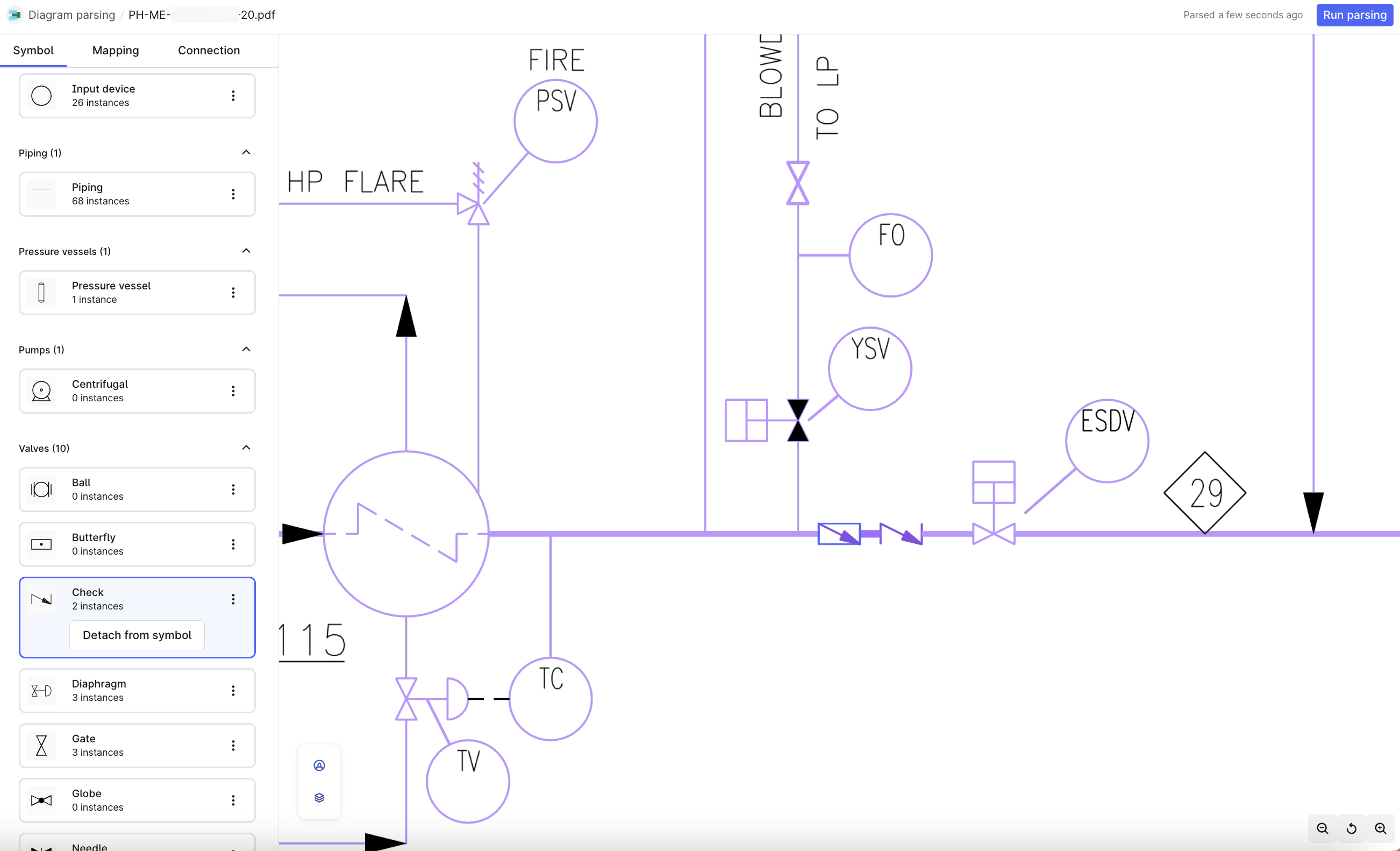 All vectors are correctly identified and mapped to the appropriate symbols in your library.
Merged tags and symbols appear in blue. For unmerged entities, select the tag and symbol to merge.
Tags and symbols that represent the same entity are merged and displayed in blue.
Verify that pipes are connected to all connected symbols. If a pipe isn't detected or incorrect, open the **Symbols** tab to make corrections. Hover over a symbol to view the entire connection group and select a symbol to view or edit the closest connection.
All pipes and connections between symbols are correctly identified and verified.
Rerun the parsing and verify that the system recognized your changes.
Select the **Edit layer visibility** icon and turn on *Show background document* to show or hide the diagram's background document details (SVG paths).
The parsing completes successfully with all your corrections applied. Review the updated results to confirm accuracy.
## Manage parsed output
Use the API to retrieve your parsed output. For more information, see [API documentation](/api-reference/concepts/20230101/engineering-diagrams).
## Further reading
* [Diagram parsing](/cdf/integration/guides/contextualization/diagram_parsing) – Overview of diagram parsing and data modeling
* [Manage symbol libraries](/cdf/integration/guides/contextualization/manage_libraries) – Create and manage symbol libraries for detection
* [Interactive diagrams](/cdf/integration/guides/contextualization/interactive_diagrams) – Work with diagram data in asset-centric models
* [Troubleshooting diagram parsing](/cdf/integration/guides/contextualization/troubleshooting) – Fix common diagram parsing issues
All vectors are correctly identified and mapped to the appropriate symbols in your library.
Merged tags and symbols appear in blue. For unmerged entities, select the tag and symbol to merge.
Tags and symbols that represent the same entity are merged and displayed in blue.
Verify that pipes are connected to all connected symbols. If a pipe isn't detected or incorrect, open the **Symbols** tab to make corrections. Hover over a symbol to view the entire connection group and select a symbol to view or edit the closest connection.
All pipes and connections between symbols are correctly identified and verified.
Rerun the parsing and verify that the system recognized your changes.
Select the **Edit layer visibility** icon and turn on *Show background document* to show or hide the diagram's background document details (SVG paths).
The parsing completes successfully with all your corrections applied. Review the updated results to confirm accuracy.
## Manage parsed output
Use the API to retrieve your parsed output. For more information, see [API documentation](/api-reference/concepts/20230101/engineering-diagrams).
## Further reading
* [Diagram parsing](/cdf/integration/guides/contextualization/diagram_parsing) – Overview of diagram parsing and data modeling
* [Manage symbol libraries](/cdf/integration/guides/contextualization/manage_libraries) – Create and manage symbol libraries for detection
* [Interactive diagrams](/cdf/integration/guides/contextualization/interactive_diagrams) – Work with diagram data in asset-centric models
* [Troubleshooting diagram parsing](/cdf/integration/guides/contextualization/troubleshooting) – Fix common diagram parsing issues