> ## Documentation Index
> Fetch the complete documentation index at: https://docs.cognite.com/llms.txt
> Use this file to discover all available pages before exploring further.
# Match entities
> Match Cognite Data Fusion resources to assets using pipelines, quick match, or 3D model matching.
Select one of these options for matching Cognite Data Fusion (CDF) resources to assets:
* Create a pipeline to **rerun matching models** on **data sets** to improve the results based on confirmed matches over time. If the data set receives new data, you can rerun the pipeline to find additional matches.
* Run a **quick match** for one-time matching of individual resources, or groups of resources, to assets. The matching model isn't stored, and you can't reuse it or improve it over time.
* Match the nodes in a **3D model** to assets.
## Prerequisites
You need [these capabilities](/cdf/access/guides/capabilities#match-entities) to match entities.
## Step 1: Select the matching process
Navigate to **Data fusion** > **Contextualize** > **Entity matching**.
Select:
* **Quick match** for one-time matching processes.
* **Create pipeline** to create an entity matching pipeline that you can rerun and add matches and rules.
* **Match 3D models** to match 3D nodes to assets.
## Step 2: Select entities and assets to match
Under **Select entities**, select the resource types you want to match from. Then select one or more data sets if you are creating a pipeline or individual entities if you are running a quick match.
Under **Select assets**, select assets if you are running a quick match or one or more data sets if you are creating a pipeline.
## Step 3: Set up the matching model and generate suggested matches
By default, the model uses the similarity between the `name` fields when it searches for matches. You can select different fields or add more fields using the dropdown menus and selecting **Add fields**.
Make sure you only select similar fields to help the model find correct matches.
By default, an [unsupervised model](/cdf/integration/guides/contextualization/matching#unsupervised-model) is used to generate suggested matches. If you manually confirm one or more matches, these are used to improve the model's match suggestions for pipelines.
However, the model can also use matches already in CDF to **learn**. Select the checkbox **Use matched resources as training data** to allow the model to [train on existing matches](/cdf/integration/guides/contextualization/matching#supervised-model) in CDF.
* Select **Simple** to calculate a similarity score based on identical letter or digit sequences, hereafter referred to as [tokens](/cdf/integration/guides/contextualization/matching#detecting-matches), for each pair of fields defined above. This is the **fastest** option.
* Select **Insensitive**, which is similar to **simple**, but ignores lowercase/uppercase differences.
**Advanced methods**
* Select **Bigram**, which is similar to simple, but adds similarity score based on bigrams of the tokens (two adjacent tokens). For instance, would *AA-11-BB* be considered more similar to *AA-11-CC* than *AA-00-BB*, while **Simple** would see them as equally similar.
* Select **Frequency weighted bigram**, which is similar to **Bigram** but gives higher weights to less commonly occurring tokens.
* Select **Bigram extra tokenizers**, which is similar to bigram, but the model learns that leading zeros, spaces, and lowercase/uppercase should be ignored in matching.
* Select **Bigram combo**, which calculates all of the above options, relying on the machine learning model to determine the appropriate features to use. Hence, this is a good choice if there already exists some matches the model can train on (see option below). This is the **slowest** option.
The different feature types are created to improve the model's accuracy for different types of input data. Hence, the feature type that works best for your model will vary based on your data.
Select **Generate rules** if you want the model to generate regular expression rules. These rules can be used to demonstrate similarities between matches and to group matches based on patterns. In the next step, you can confirm a rule, and it will be saved with the pipeline. If new data is added to the pipeline data set and it complies with the rule, the data is automatically matched the next time the pipeline is run. Clear this option if you don't want the rules to be generated.
Select **Run pipeline** to train the matching model on the selected data and to generate suggested matches.
## Step 4: Validate suggested matches and update CDF
For pipelines, the entity matching model suggests matches in this order:
* **Confirmed matches** - for pipeline: already confirmed matched entity and asset.
* **Confirmed patterns** - matches created by one of the already confirmed patterns.
* **Predictions** from the entity matching model.
Use the **Type** dropdown list to select the entities you want to work with:
* **All**: Show all the entities you have selected for matching.
* **Matched**: Show entities that have already been matched to an asset. Select this option to **change the existing matching** for entities.
* **Unmatched entities**: Show entities that haven't yet been matched to an asset. Select this option **to validate the suggestions** and match individual entities or groups of entities to assets.
* **Different recommendation**: Show entities that have already been matched to an asset but where the model recommends a new match. Select this option to **change the existing matching** for entities.
Select **Group by pattern** to match individual entities that fit the same pattern.
For each entity (or group of entities), you can see the suggested asset matching and **search for an asset** to match the entity. Select the checkmark to **confirm the matching** and move the entity to the draft matches section.
Review all the draft matches, and move matches out of the draft matches, if necessary.
If you are creating a pipeline, select **Save this pipeline** to use this matching model when new data is ingested into the selected data sets.
Select **Save to CDF** to update CDF with the matches.
## Step 5: Rerun a matching model in existing pipelines
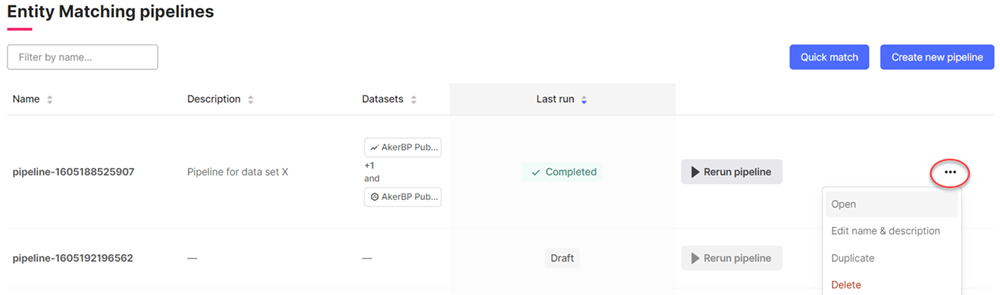
If a data set receives new data, you can select **Rerun pipeline** on the overview page to find additional matches. To adjust the matching model, select **Open** on the **More options** button.
 ## Step 6: Match the nodes in a 3D model to an asset
Contextualize your 3D models so you can see them related to the asset. You can also see the models in the Cognite apps,such as InField and Maintain.
Loading the 3D model can take time.
Select **3D model revision**. The revision number is the version of the model. All the available 3D models in your project are listed.
Select the asset you want to match to the 3D model. You can either group assets by data sets or by root asset.
Select **Next**.
Select the fields for matching 3D nodes to assets. The model uses the similarity between the **Add fields**.
Select the model type:
* **PDMS** - improves response time by filtering out nodes that don't need to be mapped to assets based on keywords in the name.
* **Unfiltered** - all nodes in the 3D model are used to match assets.
Select **Next** to see the asset mapping results. The asset mapping result states how many nodes have been contextualized.
Select a node in the 3D model to see its contextualizations and use **Confidence threshold** to see different results.
Select **Save matches to CDF** to approve the result.
See also: [Supported 3D file formats](/cdf/3d/index)
## Step 6: Match the nodes in a 3D model to an asset
Contextualize your 3D models so you can see them related to the asset. You can also see the models in the Cognite apps,such as InField and Maintain.
Loading the 3D model can take time.
Select **3D model revision**. The revision number is the version of the model. All the available 3D models in your project are listed.
Select the asset you want to match to the 3D model. You can either group assets by data sets or by root asset.
Select **Next**.
Select the fields for matching 3D nodes to assets. The model uses the similarity between the **Add fields**.
Select the model type:
* **PDMS** - improves response time by filtering out nodes that don't need to be mapped to assets based on keywords in the name.
* **Unfiltered** - all nodes in the 3D model are used to match assets.
Select **Next** to see the asset mapping results. The asset mapping result states how many nodes have been contextualized.
Select a node in the 3D model to see its contextualizations and use **Confidence threshold** to see different results.
Select **Save matches to CDF** to approve the result.
See also: [Supported 3D file formats](/cdf/3d/index)