> ## Documentation Index
> Fetch the complete documentation index at: https://docs.cognite.com/llms.txt
> Use this file to discover all available pages before exploring further.
# Perform activities
> Work with checklists to complete tasks, add measurement readings, record observations, and work offline on your mobile device.
To perform activities in InField, you use checklists. Field workers can work on the checklists that are already added to the Checklists tab or create checklists from templates on the [Templates](#create-checklists) tab. A checklist has a set of tasks where you add a status, such as OK, Not OK, or Blocked. You can also add images, videos, and observations for malfunctions you notice while working. For some tasks, you may also see fields for adding measurement readings and check items.
## Work with checklists
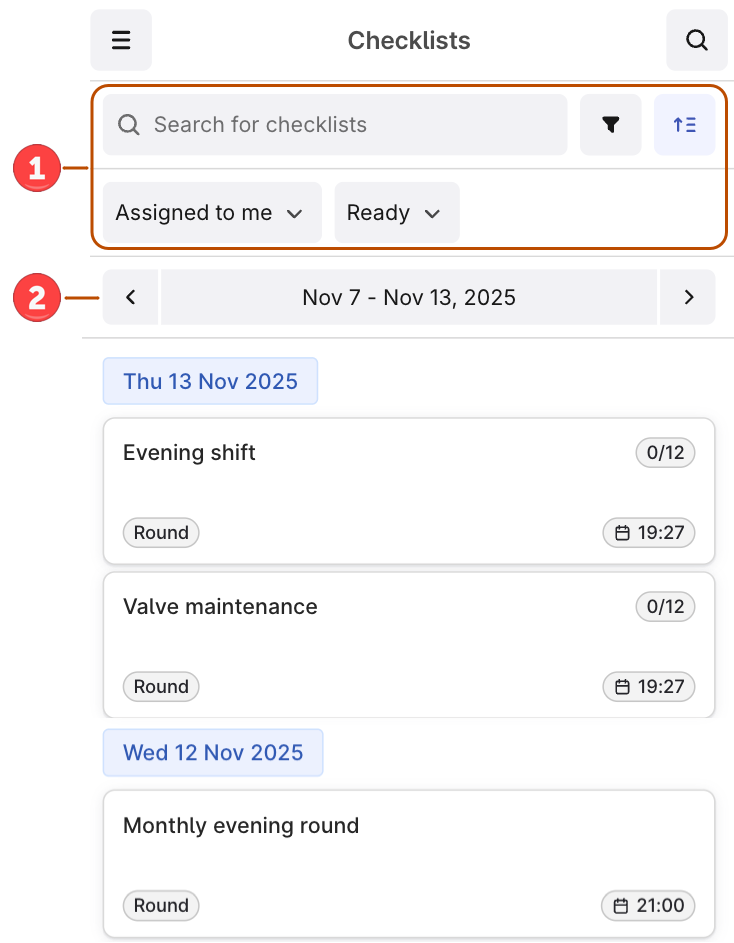 ➀ **Filter checklists** — filter checklists by status, assignees, or use search.
➁ **Select a work week** — select a week to view checklists. By default, the view shows today at the top and the previous 6 days. To view upcoming work, select the next week to see checklists from tomorrow through the next 7 days.
Select a checklist from the list. By default, you see Ready checklists assigned to you and your discipline.
If you can't find a checklist, try sorting on the checklist status Ready, In progress, or Done, assignees, or use search.
Enter any measurement values your supervisor has requested. Once you start working on the checklist, the status changes from Ready to In progress.
Respond to the supervisor's request by selecting an action button, for example, **Low**, **Normal**, **High**, or **Open**, **Closed**.
For each task, select OK or a different status from Other.
If you want to bulk change the statuses of the remaining tasks, select More options (…) > Set remaining tasks to and select the status. You can do that for the tasks in the group and outside the group and only once.
Select + to add images and videos, enter text, or create observations. Fill out the [Observations](/cdf/infield/guides/observations) form if an asset requires a closer look, for example, due to malfunctions.
When you've completed all tasks, set the checklist to Done. You can no longer update it.
The checklist doesn't move automatically to Done when you complete all tasks.
## Create checklists
To create checklists from templates on your mobile device:
On the left panel, select Templates. You'll see the list of Ready templates assigned to you.
Select to remove the filter.
Select the template you want to create a checklist from and select Create checklist. The assignee is the person who created the checklist.
Start working on the checklist or go back to create more checklists.
## Explore assets
To see information linked to an asset, such as 3D images, documents, time series, or other assets, search for the asset or select an asset ID displayed as a blue link.
* Select the search icon to search for assets, time series, or documents.
* Select the search icon > Hierarchy to find equipment linked to the asset you're working with.
## Work offline
Field workers can complete operator rounds and work orders with slow or no network connectivity on their mobile devices.
To work offline, open the checklist while you still have network connectivity. If you go offline, you can still complete tasks but you can't access the asset explorer, upload media, or create observations. When you're back online, all data collected offline will be uploaded.
To stop repetitive connectivity notifications, turn on airplane mode or ensure a steady network connection. To download data when offline, turn off airplane mode and wait until the data is uploaded. In the meantime, do NOT close the application or exit the checklist.
For a minimum required bandwidth, refer to [Connectivity and bandwidth](/cdf/admin/connectivity).
➀ **Filter checklists** — filter checklists by status, assignees, or use search.
➁ **Select a work week** — select a week to view checklists. By default, the view shows today at the top and the previous 6 days. To view upcoming work, select the next week to see checklists from tomorrow through the next 7 days.
Select a checklist from the list. By default, you see Ready checklists assigned to you and your discipline.
If you can't find a checklist, try sorting on the checklist status Ready, In progress, or Done, assignees, or use search.
Enter any measurement values your supervisor has requested. Once you start working on the checklist, the status changes from Ready to In progress.
Respond to the supervisor's request by selecting an action button, for example, **Low**, **Normal**, **High**, or **Open**, **Closed**.
For each task, select OK or a different status from Other.
If you want to bulk change the statuses of the remaining tasks, select More options (…) > Set remaining tasks to and select the status. You can do that for the tasks in the group and outside the group and only once.
Select + to add images and videos, enter text, or create observations. Fill out the [Observations](/cdf/infield/guides/observations) form if an asset requires a closer look, for example, due to malfunctions.
When you've completed all tasks, set the checklist to Done. You can no longer update it.
The checklist doesn't move automatically to Done when you complete all tasks.
## Create checklists
To create checklists from templates on your mobile device:
On the left panel, select Templates. You'll see the list of Ready templates assigned to you.
Select to remove the filter.
Select the template you want to create a checklist from and select Create checklist. The assignee is the person who created the checklist.
Start working on the checklist or go back to create more checklists.
## Explore assets
To see information linked to an asset, such as 3D images, documents, time series, or other assets, search for the asset or select an asset ID displayed as a blue link.
* Select the search icon to search for assets, time series, or documents.
* Select the search icon > Hierarchy to find equipment linked to the asset you're working with.
## Work offline
Field workers can complete operator rounds and work orders with slow or no network connectivity on their mobile devices.
To work offline, open the checklist while you still have network connectivity. If you go offline, you can still complete tasks but you can't access the asset explorer, upload media, or create observations. When you're back online, all data collected offline will be uploaded.
To stop repetitive connectivity notifications, turn on airplane mode or ensure a steady network connection. To download data when offline, turn off airplane mode and wait until the data is uploaded. In the meantime, do NOT close the application or exit the checklist.
For a minimum required bandwidth, refer to [Connectivity and bandwidth](/cdf/admin/connectivity).