> ## Documentation Index
> Fetch the complete documentation index at: https://docs.cognite.com/llms.txt
> Use this file to discover all available pages before exploring further.
# Create and view observations
> Record equipment issues discovered during work, track their status, and send reports.
Observations are information collected from field workers on malfunctioning equipment that needs further evaluation. Depending on whether you're on a desktop or mobile version, you can create and view or only create observations.
The observations functionality may differ depending on your project configuration.
On the Observations tab, you can:
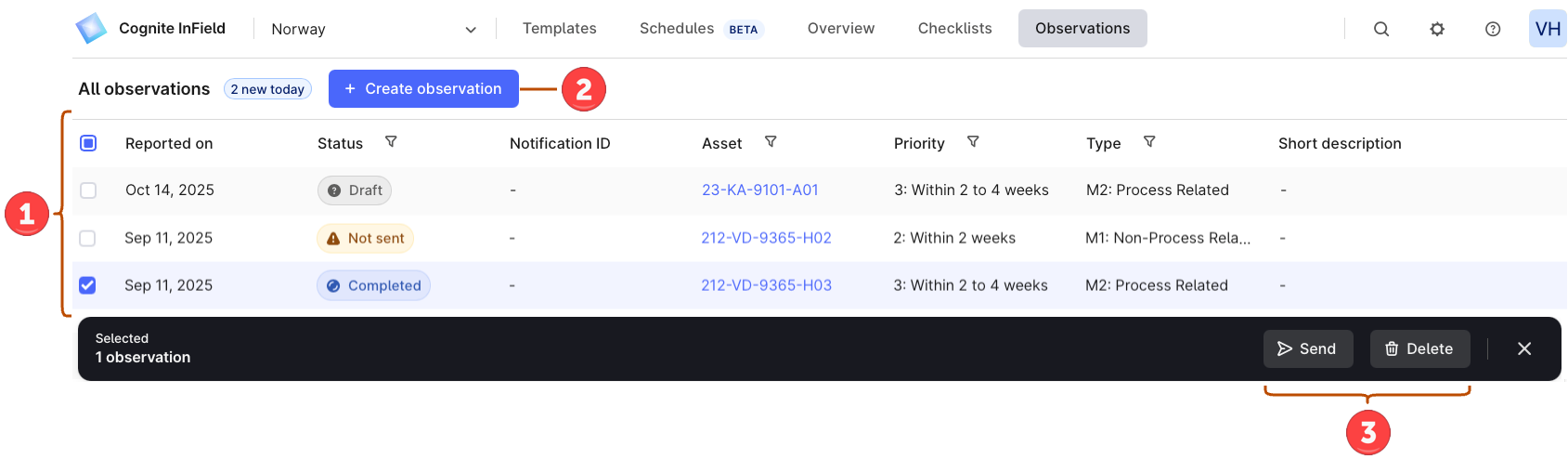 ➀ **Create observations** — select + Create observation to fill out an observation form.
➁ **View observation details** — view the details of all observations and how many new observations you have today. Available on the desktop version only.
➂ **Select observations** — select observations to bulk delete or send to SAP (the SAP feature must be turned on). You can delete observations in the *Draft* and *Not sent* statuses, and send observations in the *Completed* status only.
The SAP integration is only available for projects that are not using CDM (Core Data Model).
An observation can have one of the following statuses:
| Status | Meaning |
| --------- | ------------------------------------------------------------- |
| Draft | The observation is in progress. |
| Completed | The user filled out all information and selected *Completed*. |
SAP-related statuses are:
| Status | Meaning |
| ------------- | ----------------------------------------------------------------- |
| Sent | The user completed the observation and sent it to SAP. |
| File not sent | The observation was sent to SAP but not the attached media files. |
| Not sent | The observation wasn't sent to SAP. |
## Create observations on mobile
If you think an asset requires attention, you can create an observation for it:
* When working on a checklist, select **(+)** > Create observation.
* In the top left, select the menu tab > Create observation.
➀ **Create observations** — select + Create observation to fill out an observation form.
➁ **View observation details** — view the details of all observations and how many new observations you have today. Available on the desktop version only.
➂ **Select observations** — select observations to bulk delete or send to SAP (the SAP feature must be turned on). You can delete observations in the *Draft* and *Not sent* statuses, and send observations in the *Completed* status only.
The SAP integration is only available for projects that are not using CDM (Core Data Model).
An observation can have one of the following statuses:
| Status | Meaning |
| --------- | ------------------------------------------------------------- |
| Draft | The observation is in progress. |
| Completed | The user filled out all information and selected *Completed*. |
SAP-related statuses are:
| Status | Meaning |
| ------------- | ----------------------------------------------------------------- |
| Sent | The user completed the observation and sent it to SAP. |
| File not sent | The observation was sent to SAP but not the attached media files. |
| Not sent | The observation wasn't sent to SAP. |
## Create observations on mobile
If you think an asset requires attention, you can create an observation for it:
* When working on a checklist, select **(+)** > Create observation.
* In the top left, select the menu tab > Create observation.