> ## Documentation Index
> Fetch the complete documentation index at: https://docs.cognite.com/llms.txt
> Use this file to discover all available pages before exploring further.
# Charts
> Analyze time series data, create calculations, set thresholds, monitor alerts, assess data quality, and visualize activities.
## Create a chart
Navigate to **Flows** > **Charts**.
Select **+ New chart** to start a new chart. To build on an existing chart, select ⋮ to the right of the chart > **Duplicate**.
 ➀ **Toolbar** — hover over each tool to see a description. Use the **Slider** to view or compare time series values.
➁ **Open in...** — download, duplicate, delete, or **open** the chart in **Canvas**.
➂ **Add data** — add a **time series**, or import or create a **calculation**.
➃ **Agents** — open an **AI agent** to work with the chart.
➄ **Sidebar** — set up **alerting**, **monitoring**, **thresholds**, or data **profiling**. Add **events** and **activities**.
### Use an agent to find and analyze data
➀ **Toolbar** — hover over each tool to see a description. Use the **Slider** to view or compare time series values.
➁ **Open in...** — download, duplicate, delete, or **open** the chart in **Canvas**.
➂ **Add data** — add a **time series**, or import or create a **calculation**.
➃ **Agents** — open an **AI agent** to work with the chart.
➄ **Sidebar** — set up **alerting**, **monitoring**, **thresholds**, or data **profiling**. Add **events** and **activities**.
### Use an agent to find and analyze data
 ➀ **New session** — start a new conversation with an agent.
➁ **Select locations** — see your current location. Select locations to choose which data the agent can access.
➂ **Select agent** — select the agent you want to start a conversation with.
To interact with an agent, you need these [capabilities](/cdf/access/guides/capabilities#atlas-ai).
Learn more about [Atlas AI](/cdf/atlas_ai/concepts/index).
### Add a time series
To add a time series to your chart:
Select **Add data** > **Add time series**.
Find and select the time series > **Add**.
For each time series and calculation, explore the different ways to set units and fine-tune the data display. For example, try to adjust the thickness and color of the diagram line. Click for more details.
### Add a calculation
To add a calculation:
Select **Add data** > **Create calculation**.
Select **Add node** or right-click in the panel below the chart to add input sources.
➀ **New session** — start a new conversation with an agent.
➁ **Select locations** — see your current location. Select locations to choose which data the agent can access.
➂ **Select agent** — select the agent you want to start a conversation with.
To interact with an agent, you need these [capabilities](/cdf/access/guides/capabilities#atlas-ai).
Learn more about [Atlas AI](/cdf/atlas_ai/concepts/index).
### Add a time series
To add a time series to your chart:
Select **Add data** > **Add time series**.
Find and select the time series > **Add**.
For each time series and calculation, explore the different ways to set units and fine-tune the data display. For example, try to adjust the thickness and color of the diagram line. Click for more details.
### Add a calculation
To add a calculation:
Select **Add data** > **Create calculation**.
Select **Add node** or right-click in the panel below the chart to add input sources.
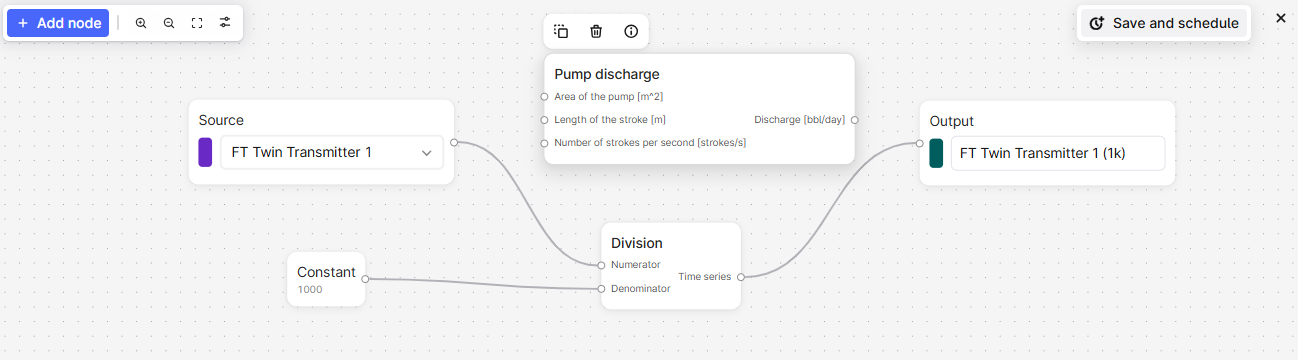 Right-click the panel to add **constants** or **functions** to the calculation. Select to view the function details or hover over the parameters for more information.
Pipe the calculations in order and include the final **output** node to display the result on the chart plot.
Use one calculation as input to another to view the output from each step.
### Schedule a calculation
Schedule a calculation and save the result as a time series. You can also [monitor](#monitor-time-series) the calculation.
[Add a calculation](#add-a-calculation) and select **Save and Schedule**.
Specify the sign-in credentials for the schedule, and click **Next**. If you don't know the credentials, contact your CDF admin.
Give the schedule a name and specify the necessary settings.
Select **Start schedule**.
### Trend data
To stack, overlay, and compare trends for time series, click+drag or hover+scroll to adjust and move each diagram axis.
Use the **Slider** on the toolbar to view or compare time series values at a specific time.
### View and assess data quality
A chart line is **shaded** if the data quality of a time series is **Uncertain** and has a **gap** if the quality is **Bad**.
Use **data profiling** to assess the quality of a time series and whether it fits your purpose. Data profiling uses the [Industrial Data Science Library (InDSL)](https://indsl.docs.cognite.com/) to define gaps if the time deltas deviate by more than 1.5 times the interquartile range.
In the chart, select **Data profiling**. Select the time series you want to assess in the **Source** dropdown list.
Switch between viewing a boxplot and a histogram of time deltas or density.
### Set thresholds for historical data
To set thresholds for historical data:
On the top right of the chart, select the **Threshold** icon.
In the panel, set the threshold values for time series and calculations.
### Add events
You can add events, such as a faulty shutdown, to help analyze time series.
To add events to a chart:
Select **Events** from the sidebar.
Add or select a filter to specify the events to add.
### Add activities
Activities in Cognite Data Fusion (CDF) represent tasks, events, or operations that happen over a period of time in your industrial environment. They provide a structured way to track work, maintenance, inspections, and other time-based activities, connecting planned and executed work with your physical assets and operational data.
Turn on **Activity** to visualize and contextualize time series data with these operational events in your chart. Activities appear as vertical bars in the chart, providing visual reference to help you correlate time series behavior with relevant operational activities such as maintenance work, inspections, or production events.
#### Prerequisites
Before you add activities to a chart, ensure that:
* The relevant data is modeled as [activities or extended activities in your CDF project](/cdf/dm/dm_reference/dm_core_data_model#cogniteactivity).
* You have time series `read` access rights to view Charts and the relevant data.
To add activities to a chart:
Select **+ Add data** > **Add time series**. Search and select the time series you want to visualize.
In the Category dropdown, select **Activity**, and then select the activities you want to visualize.
Once selected, the **Activity** layer will turn on automatically.
The **Asset** filter applies automatically based on the time series the assets belong to in the chart. You can clear or add filters based on your preferences.
Activities appear as vertical blue bars on the **Activity** layer. These bars help you visually correlate time series with relevant activities in the selected time frame. The bars have varying levels of transparency to distinguish overlapping activities.
To work with activities:
Click an activity bar to view details such as start and end times, a description, and the asset the activity is tied to. Click **View details** to see full information about the activity.
Click the pin icon to keep the activity highlighted while you compare it with other activities.
## Monitor time series
Time series monitoring jobs send [emails for any breaches to the thresholds](/cdf/configure/charts_monitoring) you set. If there are several breaches within the *minimum duration period*, you'll only receive one email for the period.
We recommend that you set a minimum duration of 5 minutes to limit the number of email alerts you receive. The minimum expected data point frequency is 1 minute. If the data points have a lower frequency, alerts may not trigger as expected.
### Create monitoring jobs
Select **Monitoring** > **Create** from the sidebar.
Give the monitoring job a **name**.
Select the time series or calculation you want to monitor in the **Source** dropdown.
Specify the **threshold** and **minimum duration** for the alert.
Specify the folder to store the alerts in.
Select the users who'll receive the email alerts.
Open **Advanced options** and specify the sign-in credentials for the monitoring job.
Select **Start monitoring**.
### Subscribe to alerts
To **subscribe** to an alert:
Select **Monitoring** from the sidebar.
Find the alert you want to subscribe to and select .
### Resolve alerts
To **resolve** an alert you've investigated:
Select the alert > **History**.
Select **Active** > **Mark as resolved**.
## Data aggregation
If a chart contains more than 100,000 data points, Charts summarizes the data points to make the data easier to view. The aggregated data is shaded and shows the minimum and maximum values of the aggregated data range. Zoom in to view individual data points.
Right-click the panel to add **constants** or **functions** to the calculation. Select to view the function details or hover over the parameters for more information.
Pipe the calculations in order and include the final **output** node to display the result on the chart plot.
Use one calculation as input to another to view the output from each step.
### Schedule a calculation
Schedule a calculation and save the result as a time series. You can also [monitor](#monitor-time-series) the calculation.
[Add a calculation](#add-a-calculation) and select **Save and Schedule**.
Specify the sign-in credentials for the schedule, and click **Next**. If you don't know the credentials, contact your CDF admin.
Give the schedule a name and specify the necessary settings.
Select **Start schedule**.
### Trend data
To stack, overlay, and compare trends for time series, click+drag or hover+scroll to adjust and move each diagram axis.
Use the **Slider** on the toolbar to view or compare time series values at a specific time.
### View and assess data quality
A chart line is **shaded** if the data quality of a time series is **Uncertain** and has a **gap** if the quality is **Bad**.
Use **data profiling** to assess the quality of a time series and whether it fits your purpose. Data profiling uses the [Industrial Data Science Library (InDSL)](https://indsl.docs.cognite.com/) to define gaps if the time deltas deviate by more than 1.5 times the interquartile range.
In the chart, select **Data profiling**. Select the time series you want to assess in the **Source** dropdown list.
Switch between viewing a boxplot and a histogram of time deltas or density.
### Set thresholds for historical data
To set thresholds for historical data:
On the top right of the chart, select the **Threshold** icon.
In the panel, set the threshold values for time series and calculations.
### Add events
You can add events, such as a faulty shutdown, to help analyze time series.
To add events to a chart:
Select **Events** from the sidebar.
Add or select a filter to specify the events to add.
### Add activities
Activities in Cognite Data Fusion (CDF) represent tasks, events, or operations that happen over a period of time in your industrial environment. They provide a structured way to track work, maintenance, inspections, and other time-based activities, connecting planned and executed work with your physical assets and operational data.
Turn on **Activity** to visualize and contextualize time series data with these operational events in your chart. Activities appear as vertical bars in the chart, providing visual reference to help you correlate time series behavior with relevant operational activities such as maintenance work, inspections, or production events.
#### Prerequisites
Before you add activities to a chart, ensure that:
* The relevant data is modeled as [activities or extended activities in your CDF project](/cdf/dm/dm_reference/dm_core_data_model#cogniteactivity).
* You have time series `read` access rights to view Charts and the relevant data.
To add activities to a chart:
Select **+ Add data** > **Add time series**. Search and select the time series you want to visualize.
In the Category dropdown, select **Activity**, and then select the activities you want to visualize.
Once selected, the **Activity** layer will turn on automatically.
The **Asset** filter applies automatically based on the time series the assets belong to in the chart. You can clear or add filters based on your preferences.
Activities appear as vertical blue bars on the **Activity** layer. These bars help you visually correlate time series with relevant activities in the selected time frame. The bars have varying levels of transparency to distinguish overlapping activities.
To work with activities:
Click an activity bar to view details such as start and end times, a description, and the asset the activity is tied to. Click **View details** to see full information about the activity.
Click the pin icon to keep the activity highlighted while you compare it with other activities.
## Monitor time series
Time series monitoring jobs send [emails for any breaches to the thresholds](/cdf/configure/charts_monitoring) you set. If there are several breaches within the *minimum duration period*, you'll only receive one email for the period.
We recommend that you set a minimum duration of 5 minutes to limit the number of email alerts you receive. The minimum expected data point frequency is 1 minute. If the data points have a lower frequency, alerts may not trigger as expected.
### Create monitoring jobs
Select **Monitoring** > **Create** from the sidebar.
Give the monitoring job a **name**.
Select the time series or calculation you want to monitor in the **Source** dropdown.
Specify the **threshold** and **minimum duration** for the alert.
Specify the folder to store the alerts in.
Select the users who'll receive the email alerts.
Open **Advanced options** and specify the sign-in credentials for the monitoring job.
Select **Start monitoring**.
### Subscribe to alerts
To **subscribe** to an alert:
Select **Monitoring** from the sidebar.
Find the alert you want to subscribe to and select .
### Resolve alerts
To **resolve** an alert you've investigated:
Select the alert > **History**.
Select **Active** > **Mark as resolved**.
## Data aggregation
If a chart contains more than 100,000 data points, Charts summarizes the data points to make the data easier to view. The aggregated data is shaded and shows the minimum and maximum values of the aggregated data range. Zoom in to view individual data points.