> ## Documentation Index
> Fetch the complete documentation index at: https://docs.cognite.com/llms.txt
> Use this file to discover all available pages before exploring further.
# Building an asset hierarchy
> Learn how to build an asset hierarchy with the Cognite core data model and populate it using transformations.
The [CogniteAsset](/cdf/dm/dm_reference/dm_core_data_model#asset) concept in the Cognite core data model has properties to represent systems that support industrial functions or processes. You can structure assets hierarchically according to your organization's criteria. For example, an asset can represent a **water pump** that's part of a larger **pump station** asset at a **clarification plant** asset.
[CogniteAsset](/cdf/dm/dm_reference/dm_core_data_model#asset) comes with a matching [**container**](/cdf/dm/dm_concepts/dm_containers_views_datamodels#containers) and [**view**](/cdf/dm/dm_concepts/dm_containers_views_datamodels#views). The container has efficient [indexes](/cdf/dm/dm_concepts/dm_containers_views_datamodels#indexes) and [constraints](/cdf/dm/dm_concepts/dm_containers_views_datamodels#constraints) and can be used at scale out-of-the-box.
## Build an asset hierarchy with CogniteAsset
We recommend building asset hierarchies starting from a **root** node and using the `parent` property to add **child** assets. Root nodes are nodes with an empty `parent` property. You can add or change the `parent` property later to add a node and its children to an existing hierarchy.
When you add or change a node in a hierarchy, a background job—*path materializer*—recalculates the path from the root node for all nodes affected by the change. The job runs asynchronously, and the time it takes to update all the paths depends on the number of affected nodes.
The example below uses [sample data](https://github.com/cognitedata/toolkit/blob/f9c2ce8c4de8928718acc48eb6688338c6b3508f/cognite_toolkit/cognite_modules/examples/example_pump_asset_hierarchy/raw/collections_pump.csv) from the [Cognite Data Fusion Toolkit](/cdf/deploy/cdf_toolkit/index). The hierarchy consists of two levels—**lift stations** and **pumps**—where **pumps** are children of a **lift station**.
To create a generic asset hierarchy with the [**CogniteAsset view**](/cdf/dm/dm_reference/dm_core_data_model#asset), set the **CogniteAsset view** as a `source` during the ingestion process and set the `parent` property to specify the parent asset or leave it blank for root assets.
### Populate data with Transformations
This example uses [Transformations](/cdf/integration/guides/transformation/transformations) to ingest data from the `lift-stations-pumps` table from the [CDF staging area](/cdf/integration/guides/extraction/raw_explorer), RAW.
Upload the data to the staging area, for example, using a script similar to this:
You can find examples and documentation for [Cognite Python SDK](https://cognite-sdk-python.readthedocs-hosted.com/en/latest/index.html) here:
* [Authentication](https://cognite-sdk-python.readthedocs-hosted.com/en/latest/credential_providers.html#)
* [RAW](https://cognite-sdk-python.readthedocs-hosted.com/en/latest/data_ingestion.html#raw)
```python wrap theme={"languages":{"custom":["/_languages/kuiper.json","../_languages/kuiper.json"]}}
import pandas as pd
from cognite.client import ClientConfig, CogniteClient
# client_config = ... set up you authentication here
client = CogniteClient(client_config)
# create RAW database and table
raw_database = client.raw.databases.create("cdm-asset-demo")
raw_table = client.raw.tables.create(raw_database.name, "lift-stations-pumps")
# use pandas to read csv file
pump_data_url = "https://github.com/cognitedata/toolkit/raw/f9c2ce8c4de8928718acc48eb6688338c6b3508f/cognite_toolkit/cognite_modules/examples/example_pump_asset_hierarchy/raw/collections_pump.csv"
lift_station_pumps_frame = pd.read_csv(pump_data_url)
# upload dataframe to RAW
client.raw.rows.insert_dataframe(raw_database.name, raw_table.name, lift_station_pumps_frame)
```
1. Navigate to Data fusion > Integrate > Transformations.
2. Select **Create transformation**, and enter a unique **name** and a unique **external ID**.
3. Select **Next**.
4. Select **Cognite core data model** under **Target data models**, then select **v1** for **Version**.
5. For the **Target space**, select the space to ingest asset instances into (**asset-demo** in this example).
6. Select **CogniteAsset** as the **Target type or relationship**.
7. Select **Create or Update** as the **Action**.
8. Select **Create**.
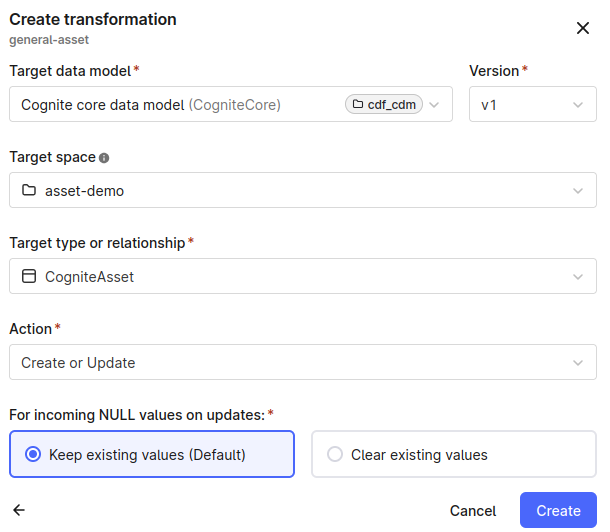 Add and **run** this SQL specification to create the asset hierarchy:
```sql wrap theme={"languages":{"custom":["/_languages/kuiper.json","../_languages/kuiper.json"]}}
-- Add the root manually. The set for lift stations doesn't specify a root asset.
select
'lift_pump_stations:root' as externalId,
'Lift Station Root' as name,
'Root node to group all lift stations.' as description,
null as parent
UNION ALL
-- select lift station data
select distinct
concat('lift_station:', cast(`LiftStationID` as STRING)) as externalId,
cast(`LiftStationID` as STRING) as name,
cast(`LocationDescription` as STRING) as description,
node_reference('asset-demo','lift_pump_stations:root') as parent
from
`cdm-asset-demo`.`lift-stations-pumps`
where isnotnull(nullif(cast(`LiftStationID` as STRING), ' '))
UNION ALL
-- select pump data
select
concat('pump:', cast(`FacilityID` as STRING)) as externalId,
cast(`Position` as STRING) as name,
null as description,
node_reference('asset-demo', concat('lift_station:', cast(`LiftStationID` as STRING))) as parent
from
`cdm-asset-demo`.`lift-stations-pumps`
where isnotnull(nullif(cast(`LiftStationID` as STRING), ' '));
```
## Build an asset hierarchy and extend CogniteAsset
Using the generic **CogniteAsset** in combination with other **core data model concepts** is often enough to create the necessary data models. If you need to create custom data models, you can **extend** the Cognite data models and tailor them to your use case, solution, or application.
The example below shows how to extend **CogniteAsset** to hold more pump data: `DesignPointFlowGPM`, `DesignPointHeadFT`, `LowHeadFT`, and `LowHeadFlowGPM`.
The first step is to create a [container](/cdf/dm/dm_concepts/dm_containers_views_datamodels#containers) to hold the additional data:
```yaml title="Pump container definition" wrap theme={"languages":{"custom":["/_languages/kuiper.json","../_languages/kuiper.json"]}}
externalId: Pump
name: Pump
space: asset-demo
usedFor: node
properties:
DesignPointFlowGPM:
autoIncrement: false
defaultValue: null
description: The flow the pump was designed for, specified in gallons per minute.
name: DesignPointFlowGPM
nullable: true
type:
list: false
type: float64
DesignPointHeadFT:
autoIncrement: false
defaultValue: null
description: The flow head pump was designed for, specified in feet.
name: DesignPointHeadFT
nullable: true
type:
list: false
type: float64
LowHeadFT:
autoIncrement: false
defaultValue: null
description: The low head of the pump, specified in feet.
name: LowHeadFT
nullable: true
type:
list: false
type: float64
LowHeadFlowGPM:
autoIncrement: false
defaultValue: null
description: The low head flow of the pump, specified in gallons per minute.
name: DesignPointHeadFT
nullable: true
type:
list: false
type: float64
constraints:
requiredAsset:
constraintType: requires
require:
type: container
space: cdf_cdm
externalId: CogniteAsset
```
The `requires` [constraint](/cdf/dm/dm_concepts/dm_containers_views_datamodels#constraints) ensures that the **Pump** data is always accompanied with **CogniteAsset** data.
Next, create two views to present the nodes as **lift-station** and **pump** assets. By [implementing](/cdf/dm/dm_concepts/dm_containers_views_datamodels#implementing-other-views) the **CogniteAsset** view, you automatically include all the properties defined in that view:
```yaml {5-8} title="Pump view definition" wrap theme={"languages":{"custom":["/_languages/kuiper.json","../_languages/kuiper.json"]}}
externalId: Pump
name: Pump
space: asset-demo
version: v1
implements: # <-- Declares that the view implements the CogniteAsset view
- space: cdf_cdm
externalId: CogniteAsset
version: v1
properties:
DesignPointFlowGPM:
container:
externalId: Pump
space: asset-demo
type: container
containerPropertyIdentifier: DesignPointFlowGPM
name: DesignPointFlowGPM
DesignPointHeadFT:
container:
externalId: Pump
space: asset-demo
type: container
containerPropertyIdentifier: DesignPointHeadFT
name: DesignPointHeadFT
LowHeadFT:
container:
externalId: Pump
space: asset-demo
type: container
containerPropertyIdentifier: LowHeadFT
name: LowHeadFT
LowHeadFlowGPM:
container:
externalId: Pump
space: asset-demo
type: container
containerPropertyIdentifier: LowHeadFlowGPM
name: LowHeadFlowGPM
```
```yaml {4-7} title="LiftStation view definition" wrap theme={"languages":{"custom":["/_languages/kuiper.json","../_languages/kuiper.json"]}}
space: asset-demo
externalId: LiftStation
version: v1
implements: # <-- Declares that the view implements the CogniteAsset view
- space: cdf_cdm
externalId: CogniteAsset
version: v1
filter: # <-- Adds additional filter to only include lift-stations
prefix:
property:
- node
- externalId
value: lift_station
```
Note the filter property in the **LiftStation** view. The **Pump** view includes properties from the **Pump** container and the **core data model** containers. The default [`hasData`](/cdf/dm/dm_concepts/dm_querying#hasdata-filter) filter ensures that the view only presents instances that are **pumps** or have **pump** data. The **LiftStation** view has the same fields as the **CogniteAsset** view. But without the explicit filter, it returns both **pumps** and **lift stations**.
When using explicit filters in views, it's essential to consider query performance. View filters run every time someone uses the view to query data. If necessary, add [indexes](/cdf/dm/dm_concepts/dm_containers_views_datamodels#indexes) to avoid degraded performance. The system always indexes the `externalId` property.
View filters don't limit any write operations based on the filter expression. You can ingest an instance through a view without it being returned by the same view.
When ingesting instance data through a view as a `source`, the system ensures that all the required fields are populated. When querying, using the `hasData` filter for a view ensures that the returned results have all the required fields for the view. Even if a view has no required fields, you can use the view to write "*blank*" values to satisfy the conditions for the `hasData` filter.
To populate the custom asset hierarchy, create a [data model](/cdf/dm/dm_concepts/dm_containers_views_datamodels#data-models) to present the custom views:
```yaml title="Lift stations and pumps data model" wrap theme={"languages":{"custom":["/_languages/kuiper.json","../_languages/kuiper.json"]}}
externalId: liftStationsPumps
name: Lift stations and pumps
space: asset-demo
version: v1
views:
- externalId: LiftStation
space: asset-demo
type: view
version: v1
- externalId: Pump
space: asset-demo
type: view
version: v1
```
The below Python script shows how to use the Cognite Python SDK and the `.load()` function to create data modeling objects from **YAML** representation. Remember to [authenticate](https://cognite-sdk-python.readthedocs-hosted.com/en/latest/credential_providers.html#) the **`CogniteClient`** properly.
```python title="Creating custom schema components" wrap theme={"languages":{"custom":["/_languages/kuiper.json","../_languages/kuiper.json"]}}
from cognite.client import ClientConfig, CogniteClient
from cognite.client.data_classes.data_modeling import (
ContainerApply,
DataModelApply,
ViewApply,
)
# client_config = ... <-- remember to authenticate.
client = CogniteClient(client_config)
pump_container_yaml = """
externalId: Pump
name: Pump
space: asset-demo
usedFor: node
properties:
DesignPointFlowGPM:
autoIncrement: false
defaultValue: null
description: The flow the pump was designed for, specified in gallons per minute.
name: DesignPointFlowGPM
nullable: true
type:
list: false
type: float64
DesignPointHeadFT:
autoIncrement: false
defaultValue: null
description: The flow head pump was designed for, specified in feet.
name: DesignPointHeadFT
nullable: true
type:
list: false
type: float64
LowHeadFT:
autoIncrement: false
defaultValue: null
description: The low head of the pump, specified in feet.
name: LowHeadFT
nullable: true
type:
list: false
type: float64
LowHeadFlowGPM:
autoIncrement: false
defaultValue: null
description: The low head flow of the pump, specified in gallons per minute.
name: DesignPointHeadFT
nullable: true
type:
list: false
type: float64
constraints:
requiredAsset:
constraintType: requires
require:
type: container
space: cdf_cdm
externalId: CogniteAsset
"""
pump_view_yaml = """
externalId: Pump
name: Pump
space: asset-demo
version: v1
implements: # <-- Declares that the view implements the CogniteAsset view
- space: cdf_cdm
externalId: CogniteAsset
version: v1
properties:
DesignPointFlowGPM:
container:
externalId: Pump
space: asset-demo
type: container
containerPropertyIdentifier: DesignPointFlowGPM
name: DesignPointFlowGPM
DesignPointHeadFT:
container:
externalId: Pump
space: asset-demo
type: container
containerPropertyIdentifier: DesignPointHeadFT
name: DesignPointHeadFT
LowHeadFT:
container:
externalId: Pump
space: asset-demo
type: container
containerPropertyIdentifier: LowHeadFT
name: LowHeadFT
LowHeadFlowGPM:
container:
externalId: Pump
space: asset-demo
type: container
containerPropertyIdentifier: LowHeadFlowGPM
name: LowHeadFlowGPM
"""
lift_station_view_yaml = """
space: asset-demo
externalId: LiftStation
version: v1
implements: # <-- Declares that the view implements the CogniteAsset view
- space: cdf_cdm
externalId: CogniteAsset
version: v1
filter: # <-- Adds additional filter to only include lift-stations
prefix:
property:
- node
- externalId
value: lift_station
"""
data_model_yaml = """
externalId: liftStationsPumps
name: Lift stations and pumps
space: asset-demo
version: v1
views:
- externalId: LiftStation
space: asset-demo
type: view
version: v1
- externalId: Pump
space: asset-demo
type: view
version: v1
"""
pump_container = ContainerApply.load(pump_container_yaml)
client.data_modeling.containers.apply(pump_container)
pump_view = ViewApply.load(pump_view_yaml)
lift_station_view = ViewApply.load(lift_station_view_yaml)
client.data_modeling.views.apply([pump_view, lift_station_view])
data_model = DataModelApply.load(data_model_yaml)
client.data_modeling.data_models.apply(data_model)
```
In the [previous example](#build-an-asset-hierarchy-with-cogniteasset), we could use the **CogniteAsset** view to write data for **lift stations** and **pumps**. Because **Transformations** support writing to a **single** view, you need to create a transformation for each of the **LiftStation** and **Pump** views to write to **both**.
Follow the steps in the [previous example](#build-an-asset-hierarchy-with-cogniteasset) to create transformations for the **LiftStation** and **Pump** views. Select **Lift stations and pumps** as the target data model.
Add and **run** this SQL specification to create the asset hierarchy:
```sql wrap theme={"languages":{"custom":["/_languages/kuiper.json","../_languages/kuiper.json"]}}
-- Add the root manually. The set for lift stations doesn't specify a root asset.
select
'lift_pump_stations:root' as externalId,
'Lift Station Root' as name,
'Root node to group all lift stations.' as description,
null as parent
UNION ALL
-- select lift station data
select distinct
concat('lift_station:', cast(`LiftStationID` as STRING)) as externalId,
cast(`LiftStationID` as STRING) as name,
cast(`LocationDescription` as STRING) as description,
node_reference('asset-demo','lift_pump_stations:root') as parent
from
`cdm-asset-demo`.`lift-stations-pumps`
where isnotnull(nullif(cast(`LiftStationID` as STRING), ' '))
UNION ALL
-- select pump data
select
concat('pump:', cast(`FacilityID` as STRING)) as externalId,
cast(`Position` as STRING) as name,
null as description,
node_reference('asset-demo', concat('lift_station:', cast(`LiftStationID` as STRING))) as parent
from
`cdm-asset-demo`.`lift-stations-pumps`
where isnotnull(nullif(cast(`LiftStationID` as STRING), ' '));
```
## Build an asset hierarchy and extend CogniteAsset
Using the generic **CogniteAsset** in combination with other **core data model concepts** is often enough to create the necessary data models. If you need to create custom data models, you can **extend** the Cognite data models and tailor them to your use case, solution, or application.
The example below shows how to extend **CogniteAsset** to hold more pump data: `DesignPointFlowGPM`, `DesignPointHeadFT`, `LowHeadFT`, and `LowHeadFlowGPM`.
The first step is to create a [container](/cdf/dm/dm_concepts/dm_containers_views_datamodels#containers) to hold the additional data:
```yaml title="Pump container definition" wrap theme={"languages":{"custom":["/_languages/kuiper.json","../_languages/kuiper.json"]}}
externalId: Pump
name: Pump
space: asset-demo
usedFor: node
properties:
DesignPointFlowGPM:
autoIncrement: false
defaultValue: null
description: The flow the pump was designed for, specified in gallons per minute.
name: DesignPointFlowGPM
nullable: true
type:
list: false
type: float64
DesignPointHeadFT:
autoIncrement: false
defaultValue: null
description: The flow head pump was designed for, specified in feet.
name: DesignPointHeadFT
nullable: true
type:
list: false
type: float64
LowHeadFT:
autoIncrement: false
defaultValue: null
description: The low head of the pump, specified in feet.
name: LowHeadFT
nullable: true
type:
list: false
type: float64
LowHeadFlowGPM:
autoIncrement: false
defaultValue: null
description: The low head flow of the pump, specified in gallons per minute.
name: DesignPointHeadFT
nullable: true
type:
list: false
type: float64
constraints:
requiredAsset:
constraintType: requires
require:
type: container
space: cdf_cdm
externalId: CogniteAsset
```
The `requires` [constraint](/cdf/dm/dm_concepts/dm_containers_views_datamodels#constraints) ensures that the **Pump** data is always accompanied with **CogniteAsset** data.
Next, create two views to present the nodes as **lift-station** and **pump** assets. By [implementing](/cdf/dm/dm_concepts/dm_containers_views_datamodels#implementing-other-views) the **CogniteAsset** view, you automatically include all the properties defined in that view:
```yaml {5-8} title="Pump view definition" wrap theme={"languages":{"custom":["/_languages/kuiper.json","../_languages/kuiper.json"]}}
externalId: Pump
name: Pump
space: asset-demo
version: v1
implements: # <-- Declares that the view implements the CogniteAsset view
- space: cdf_cdm
externalId: CogniteAsset
version: v1
properties:
DesignPointFlowGPM:
container:
externalId: Pump
space: asset-demo
type: container
containerPropertyIdentifier: DesignPointFlowGPM
name: DesignPointFlowGPM
DesignPointHeadFT:
container:
externalId: Pump
space: asset-demo
type: container
containerPropertyIdentifier: DesignPointHeadFT
name: DesignPointHeadFT
LowHeadFT:
container:
externalId: Pump
space: asset-demo
type: container
containerPropertyIdentifier: LowHeadFT
name: LowHeadFT
LowHeadFlowGPM:
container:
externalId: Pump
space: asset-demo
type: container
containerPropertyIdentifier: LowHeadFlowGPM
name: LowHeadFlowGPM
```
```yaml {4-7} title="LiftStation view definition" wrap theme={"languages":{"custom":["/_languages/kuiper.json","../_languages/kuiper.json"]}}
space: asset-demo
externalId: LiftStation
version: v1
implements: # <-- Declares that the view implements the CogniteAsset view
- space: cdf_cdm
externalId: CogniteAsset
version: v1
filter: # <-- Adds additional filter to only include lift-stations
prefix:
property:
- node
- externalId
value: lift_station
```
Note the filter property in the **LiftStation** view. The **Pump** view includes properties from the **Pump** container and the **core data model** containers. The default [`hasData`](/cdf/dm/dm_concepts/dm_querying#hasdata-filter) filter ensures that the view only presents instances that are **pumps** or have **pump** data. The **LiftStation** view has the same fields as the **CogniteAsset** view. But without the explicit filter, it returns both **pumps** and **lift stations**.
When using explicit filters in views, it's essential to consider query performance. View filters run every time someone uses the view to query data. If necessary, add [indexes](/cdf/dm/dm_concepts/dm_containers_views_datamodels#indexes) to avoid degraded performance. The system always indexes the `externalId` property.
View filters don't limit any write operations based on the filter expression. You can ingest an instance through a view without it being returned by the same view.
When ingesting instance data through a view as a `source`, the system ensures that all the required fields are populated. When querying, using the `hasData` filter for a view ensures that the returned results have all the required fields for the view. Even if a view has no required fields, you can use the view to write "*blank*" values to satisfy the conditions for the `hasData` filter.
To populate the custom asset hierarchy, create a [data model](/cdf/dm/dm_concepts/dm_containers_views_datamodels#data-models) to present the custom views:
```yaml title="Lift stations and pumps data model" wrap theme={"languages":{"custom":["/_languages/kuiper.json","../_languages/kuiper.json"]}}
externalId: liftStationsPumps
name: Lift stations and pumps
space: asset-demo
version: v1
views:
- externalId: LiftStation
space: asset-demo
type: view
version: v1
- externalId: Pump
space: asset-demo
type: view
version: v1
```
The below Python script shows how to use the Cognite Python SDK and the `.load()` function to create data modeling objects from **YAML** representation. Remember to [authenticate](https://cognite-sdk-python.readthedocs-hosted.com/en/latest/credential_providers.html#) the **`CogniteClient`** properly.
```python title="Creating custom schema components" wrap theme={"languages":{"custom":["/_languages/kuiper.json","../_languages/kuiper.json"]}}
from cognite.client import ClientConfig, CogniteClient
from cognite.client.data_classes.data_modeling import (
ContainerApply,
DataModelApply,
ViewApply,
)
# client_config = ... <-- remember to authenticate.
client = CogniteClient(client_config)
pump_container_yaml = """
externalId: Pump
name: Pump
space: asset-demo
usedFor: node
properties:
DesignPointFlowGPM:
autoIncrement: false
defaultValue: null
description: The flow the pump was designed for, specified in gallons per minute.
name: DesignPointFlowGPM
nullable: true
type:
list: false
type: float64
DesignPointHeadFT:
autoIncrement: false
defaultValue: null
description: The flow head pump was designed for, specified in feet.
name: DesignPointHeadFT
nullable: true
type:
list: false
type: float64
LowHeadFT:
autoIncrement: false
defaultValue: null
description: The low head of the pump, specified in feet.
name: LowHeadFT
nullable: true
type:
list: false
type: float64
LowHeadFlowGPM:
autoIncrement: false
defaultValue: null
description: The low head flow of the pump, specified in gallons per minute.
name: DesignPointHeadFT
nullable: true
type:
list: false
type: float64
constraints:
requiredAsset:
constraintType: requires
require:
type: container
space: cdf_cdm
externalId: CogniteAsset
"""
pump_view_yaml = """
externalId: Pump
name: Pump
space: asset-demo
version: v1
implements: # <-- Declares that the view implements the CogniteAsset view
- space: cdf_cdm
externalId: CogniteAsset
version: v1
properties:
DesignPointFlowGPM:
container:
externalId: Pump
space: asset-demo
type: container
containerPropertyIdentifier: DesignPointFlowGPM
name: DesignPointFlowGPM
DesignPointHeadFT:
container:
externalId: Pump
space: asset-demo
type: container
containerPropertyIdentifier: DesignPointHeadFT
name: DesignPointHeadFT
LowHeadFT:
container:
externalId: Pump
space: asset-demo
type: container
containerPropertyIdentifier: LowHeadFT
name: LowHeadFT
LowHeadFlowGPM:
container:
externalId: Pump
space: asset-demo
type: container
containerPropertyIdentifier: LowHeadFlowGPM
name: LowHeadFlowGPM
"""
lift_station_view_yaml = """
space: asset-demo
externalId: LiftStation
version: v1
implements: # <-- Declares that the view implements the CogniteAsset view
- space: cdf_cdm
externalId: CogniteAsset
version: v1
filter: # <-- Adds additional filter to only include lift-stations
prefix:
property:
- node
- externalId
value: lift_station
"""
data_model_yaml = """
externalId: liftStationsPumps
name: Lift stations and pumps
space: asset-demo
version: v1
views:
- externalId: LiftStation
space: asset-demo
type: view
version: v1
- externalId: Pump
space: asset-demo
type: view
version: v1
"""
pump_container = ContainerApply.load(pump_container_yaml)
client.data_modeling.containers.apply(pump_container)
pump_view = ViewApply.load(pump_view_yaml)
lift_station_view = ViewApply.load(lift_station_view_yaml)
client.data_modeling.views.apply([pump_view, lift_station_view])
data_model = DataModelApply.load(data_model_yaml)
client.data_modeling.data_models.apply(data_model)
```
In the [previous example](#build-an-asset-hierarchy-with-cogniteasset), we could use the **CogniteAsset** view to write data for **lift stations** and **pumps**. Because **Transformations** support writing to a **single** view, you need to create a transformation for each of the **LiftStation** and **Pump** views to write to **both**.
Follow the steps in the [previous example](#build-an-asset-hierarchy-with-cogniteasset) to create transformations for the **LiftStation** and **Pump** views. Select **Lift stations and pumps** as the target data model.
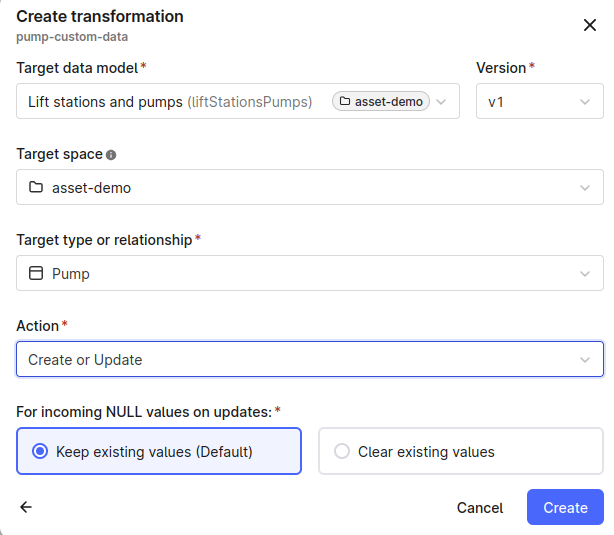 Add and run these SQL specifications:
```SQL title="Transformation for Pumps" wrap theme={"languages":{"custom":["/_languages/kuiper.json","../_languages/kuiper.json"]}}
select
concat('pump:', cast(`FacilityID` as STRING)) as externalId,
cast(`Position` as STRING) as name,
concat(cast(`Position` as STRING), " " , cast(`FacilityID` as STRING)) as description,
node_reference('asset-demo', concat('lift_station:', cast(`LiftStationID` as STRING))) as parent,
double(`DesignPointHeadFT`) as DesignPointHeadFT,
double(`DesignPointFlowGPM`) as DesignPointFlowGPM,
double(`LowHeadFT`) as LowHeadFT,
double(`LowHeadFlowGPM`) as LowHeadFlowGPM
from
`cdm-asset-demo`.`lift-stations-pumps`
where isnotnull(nullif(cast(`LiftStationID` as STRING), ' '));
```
```SQL title="Transformation for LiftStations" wrap theme={"languages":{"custom":["/_languages/kuiper.json","../_languages/kuiper.json"]}}
-- Add root manual root node as the set does not have a root for lift stations
select
'lift_pump_stations:root' as externalId,
'Lift Station Root' as name,
'Root node to group all lift stations.' as description,
null as parent
UNION ALL
-- select lift station data
select distinct
concat('lift_station:', cast(`LiftStationID` as STRING)) as externalId,
cast(`LiftStationID` as STRING) as name,
cast(`LocationDescription` as STRING) as description,
node_reference('asset-demo','lift_pump_stations:root') as parent
from
`cdm-asset-demo`.`lift-stations-pumps`
where isnotnull(nullif(cast(`LiftStationID` as STRING), ' '))
```
## Query hierarchical data
The examples below show how to query hierarchical data using [**Cognite Python SDK**](https://cognite-sdk-python.readthedocs-hosted.com/en/latest).
### List by source view
Views are a specialized representation of data and excellent tools for querying and filtering. For example, you can use the **CogniteAsset**, **LiftStation**, and **Pump** views to fetch nodes:
```python wrap theme={"languages":{"custom":["/_languages/kuiper.json","../_languages/kuiper.json"]}}
assets = client.data_modeling.instances.list(sources=ViewId(space="cdf_cdm", external_id="CogniteAsset", version="v1"))
lift_stations = client.data_modeling.instances.list(sources=ViewId(space="asset-demo", external_id="LiftStation", version="v1"))
pumps = client.data_modeling.instances.list(sources=ViewId(space="asset-demo", external_id="Pump", version="v1"))
```
Setting a view as a source when listing instances, automatically applies a `hasData` filter to the query. When fetching instances with **CogniteAsset** as a source, all assets are returned, both **lift-stations** and **pumps**. The respective views implement the **CogniteAsset** view and therefore satisfy the `hasData` filter.
### Aggregate based on a common parent
Often, you want to find aggregated information about the children of assets. This example finds information on how many **pumps** there are in a **lift station** and the average value of the `LowHeadFT` property for all **pumps** in a **lift station**:
```python wrap theme={"languages":{"custom":["/_languages/kuiper.json","../_languages/kuiper.json"]}}
from cognite.client.data_classes import aggregations
from cognite.client.data_classes.filters import Equals
# count number of pumps for Riverhouse lift station
count_pumps_for_lift_station = client.data_modeling.instances.aggregate(
view=ViewId(space="asset-demo", external_id="Pump", version="v1"),
space="asset-demo",
filter=Equals(
property=["asset-demo", "Pump/v1", "parent"],
value={"space": "asset-demo", "externalId": "lift_station:Riverhouse"},
),
aggregates=aggregations.Count("externalId"),
).value
# average pumpOn value for lift-station someId
average_for_for_lift_station = client.data_modeling.instances.aggregate(
view=ViewId(space="asset-demo", external_id="Pump", version="v1"),
space="asset-demo",
filter=Equals(
property=["asset-demo", "Pump/v1", "parent"],
value={"space": "asset-demo", "externalId": "lift_station:Riverhouse"},
),
aggregates=aggregations.Avg("LowHeadFT"),
).value
```
### List all assets in a subtree
To list all descendants of an asset, use the system-maintained `path` property of the **CogniteAsset** view.
Use `path` for subtree traversal and filtering. The `children` property in **CogniteAsset** is a [reverse direct relation](/cdf/dm/dm_concepts/dm_containers_views_datamodels#reverse-direct-relation) resolved at query time and has different query behavior than `root`, `path`, and `pathLastUpdatedTime`.
```python wrap theme={"languages":{"custom":["/_languages/kuiper.json","../_languages/kuiper.json"]}}
from cognite.client.data_classes.data_modeling import NodeId
from cognite.client.data_classes.data_modeling.cdm.v1 import CogniteAsset
from cognite.client.data_classes.filters import Prefix
sub_tree_root = client.data_modeling.instances.retrieve_nodes(
NodeId("asset-demo", "lift_station:Riverhouse"), node_cls=CogniteAsset
)
sub_tree_nodes = client.data_modeling.instances.list(
instance_type=CogniteAsset,
filter=Prefix(property=["cdf_cdm", "CogniteAsset/v1", "path"], value=sub_tree_root.path),
)
```
The example uses **CogniteAsset** **TypedNode** from the core data model definitions, a helper class for *de-serialization* of data objects.
Add and run these SQL specifications:
```SQL title="Transformation for Pumps" wrap theme={"languages":{"custom":["/_languages/kuiper.json","../_languages/kuiper.json"]}}
select
concat('pump:', cast(`FacilityID` as STRING)) as externalId,
cast(`Position` as STRING) as name,
concat(cast(`Position` as STRING), " " , cast(`FacilityID` as STRING)) as description,
node_reference('asset-demo', concat('lift_station:', cast(`LiftStationID` as STRING))) as parent,
double(`DesignPointHeadFT`) as DesignPointHeadFT,
double(`DesignPointFlowGPM`) as DesignPointFlowGPM,
double(`LowHeadFT`) as LowHeadFT,
double(`LowHeadFlowGPM`) as LowHeadFlowGPM
from
`cdm-asset-demo`.`lift-stations-pumps`
where isnotnull(nullif(cast(`LiftStationID` as STRING), ' '));
```
```SQL title="Transformation for LiftStations" wrap theme={"languages":{"custom":["/_languages/kuiper.json","../_languages/kuiper.json"]}}
-- Add root manual root node as the set does not have a root for lift stations
select
'lift_pump_stations:root' as externalId,
'Lift Station Root' as name,
'Root node to group all lift stations.' as description,
null as parent
UNION ALL
-- select lift station data
select distinct
concat('lift_station:', cast(`LiftStationID` as STRING)) as externalId,
cast(`LiftStationID` as STRING) as name,
cast(`LocationDescription` as STRING) as description,
node_reference('asset-demo','lift_pump_stations:root') as parent
from
`cdm-asset-demo`.`lift-stations-pumps`
where isnotnull(nullif(cast(`LiftStationID` as STRING), ' '))
```
## Query hierarchical data
The examples below show how to query hierarchical data using [**Cognite Python SDK**](https://cognite-sdk-python.readthedocs-hosted.com/en/latest).
### List by source view
Views are a specialized representation of data and excellent tools for querying and filtering. For example, you can use the **CogniteAsset**, **LiftStation**, and **Pump** views to fetch nodes:
```python wrap theme={"languages":{"custom":["/_languages/kuiper.json","../_languages/kuiper.json"]}}
assets = client.data_modeling.instances.list(sources=ViewId(space="cdf_cdm", external_id="CogniteAsset", version="v1"))
lift_stations = client.data_modeling.instances.list(sources=ViewId(space="asset-demo", external_id="LiftStation", version="v1"))
pumps = client.data_modeling.instances.list(sources=ViewId(space="asset-demo", external_id="Pump", version="v1"))
```
Setting a view as a source when listing instances, automatically applies a `hasData` filter to the query. When fetching instances with **CogniteAsset** as a source, all assets are returned, both **lift-stations** and **pumps**. The respective views implement the **CogniteAsset** view and therefore satisfy the `hasData` filter.
### Aggregate based on a common parent
Often, you want to find aggregated information about the children of assets. This example finds information on how many **pumps** there are in a **lift station** and the average value of the `LowHeadFT` property for all **pumps** in a **lift station**:
```python wrap theme={"languages":{"custom":["/_languages/kuiper.json","../_languages/kuiper.json"]}}
from cognite.client.data_classes import aggregations
from cognite.client.data_classes.filters import Equals
# count number of pumps for Riverhouse lift station
count_pumps_for_lift_station = client.data_modeling.instances.aggregate(
view=ViewId(space="asset-demo", external_id="Pump", version="v1"),
space="asset-demo",
filter=Equals(
property=["asset-demo", "Pump/v1", "parent"],
value={"space": "asset-demo", "externalId": "lift_station:Riverhouse"},
),
aggregates=aggregations.Count("externalId"),
).value
# average pumpOn value for lift-station someId
average_for_for_lift_station = client.data_modeling.instances.aggregate(
view=ViewId(space="asset-demo", external_id="Pump", version="v1"),
space="asset-demo",
filter=Equals(
property=["asset-demo", "Pump/v1", "parent"],
value={"space": "asset-demo", "externalId": "lift_station:Riverhouse"},
),
aggregates=aggregations.Avg("LowHeadFT"),
).value
```
### List all assets in a subtree
To list all descendants of an asset, use the system-maintained `path` property of the **CogniteAsset** view.
Use `path` for subtree traversal and filtering. The `children` property in **CogniteAsset** is a [reverse direct relation](/cdf/dm/dm_concepts/dm_containers_views_datamodels#reverse-direct-relation) resolved at query time and has different query behavior than `root`, `path`, and `pathLastUpdatedTime`.
```python wrap theme={"languages":{"custom":["/_languages/kuiper.json","../_languages/kuiper.json"]}}
from cognite.client.data_classes.data_modeling import NodeId
from cognite.client.data_classes.data_modeling.cdm.v1 import CogniteAsset
from cognite.client.data_classes.filters import Prefix
sub_tree_root = client.data_modeling.instances.retrieve_nodes(
NodeId("asset-demo", "lift_station:Riverhouse"), node_cls=CogniteAsset
)
sub_tree_nodes = client.data_modeling.instances.list(
instance_type=CogniteAsset,
filter=Prefix(property=["cdf_cdm", "CogniteAsset/v1", "path"], value=sub_tree_root.path),
)
```
The example uses **CogniteAsset** **TypedNode** from the core data model definitions, a helper class for *de-serialization* of data objects.