

Build an asset hierarchy with CogniteAsset
We recommend building asset hierarchies starting from a root node and using theparent property to add child assets. Root nodes are nodes with an empty parent property. You can add or change the parent property later to add a node and its children to an existing hierarchy.
When you add or change a node in a hierarchy, a background job—path materializer—recalculates the path from the root node for all nodes affected by the change. The job runs asynchronously, and the time it takes to update all the paths depends on the number of affected nodes.
The example below uses sample data from the Cognite Data Fusion Toolkit. The hierarchy consists of two levels—lift stations and pumps—where pumps are children of a lift station.
To create a generic asset hierarchy with the CogniteAsset view, set the CogniteAsset view as a source during the ingestion process and set the parent property to specify the parent asset or leave it blank for root assets.
Populate data with Transformations
This example uses Transformations to ingest data from thelift-stations-pumps table from the CDF staging area, RAW.
1
Upload the data to the staging area
Upload the data to the staging area, for example, using a script similar to this:
Uploading collections_pump.csv to staging, RAW
Uploading collections_pump.csv to staging, RAW
2
Create the asset-demo space
Create a space named
asset-demo to hold asset instances. This is separate from the RAW database name (cdm-asset-demo).Create the space using one of these approaches:- Programmatically — Use Apply spaces in the Cognite Python SDK reference.
- In the transformation UI — In the next step, select + Create new space in the Target space dropdown and enter
asset-demo.
3
Create a transformation
- Navigate to Data fusion > Integrate > Transformations.
- Select Create transformation, and enter a unique name and a unique external ID.
- Select Next.
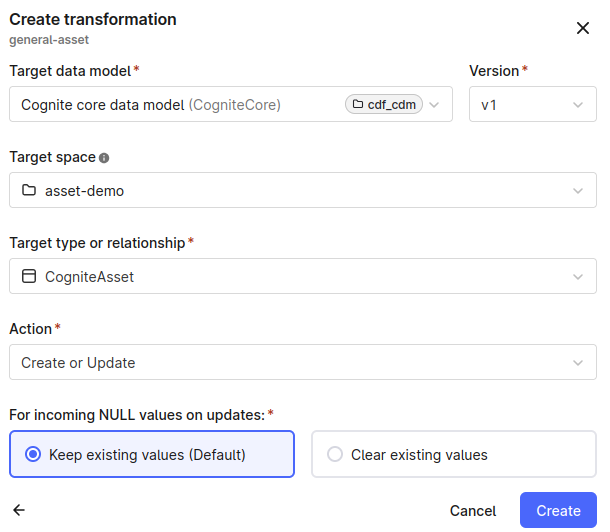
- Select Cognite core data model under Target data models, then select v1 for Version.
-
For Target space, select
asset-demo. If you created the space programmatically in the previous step, select it from the dropdown. Otherwise, select + Create new space and enterasset-demo. - Select CogniteAsset as the Target type or relationship.
- Select Create or Update as the Action.
- Select Create.
4
Add and run the SQL specification
Add and run this SQL specification to create the asset hierarchy:
Build an asset hierarchy and extend CogniteAsset
Using the generic CogniteAsset in combination with other core data model concepts is often enough to create the necessary data models. If you need to create custom data models, you can extend the Cognite data models and tailor them to your use case, solution, or application. The example below builds on the previous section. Complete the RAW upload and create theasset-demo space before defining custom schema components.
The example shows how to extend CogniteAsset to hold more pump data: DesignPointFlowGPM, DesignPointHeadFT, LowHeadFT, and LowHeadFlowGPM.
1
Create a container to hold the additional data
The first step is to create a container to hold the additional data:The
Pump container definition
requires constraint ensures that the Pump data is always accompanied with CogniteAsset data.2
Create views to present the nodes
Next, create two views to present the nodes as lift-station and pump assets. By implementing the CogniteAsset view, you automatically include all the properties defined in that view:Note the filter property in the LiftStation view. The Pump view includes properties from the Pump container and the core data model containers. The default
Pump view definition
LiftStation view definition
hasData filter ensures that the view only presents instances that are pumps or have pump data. The LiftStation view has the same fields as the CogniteAsset view. But without the explicit filter, it returns both pumps and lift stations.When using explicit filters in views, it’s essential to consider query performance. View filters run every time someone uses the view to query data. If necessary, add indexes to avoid degraded performance. The system always indexes the externalId property.When ingesting instance data through a view as a source, the system ensures that all the required fields are populated. When querying, using the hasData filter for a view ensures that the returned results have all the required fields for the view. Even if a view has no required fields, you can use the view to write “blank” values to satisfy the conditions for the hasData filter.3
Create a data model to present the custom views
To populate the custom asset hierarchy, create a data model to present the custom views:
Lift stations and pumps data model
Creating custom schema components with Cognite Python SDK.
Creating custom schema components with Cognite Python SDK.
Creating custom schema components
4
Create transformations for LiftStation and Pump views
In the previous example, we could use the CogniteAsset view to write data for lift stations and pumps. Because Transformations support writing to a single view, you need to create a transformation for each of the LiftStation and Pump views to write to both.Follow the steps in the previous example to create transformations for the LiftStation and Pump views. Select Lift stations and pumps as the target data model.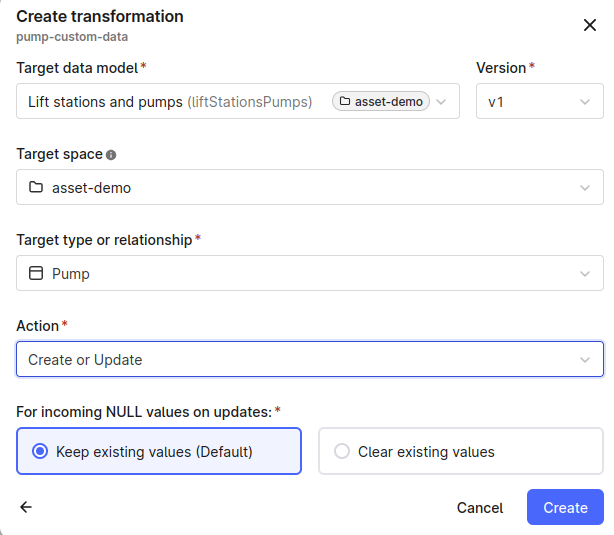
5
Add and run the SQL specifications
Add and run these SQL specifications:
Transformation for Pumps
Transformation for LiftStations
Query hierarchical data
The examples below show how to query hierarchical data using Cognite Python SDK.List by source view
Views are a specialized representation of data and excellent tools for querying and filtering. For example, you can use the CogniteAsset, LiftStation, and Pump views to fetch nodes:space when using CogniteAsset so you only get assets from the asset-demo space, not other spaces in your project. Setting a view as a source when listing instances automatically applies a hasData filter to the query. When fetching instances with CogniteAsset as a source, all matching assets in the space are returned, both lift-stations and pumps. The respective views implement the CogniteAsset view and therefore satisfy the hasData filter.
To inspect the results, iterate over the returned list. See List instances in the Cognite Python SDK reference.
Aggregate based on a common parent
Often, you want to find aggregated information about the children of assets. This example finds information on how many pumps there are in a lift station and the average value of theLowHeadFT property for all pumps in a lift station:
List all assets in a subtree
To list all descendants of an asset, use the system-maintainedpath property of the CogniteAsset view.
Use
path for subtree traversal and filtering. The children property in CogniteAsset is a reverse direct relation resolved at query time and has different query behavior than root, path, and pathLastUpdatedTime.