> ## Documentation Index
> Fetch the complete documentation index at: https://docs.cognite.com/llms.txt
> Use this file to discover all available pages before exploring further.
# Migrating 3D models
> Step-by-step guide to migrate 3D models from an asset-centric to a data modeling-based Cognite Data Fusion (CDF) project.
The migration plugin is an experimental feature. Updates to the Cognite Toolkit are likely to introduce changes to the described commands and processes.
This guide walks data engineers through migrating **CAD and point cloud 3D models** from an asset-centric Cognite Data Fusion (CDF) project to data modeling instances.
## Prerequisites
Migrating 3D models requires a **CDF project-level feature flag** that is not enabled by default. Contact your Cognite representative or Cognite Support to enable the 3D migration feature flag before you start.
Before migrating 3D models, complete the following:
1. Request enablement of the 3D migration feature flag from Cognite Support
2. [Migrating assets](/cdf/deploy/cdf_toolkit/guides/plugins/migration_plugin/assets)
3. [Migrating data sets](/cdf/deploy/cdf_toolkit/guides/plugins/migration_plugin/datasets)
If you have not completed some prerequisites, see [Manually populate the CogniteMigration data model](/cdf/deploy/cdf_toolkit/guides/plugins/migration_plugin/prepare#manual-population-of-the-cognitemigration-data-model).
## Required capabilities
The following capabilities are required to run `cdf migrate 3d` and `cdf migrate 3d-mappings`:
| Capability type | Action | Scope | Description |
| -------------------- | ---------------------------------------------- | -------------------------------- | ------------------------------------------------- |
| 3D models | `threed:read`, `threed:write`, `threed:update` | The selected 3D models data sets | From data set where you read the source 3D models |
| Data model instances | `datamodelinstances:write` | All | Admin access is required to migrate 3D models |
## Migrating 3D models
Only CAD and point cloud 3D models can be migrated with this command. To migrate 360° images, see [Migrating 360 images](/cdf/deploy/cdf_toolkit/guides/plugins/migration_plugin/360_images).
Run `cdf migrate 3d` to migrate the 3D model nodes, then `cdf migrate 3d-mappings` to create the asset mappings.
Run the command in interactive mode to select which 3D models to migrate, or pass the options as arguments. See `cdf migrate 3d --help`.
```bash theme={"languages":{"custom":["/_languages/kuiper.json","../_languages/kuiper.json"]}}
cdf migrate 3d
```
If you see the error `You need to have the 3D migration feature flag enabled...`, enable the [3D migration feature flag](#3d-migration-feature-flag) in the prerequisites above.
After the models are migrated, migrate the 3D asset mappings. See [Migrating 3D asset mappings](#migrating-3d-asset-mappings).
Confirm that `Cognite3DModel` and `Cognite3DRevision` nodes exist, and that mappings created `Cognite3DObject` and `CogniteCADNode` nodes. See [How the migration works](#how-the-migration-works).
## Migrating 3D asset mappings
After migrating the 3D models, run the asset mappings command in interactive mode:
```bash theme={"languages":{"custom":["/_languages/kuiper.json","../_languages/kuiper.json"]}}
cdf migrate 3d-mappings
```
The command prompts you to select which 3D model to migrate mappings for, along with other options. You can also pass all options as command-line arguments. See `cdf migrate 3d-mappings --help` for details.
When you migrate 3D asset mappings, you must select two instance spaces:
* One for [CogniteCADNode](/cdf/dm/dm_reference/dm_core_data_model#cognitecadnode) nodes — the contextualized CAD nodes from the model
* One for [Cognite3DObject](/cdf/dm/dm_reference/dm_core_data_model#cognite3dobject) nodes — the nodes that connect assets to those CAD nodes
You can use the same instance space for both, or separate spaces if you want different access control or ownership.
## How the migration works
The Cognite Toolkit looks up the instance space for the data set the 3D model belongs to, then creates a 3D model node in that space.
For example, a 3D model governed through the asset-centric model:
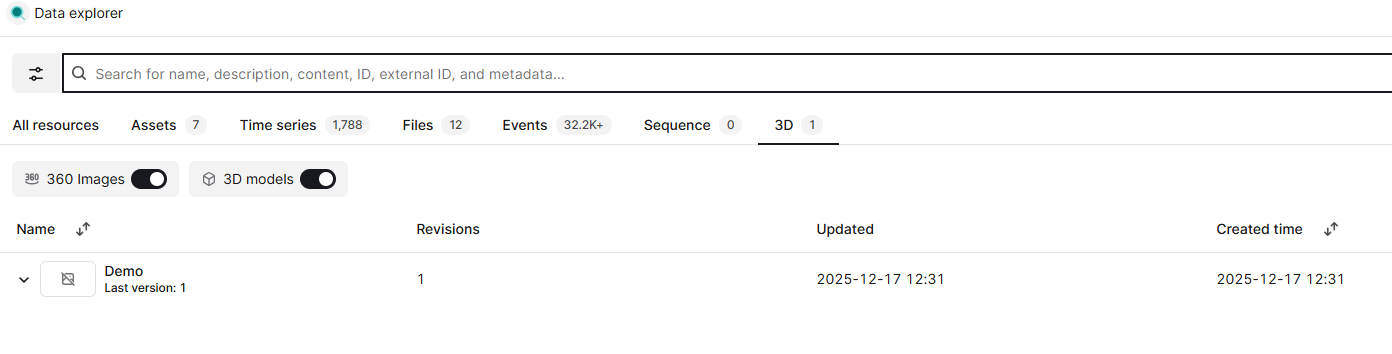 After migrating the 3D model and its asset mappings, the following nodes exist in the data modeling-based CDF project in the [CogniteCore model](/cdf/dm/dm_reference/dm_core_data_model):
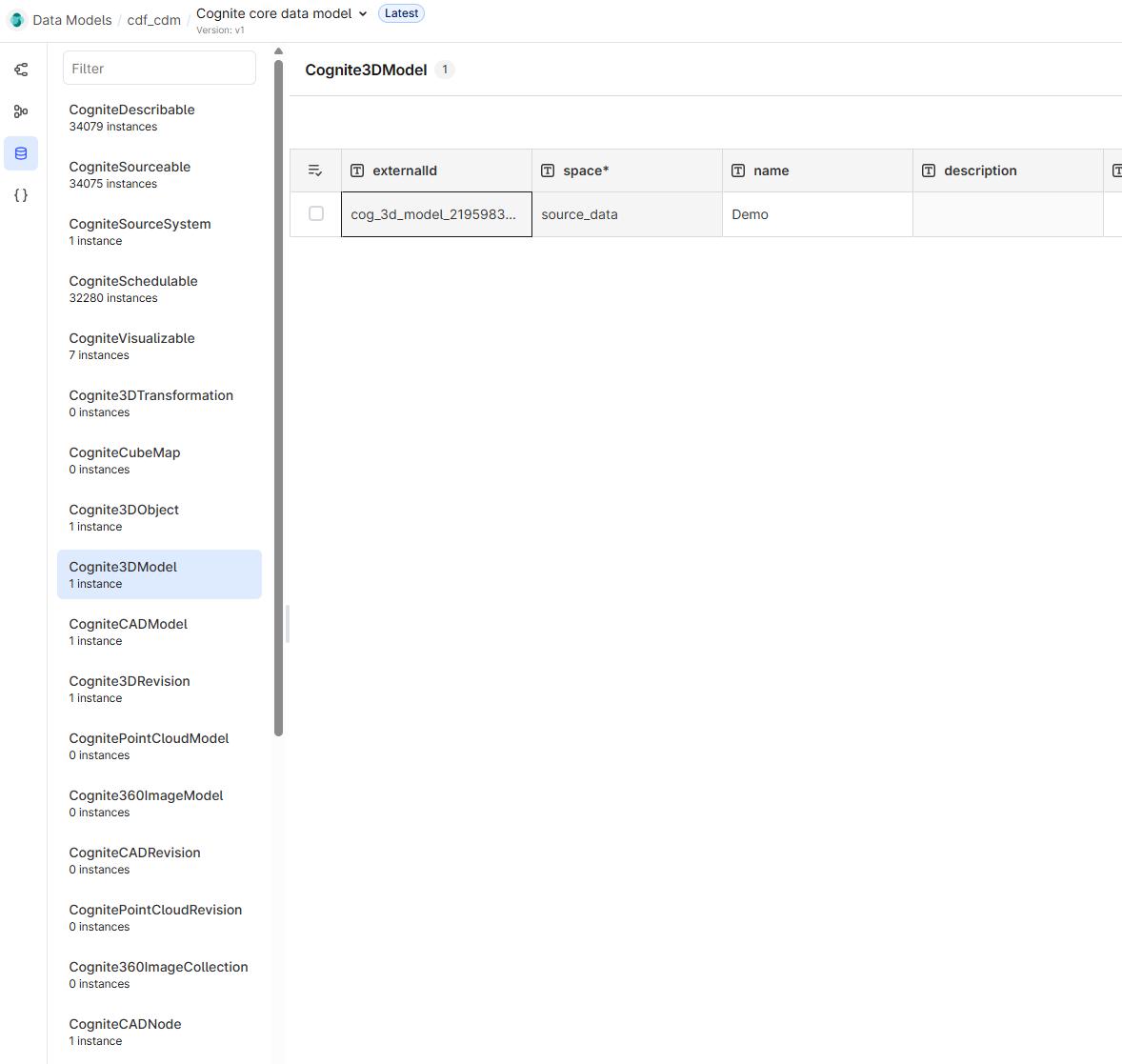 `cdf migrate 3d` creates the `Cognite3DModel` and `Cognite3DRevision` nodes. `cdf migrate 3d-mappings` creates the `Cognite3DObject` and `CogniteCADNode` nodes, and updates the asset with a direct relation reference to the `Cognite3DObject` node.
## What `cdf migrate 3d` does
When you run `cdf migrate 3d`, the Cognite Toolkit performs the following steps:
The Cognite Toolkit reads the 3D models from the `/3d/models` endpoint for each selected model.
For each 3D model, the Cognite Toolkit creates a migration request. This includes looking up the instance space for the data set using the `SpaceSource` view in the `CogniteMigration` data model.
The Cognite Toolkit calls a non-public migration endpoint for each 3D model with the created request. This endpoint is intended only for use by the migration plugin.
## What `cdf migrate 3d-mappings` does
When you run `cdf migrate 3d-mappings`, the Cognite Toolkit performs the following steps:
The Cognite Toolkit uses the `/3d/models/{modelId}/revisions/{revisionId}/mappings/list` endpoint to download all asset-centric mappings for the selected 3D models.
The Cognite Toolkit looks up the `assetId` with the `assetInstanceId` using the `InstanceSource` view in the `CogniteMigration` data model.
The Cognite Toolkit creates the mappings using the `/3d/models/{modelId}/revisions/{revisionId}/mappings` endpoint.
## Further reading
* [Migrating 360 images](/cdf/deploy/cdf_toolkit/guides/plugins/migration_plugin/360_images)
* [Migrating assets](/cdf/deploy/cdf_toolkit/guides/plugins/migration_plugin/assets)
* [Kelmarsh example](/cdf/deploy/cdf_toolkit/guides/plugins/migration_plugin/example)
* [Migration overview](/cdf/deploy/cdf_toolkit/guides/plugins/migration_plugin/steps)
`cdf migrate 3d` creates the `Cognite3DModel` and `Cognite3DRevision` nodes. `cdf migrate 3d-mappings` creates the `Cognite3DObject` and `CogniteCADNode` nodes, and updates the asset with a direct relation reference to the `Cognite3DObject` node.
## What `cdf migrate 3d` does
When you run `cdf migrate 3d`, the Cognite Toolkit performs the following steps:
The Cognite Toolkit reads the 3D models from the `/3d/models` endpoint for each selected model.
For each 3D model, the Cognite Toolkit creates a migration request. This includes looking up the instance space for the data set using the `SpaceSource` view in the `CogniteMigration` data model.
The Cognite Toolkit calls a non-public migration endpoint for each 3D model with the created request. This endpoint is intended only for use by the migration plugin.
## What `cdf migrate 3d-mappings` does
When you run `cdf migrate 3d-mappings`, the Cognite Toolkit performs the following steps:
The Cognite Toolkit uses the `/3d/models/{modelId}/revisions/{revisionId}/mappings/list` endpoint to download all asset-centric mappings for the selected 3D models.
The Cognite Toolkit looks up the `assetId` with the `assetInstanceId` using the `InstanceSource` view in the `CogniteMigration` data model.
The Cognite Toolkit creates the mappings using the `/3d/models/{modelId}/revisions/{revisionId}/mappings` endpoint.
## Further reading
* [Migrating 360 images](/cdf/deploy/cdf_toolkit/guides/plugins/migration_plugin/360_images)
* [Migrating assets](/cdf/deploy/cdf_toolkit/guides/plugins/migration_plugin/assets)
* [Kelmarsh example](/cdf/deploy/cdf_toolkit/guides/plugins/migration_plugin/example)
* [Migration overview](/cdf/deploy/cdf_toolkit/guides/plugins/migration_plugin/steps)