> ## Documentation Index
> Fetch the complete documentation index at: https://docs.cognite.com/llms.txt
> Use this file to discover all available pages before exploring further.
# Authentication and authorization for Cognite Toolkit
> How you set up authentication and authorization for Cognite Toolkit depends on whether you'll use it in a CI/CD pipeline with full access or a local development environment with limited access.
In both cases, you can use the [Auth commands](#auth-commands) to set up and verify authentication and authorization for the Cognite Toolkit according to your needs.
## Set up full access to CDF resources
To set up the Cognite Toolkit with full access to the resources in a CDF project, you typically create a dedicated service account and add it as the sole member of a CDF group with all the required capabilities.
If you're running the Cognite Toolkit as part of a [CI/CD pipeline](/cdf/deploy/cdf_toolkit/guides/cicd), create a service account for each CDF project you are running. For production projects, the service account should be the only entity that can write configuration settings to the CDF project.
Run the `cdf auth init` command to set up **authentication** for the service account. The command automatically calls the `cdf auth verify` command to guide you through **authorization** and setting up the necessary group with the required capabilities. See the [auth init](#auth-init) command for more information.
### Quick setup guide
Follow the steps below to set up the Cognite Toolkit with full access to your CDF project using Microsoft Entra ID as the identity provider. The steps to use [Amazon Cognito](/cdf/access/aws/guides/create_groups_oidc_cognito) as the identity provider are similar.
[Create a group in your identity provider](/cdf/access/entra/guides/create_groups_oidc) and name it, for example, *\ Toolkit*. Store the Object Id of the group securely.
[Register a new application in your identity provider](/cdf/access/entra/guides/register_custom_webapp) and name it, for example, *\ Toolkit service account*. Store the Application (client) ID and the Directory (tenant) ID securely.
[Add the service principal to the group](/cdf/access/entra/guides/add_service_principal). Store the client secret securely.
Sign in to your CDF project. Create a new group and name it *cognite\_toolkit\_service\_principal*. Give it the Project and Group capabilities. Set the sourceId to the Object Id of the group you created in step 1.
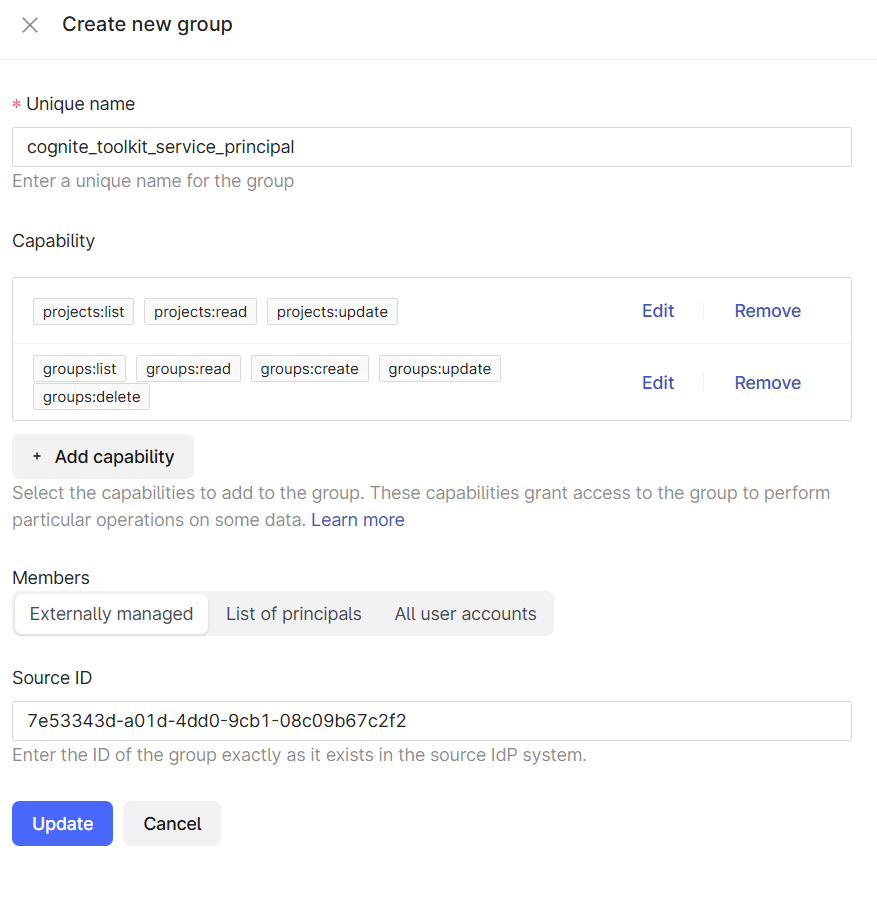 Run `cdf auth init` and select client\_credentials as the sign-in flow.
1. Enter the Application (client) ID, client secret, Directory (tenant) ID, and cluster and project name for your CDF project.
2. Select yes to store the credentials in a `.env` file so you can reuse the credentials to authenticate for all Toolkit commands.
3. The command automatically calls `cdf auth verify` to guide you through setting up the *cognite\_toolkit\_service\_principal* group with the required capabilities.
If you decided to create the `.env` file manually, or you want to check that you have the necessary capabilities set up correctly, you can run `cdf auth verify`.
## Set up with limited access to CDF resources
You can use the Cognite Toolkit for local development with limited access to CDF project(s), but you will not be able to deploy or clean resources that you don't have access to.
To check the authorization of your credentials, run the `cdf auth init --no-verify` command. This helps you set up the necessary credentials for authentication, but will not create the necessary group with the required capabilities. See the [auth init](#auth-init) command for more information.
## Auth commands
This section assumes that you've already registered the Cognite API and core application in your identity provider, for example, [Microsoft Entra ID](/cdf/access/entra/guides/configure_cdf_azure_oidc) or [Amazon Cognito](/cdf/access/aws/guides/configure_cdf_cognito).
### auth init
Cognite Toolkit commands look for a `.env` file in the current directory and load the environment variables from that file. The `auth init` command guides you through creating the `.env` file. You can also create the file manually, for example, from the `.env.tmpl` file you get when running the `cdf repo init` command.
Running `cdf auth init` prompts you to select the sign-in flow, specify the credentials for the flow, and store the credentials in a `.env` file. Unless your using the `--no-verify` flag, the command next calls `cdf auth verify` to guide you through setting up a group with the necessary capabilities. See [auth verify](#auth-verify) for more information.
Choosing the correct sign-in flow
The sign-in flow you choose depends on how you plan to use the Cognite Toolkit.
* The `client_credentials` flow is recommended for CI/CD pipelines.
* The `device_code` flow is recommended for local development.
* The `token` flow is used when you have an OAuth2 token that you want to use, for example if you've created a token with Postman.
* The `interactive` flow is similar to the `device_code` flow and is supported as a legacy feature. It opens a browser window for you to sign in.
Each sign-in flow requires different environment variables. See the [sign-in flow environment variables](#sign-in-flow-environment-variables) section for more information.
### auth verify
Use this command to create the *cognite\_toolkit\_service\_principal* toolkit group in CDF with the required capabilities to use it without any restrictions. The name of the group is fixed and can't be changed.
This illustration shows the target setup (with Microsoft Entra ID as the identity provider):
```mermaid theme={"languages":{"custom":["/_languages/kuiper.json","../_languages/kuiper.json"]}}
graph LR
ServiceAccount -->|member of| EntraIDGroup
EntraIDGroup -->|objectId| CDFGroup
CDFGroup -->|has capabilites| ToolkitCapabilities
```
To run this command, you must be authenticated and have these CDF capabilities:
* `projects:list` and `projects:read`
* `groups:list`, `groups:read`, `groups:create`, `groups:update`, and `groups:delete`
If you haven't authenticated with a service account that's a member of a group named *cognite\_toolkit\_service\_principal*, the command creates (or updates) the *cognite\_toolkit\_service\_principal* group, and prompts you to switch to the service account that's a member of this group.
For example, if you are an admin in your CDF project and use your own authorization to create the *cognite\_toolkit\_service\_principal* group, you shouldn't continue to use the admin account to run the Cognite Toolkit commands. Instead, you should switch to the service account connected to the newly created *cognite\_toolkit\_service\_principal* group.
Troubleshooting .env file loading
Note that if your local environment has environment variables set, they will take precedence over the values in the `.env` file as is standard practice. If you're seeing unexpected behaviour, it can be due to the environment variables set in your local environment. To verify, you can use the --override-env flag to make sure the `.env` file takes precedence.
```bash theme={"languages":{"custom":["/_languages/kuiper.json","../_languages/kuiper.json"]}}
cdf --override-env
```
The `.env` files can contain secrets — do not check them into version control repositories. The `.env` extension is added to the `.gitignore` file created in your project directory.
## Sign-in flow environment variables
The Cognite Toolkit supports the following sign-in flows. The environment variables they expect are listed below.
### client\_credentials
This sign-in flow sets up a service account with client credentials. It's the recommended sign-in flow for CI/CD pipelines. The sign-in flow requires that you have created a group and service account credentials in your identity provider.
| Description | Environment variable |
| -------------------------------------------------------------------------------------------------- | -------------------- |
| The variable selecting the login flow, set to `client_credentials` to use client credentials flow. | `LOGIN_FLOW` |
| The **cluster** where your CDF project is running, for example, `westeurope-1`. | `CDF_CLUSTER` |
| The **CDF project name**, for example, `myproject`. | `CDF_PROJECT` |
| The **client ID** of the application/service account in your identity provider. | `IDP_CLIENT_ID` |
| The **client secret** of the application/service account in your identity provider. | `IDP_CLIENT_SECRET` |
| The **TENANT ID**, only used with Microsoft Entra ID as the identity provider. | `IDP_TENANT_ID` |
| The **token URL** of your identity provider. | `IDP_TOKEN_URL` |
| The **CDF URL**. The URL to your CDF project. | `CDF_URL` |
### device\_code
This sign-in flow lets you authenticate as a user. It's the recommended sign-in flow for local development. The sign-in flow requires that you have authorization to give consent to the application in your identity provider.
| Description | Environment variable |
| ------------------------------------------------------------------------------------ | -------------------- |
| The variable selecting the login flow, set to `device_code` to use device code flow. | `LOGIN_FLOW` |
| The **cluster** where your CDF project is running, for example, `westeurope-1`. | `CDF_CLUSTER` |
| The **CDF project name**, for example, `myproject`. | `CDF_PROJECT` |
| The **TENANT ID**, only used with Microsoft Entra ID as the identity provider . | `IDP_TENANT_ID` |
| The **IDP URL** of your identity provider. | `IDP_TOKEN_URL` |
| The **CDF URL**. The URL to your CDF project. | `CDF_URL` |
### interactive
This sign-in flow is similar to the **device\_code** sign-in flow but opens a browser window for you to sign in.
| Description | Environment variable |
| ------------------------------------------------------------------------------------ | -------------------- |
| The variable selecting the login flow, set to `interactive` to use interactive flow. | `LOGIN_FLOW` |
| The **cluster** where your CDF project is running, for example, `westeurope-1`. | `CDF_CLUSTER` |
| The **CDF project name**, for example `myproject`. | `CDF_PROJECT` |
| The **client ID** of the application/service account in your identity provider. | `IDP_CLIENT_ID` |
| The **TENANT ID**, only used with Microsoft Entra ID as the identity provider. | `IDP_TENANT_ID` |
| The **IDP URL** of your identity provider. | `IDP_TOKEN_URL` |
| The **CDF URL**. The URL to your CDF project. | `CDF_URL` |
### token
Use this sign-in flow when you have an OAuth2 token that you want to use, for example if you've created a token with Postman.
| Description | Environment variable |
| ------------------------------------------------------------------------------- | -------------------- |
| The variable selecting the login flow, set to `token` to use token flow. | `LOGIN_FLOW` |
| The **cluster** where your CDF project is running, for example, `westeurope-1`. | `CDF_CLUSTER` |
| The **CDF project name**, for example, `myproject`. | `CDF_PROJECT` |
| The **token** to authenticate. | `CDF_TOKEN` |
| The **CDF URL**. The URL to your CDF project. | `CDF_URL` |
Learn more
* Create a group for the service account: [Microsoft Entra ID](/cdf/access/entra/guides/create_groups_oidc), [Amazon Cognito](/cdf/access/aws/guides/create_groups_oidc_cognito).
* Register an application in your identity provider: [Microsoft Entra ID](/cdf/access/entra/guides/register_custom_webapp), [Amazon Cognito](/cdf/access/aws/guides/register_custom_webapp_cognito).
* Add a service account to a CDF group: [Microsoft Entra ID](/cdf/access/entra/guides/add_service_principal), [Amazon Cognito](/cdf/access/aws/guides/add_service_principal_cognito).
Run `cdf auth init` and select client\_credentials as the sign-in flow.
1. Enter the Application (client) ID, client secret, Directory (tenant) ID, and cluster and project name for your CDF project.
2. Select yes to store the credentials in a `.env` file so you can reuse the credentials to authenticate for all Toolkit commands.
3. The command automatically calls `cdf auth verify` to guide you through setting up the *cognite\_toolkit\_service\_principal* group with the required capabilities.
If you decided to create the `.env` file manually, or you want to check that you have the necessary capabilities set up correctly, you can run `cdf auth verify`.
## Set up with limited access to CDF resources
You can use the Cognite Toolkit for local development with limited access to CDF project(s), but you will not be able to deploy or clean resources that you don't have access to.
To check the authorization of your credentials, run the `cdf auth init --no-verify` command. This helps you set up the necessary credentials for authentication, but will not create the necessary group with the required capabilities. See the [auth init](#auth-init) command for more information.
## Auth commands
This section assumes that you've already registered the Cognite API and core application in your identity provider, for example, [Microsoft Entra ID](/cdf/access/entra/guides/configure_cdf_azure_oidc) or [Amazon Cognito](/cdf/access/aws/guides/configure_cdf_cognito).
### auth init
Cognite Toolkit commands look for a `.env` file in the current directory and load the environment variables from that file. The `auth init` command guides you through creating the `.env` file. You can also create the file manually, for example, from the `.env.tmpl` file you get when running the `cdf repo init` command.
Running `cdf auth init` prompts you to select the sign-in flow, specify the credentials for the flow, and store the credentials in a `.env` file. Unless your using the `--no-verify` flag, the command next calls `cdf auth verify` to guide you through setting up a group with the necessary capabilities. See [auth verify](#auth-verify) for more information.
Choosing the correct sign-in flow
The sign-in flow you choose depends on how you plan to use the Cognite Toolkit.
* The `client_credentials` flow is recommended for CI/CD pipelines.
* The `device_code` flow is recommended for local development.
* The `token` flow is used when you have an OAuth2 token that you want to use, for example if you've created a token with Postman.
* The `interactive` flow is similar to the `device_code` flow and is supported as a legacy feature. It opens a browser window for you to sign in.
Each sign-in flow requires different environment variables. See the [sign-in flow environment variables](#sign-in-flow-environment-variables) section for more information.
### auth verify
Use this command to create the *cognite\_toolkit\_service\_principal* toolkit group in CDF with the required capabilities to use it without any restrictions. The name of the group is fixed and can't be changed.
This illustration shows the target setup (with Microsoft Entra ID as the identity provider):
```mermaid theme={"languages":{"custom":["/_languages/kuiper.json","../_languages/kuiper.json"]}}
graph LR
ServiceAccount -->|member of| EntraIDGroup
EntraIDGroup -->|objectId| CDFGroup
CDFGroup -->|has capabilites| ToolkitCapabilities
```
To run this command, you must be authenticated and have these CDF capabilities:
* `projects:list` and `projects:read`
* `groups:list`, `groups:read`, `groups:create`, `groups:update`, and `groups:delete`
If you haven't authenticated with a service account that's a member of a group named *cognite\_toolkit\_service\_principal*, the command creates (or updates) the *cognite\_toolkit\_service\_principal* group, and prompts you to switch to the service account that's a member of this group.
For example, if you are an admin in your CDF project and use your own authorization to create the *cognite\_toolkit\_service\_principal* group, you shouldn't continue to use the admin account to run the Cognite Toolkit commands. Instead, you should switch to the service account connected to the newly created *cognite\_toolkit\_service\_principal* group.
Troubleshooting .env file loading
Note that if your local environment has environment variables set, they will take precedence over the values in the `.env` file as is standard practice. If you're seeing unexpected behaviour, it can be due to the environment variables set in your local environment. To verify, you can use the --override-env flag to make sure the `.env` file takes precedence.
```bash theme={"languages":{"custom":["/_languages/kuiper.json","../_languages/kuiper.json"]}}
cdf --override-env
```
The `.env` files can contain secrets — do not check them into version control repositories. The `.env` extension is added to the `.gitignore` file created in your project directory.
## Sign-in flow environment variables
The Cognite Toolkit supports the following sign-in flows. The environment variables they expect are listed below.
### client\_credentials
This sign-in flow sets up a service account with client credentials. It's the recommended sign-in flow for CI/CD pipelines. The sign-in flow requires that you have created a group and service account credentials in your identity provider.
| Description | Environment variable |
| -------------------------------------------------------------------------------------------------- | -------------------- |
| The variable selecting the login flow, set to `client_credentials` to use client credentials flow. | `LOGIN_FLOW` |
| The **cluster** where your CDF project is running, for example, `westeurope-1`. | `CDF_CLUSTER` |
| The **CDF project name**, for example, `myproject`. | `CDF_PROJECT` |
| The **client ID** of the application/service account in your identity provider. | `IDP_CLIENT_ID` |
| The **client secret** of the application/service account in your identity provider. | `IDP_CLIENT_SECRET` |
| The **TENANT ID**, only used with Microsoft Entra ID as the identity provider. | `IDP_TENANT_ID` |
| The **token URL** of your identity provider. | `IDP_TOKEN_URL` |
| The **CDF URL**. The URL to your CDF project. | `CDF_URL` |
### device\_code
This sign-in flow lets you authenticate as a user. It's the recommended sign-in flow for local development. The sign-in flow requires that you have authorization to give consent to the application in your identity provider.
| Description | Environment variable |
| ------------------------------------------------------------------------------------ | -------------------- |
| The variable selecting the login flow, set to `device_code` to use device code flow. | `LOGIN_FLOW` |
| The **cluster** where your CDF project is running, for example, `westeurope-1`. | `CDF_CLUSTER` |
| The **CDF project name**, for example, `myproject`. | `CDF_PROJECT` |
| The **TENANT ID**, only used with Microsoft Entra ID as the identity provider . | `IDP_TENANT_ID` |
| The **IDP URL** of your identity provider. | `IDP_TOKEN_URL` |
| The **CDF URL**. The URL to your CDF project. | `CDF_URL` |
### interactive
This sign-in flow is similar to the **device\_code** sign-in flow but opens a browser window for you to sign in.
| Description | Environment variable |
| ------------------------------------------------------------------------------------ | -------------------- |
| The variable selecting the login flow, set to `interactive` to use interactive flow. | `LOGIN_FLOW` |
| The **cluster** where your CDF project is running, for example, `westeurope-1`. | `CDF_CLUSTER` |
| The **CDF project name**, for example `myproject`. | `CDF_PROJECT` |
| The **client ID** of the application/service account in your identity provider. | `IDP_CLIENT_ID` |
| The **TENANT ID**, only used with Microsoft Entra ID as the identity provider. | `IDP_TENANT_ID` |
| The **IDP URL** of your identity provider. | `IDP_TOKEN_URL` |
| The **CDF URL**. The URL to your CDF project. | `CDF_URL` |
### token
Use this sign-in flow when you have an OAuth2 token that you want to use, for example if you've created a token with Postman.
| Description | Environment variable |
| ------------------------------------------------------------------------------- | -------------------- |
| The variable selecting the login flow, set to `token` to use token flow. | `LOGIN_FLOW` |
| The **cluster** where your CDF project is running, for example, `westeurope-1`. | `CDF_CLUSTER` |
| The **CDF project name**, for example, `myproject`. | `CDF_PROJECT` |
| The **token** to authenticate. | `CDF_TOKEN` |
| The **CDF URL**. The URL to your CDF project. | `CDF_URL` |
Learn more
* Create a group for the service account: [Microsoft Entra ID](/cdf/access/entra/guides/create_groups_oidc), [Amazon Cognito](/cdf/access/aws/guides/create_groups_oidc_cognito).
* Register an application in your identity provider: [Microsoft Entra ID](/cdf/access/entra/guides/register_custom_webapp), [Amazon Cognito](/cdf/access/aws/guides/register_custom_webapp_cognito).
* Add a service account to a CDF group: [Microsoft Entra ID](/cdf/access/entra/guides/add_service_principal), [Amazon Cognito](/cdf/access/aws/guides/add_service_principal_cognito).