> ## Documentation Index
> Fetch the complete documentation index at: https://docs.cognite.com/llms.txt
> Use this file to discover all available pages before exploring further.
# Edit and explore data sets
> Learn how to edit data set information, explore data lineage, and manage data sets in Cognite Data Fusion to ensure data quality and governance.
When you or someone else in your organization has [created data sets and added data](/cdf/data_governance/guides/datasets/create_data_sets) to them, you can:
* Explore the data sets to trace the **data lineage** to understand where data originates from and be confident of the **data integrity** and the **data quality**.
* Set the governance status to **make the data available** as input to the use cases your organization is looking to solve.
You can also edit the data sets to add more documentation or to **write-protect** to provide an extra layer of protection to production-critical data. By **archiving** data sets, you can hide data sets that are no longer used.
## Edit data sets
Data sets evolve as you ingest more data, update a data ingestion pipeline, or take steps to increase the data set quality.
By adding information and documentation about your data set, you provide a shared understanding in your organization about the data in the data set.
Navigate to Data fusion > Data catalog.
Select the data set you want to edit.
Select **Edit**.
Use the data set wizard to update the information about the data set. For example, you can:
* Edit the **name**, **description**, **owner**, and other data set details to help other users understand the data set content.
* Set **labels** for data sets to make the data set easier to discover by others. For instance, you can specify the type of data, geographic region, or business unit in the labels.
* Set the **governance status**. If a data set has a defined owner and follows the governance processes for data in your organization, we recommend that you mark the data set as **governed**. If the data set isn't maintained, lacks a clear owner, or lacks necessary governance, mark the data set as **ungoverned**.
* Upload additional **documentation files** or specify **links** to further information about the data set. We recommend that you upload documentation about the data ingestion process, such as instructions on how to sign in to a computer where an extractor is running and describe the type of data processing done.
* **Write-protect** data sets that contain production-critical data to preserve the integrity of the data. Only members of groups that you explicitly grant access can write data to a write-protected data set.
* **Archive** data sets to hide them from the UI and make the data set unavailable to users. The data set and the data it contains aren't deleted, and you can always restore archived data sets later.
## Explore data sets
Navigate to Data fusion > Data catalog.
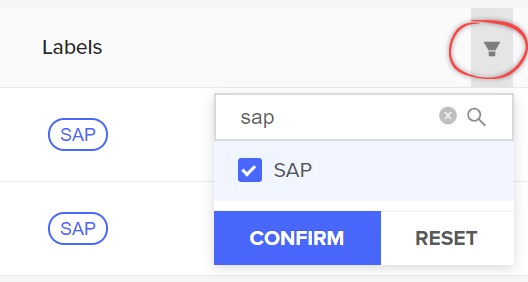
To find the data sets you want to explore, you can **filter** data sets by label or **search** for data sets by their name or description.
 1. Select the data set you want to see more details about.
In the **Basic information** section, you can see key information about the data set, for example:
* The **data set ID**. This is the CDF ID for the data set. You need to use this ID to add data objects to the data set.
* The **name** and **description**. A small padlock in front of the name indicates that the data set is write-protected.
* The **Governance status**. "Governed" indicates that the data set has a designated owner and follows the governance processes for data in your organization.
* Who **created** the data set.
* The **owner** of the data set.
* When the data set was last updated.
2. Select the different **tabs** to see more detailed information about the data set:
* **Explore data** - see how many data objects of each resource type the data set contains. Select a data object to view more details.
* **Lineage** - understand where data originates from and be confident of the **data integrity** and the **data quality**.
* **Documentation** - access any uploaded files or documentation links for the data set.
* **Access control** - see who has their read or write access scoped to the data set.
1. Select the data set you want to see more details about.
In the **Basic information** section, you can see key information about the data set, for example:
* The **data set ID**. This is the CDF ID for the data set. You need to use this ID to add data objects to the data set.
* The **name** and **description**. A small padlock in front of the name indicates that the data set is write-protected.
* The **Governance status**. "Governed" indicates that the data set has a designated owner and follows the governance processes for data in your organization.
* Who **created** the data set.
* The **owner** of the data set.
* When the data set was last updated.
2. Select the different **tabs** to see more detailed information about the data set:
* **Explore data** - see how many data objects of each resource type the data set contains. Select a data object to view more details.
* **Lineage** - understand where data originates from and be confident of the **data integrity** and the **data quality**.
* **Documentation** - access any uploaded files or documentation links for the data set.
* **Access control** - see who has their read or write access scoped to the data set.