> ## Documentation Index
> Fetch the complete documentation index at: https://docs.cognite.com/llms.txt
> Use this file to discover all available pages before exploring further.
# Create data sets and add data
> Learn how to create data sets in Cognite Data Fusion, configure access control, and add data objects to track data lineage and ensure data integrity.
A **data set** is a container for data objects with metadata about the data. For instance, you can use the data set metadata to document who is responsible for the data, upload documentation files, and describe the data lineage. In Cognite Data Fusion (CDF), you'll see data sets as a separate resource type with a `/datasets` API endpoint.
To define which **data objects**, such as events, files, and time series, belong to a data set, you specify the relevant `dataSetId` for each data object, typically in a data ingestion pipeline. Data objects can belong to only one data set, so you can unambiguously trace the data lineage for each data object.
## Step 1: Create a data set
Navigate to Data fusion > Data catalog.
1. Select **Create data set**.
2. Fill in the basic information and select **Create** to create the data set.
Follow the steps in the wizard to fill in **basic information** about the data set, document the [data extraction](/cdf/integration/concepts/extraction/index) and [transformation](/cdf/integration/concepts/transformation/index) processes, and add extra **documentation** for your data set.
The documentation provides data consumers and data managers with the lineage documentation they need for the data set. We recommend that you upload documentation about how the data is ingested. For example, the documentation could include instructions about how to sign in to a computer where an extractor is running and describe the type of data processing that has been done.
You don't have to add all documentation at once. We recommend that you update the information for the data set as you proceed with your data ingestion work.
You can also:
* Mark the data set as **write protected** to ensure the integrity of the data it contains.
* Set **labels** for the data set, for instance, to group similar group data sets and make them more discoverable.
* Set the **governance status** for the data set to indicate whether it has a defined owner and follows the data governance processes in your organization.
## Step 2: Set up and scope access to the data set
You manage access to the data set **metadata** and the **data objects** within the data set separately:
* Use the **datasets** capability to grant users, apps, or services access to add or edit **metadata** for data sets.
* Use the **resource type(s)** capabilities to grant users, apps, or services access to add or edit **data objects** within data sets.
* Use **scope** to specify which data set(s) the users, apps, or services have access to.
* Use **action** to specify what the group is allowed to do with the data they have access to.
For example:
| Desired access | Capability | Action | Scope |
| ---------------------------------------- | ---------- | ---------------- | --------- |
| Read the metadata for **all** data sets. | datasets | read | all |
| Read and edit metadata for a data set. | datasets | read write | dataSetId |
| Write-protect a data set. | datasets | owner | dataSetId |
| Write time series data to a data set. | timeseries | write | dataSetId |
| Read time series data from a data set. | timeseries | read | dataSetId |
Users, apps, or services with the capability *datasets* and action *write* can add data sets and edit the metadata. Also, they can edit the metadata even if a data set is write-protected and they're not the owner of the data set.
Learn more about managing access for users, apps, and services in the [Access management](/cdf/access/index) section.
We recommend that you:
* **Write-protect** data sets that contain production-critical data to preserve the integrity of the data it contains.
To write-protect a data set, set the *owner* action for a group and scope it to the `dataSetId`. Only members of groups with the *owner* action can write data to the data set. Other users, apps, or services can't change the data in the data set even if they have the necessary access rights to change the relevant resource types for the data objects contained in the data set.
* **Scope write access for 3rd parties** to let them securely write data back to CDF.
Create a dedicated data set for the 3rd party and scope its write access to data in that data set. This ensures that they can write data only to that specific data set and not accidentally overwrite any other data.
## Step 3a: Ingest new data into the data set
If your extractor writes data to the CDF staging area (RAW) before the data is transformed into the CDF data model, make sure that **the transformation tool** sets the appropriate `dataSetId` of the data objects when it transforms the data.
If your extractor writes directly to a **CDF resource type**, make sure that **the extractor** sets the appropriate `dataSetId` when it creates the CDF data objects.
Learn more about extractors and transformations in the [data integration](/cdf/integration/index) section.
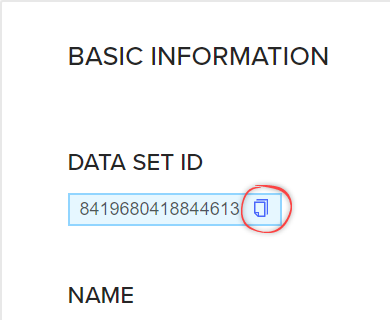
Get the `dataSetId` for the data set you want to add the data object to.
1. In the left-hand menu, select **Data sets**.
2. Select the data set you want to add the data object to.
3. Copy the **data set ID** from the Basic information section.
 Set the `dataSetId` for the data objects you are ingesting. For example, this request shows how to set the `dataSetId` when you create an *event* in CDF with our API:
**URL:** `https://api.cognitedata.com/api/v1/projects/project-name/events`
**Body:**
```json theme={"languages":{"custom":["/_languages/kuiper.json","../_languages/kuiper.json"]}}
{
"items": [
{
"externalId": "my.known.id",
"startTime": 0,
"endTime": 0,
"type": "string",
"subtype": "string",
"description": "string",
"metadata": {
"property1": "string",
"property2": "string"
},
"assetIds": [
1
],
"source": "string",
"dataSetId":
}
]
}
```
## Step 3b: Add existing CDF data to the data set
If you have data objects in CDF that don't belong to a data set, you can update the data objects' `dataSetId` field to include them in a data set, for instance, to trace the data lineage and ensure the data integrity.
To update the `dataSetId` field, you can use SQL transformations, a Python script, or another tool of your choice.
Get the `dataSetId` for the data set you want to add the data object to.
1. In the left-hand menu, select **Data sets**.
2. Select the data set you want to add the data object to.
3. Copy the **data set ID** from the Basic information section.
Set the `dataSetId` for the data objects you are adding. For example:
To use **the API** to update the `dataSetId` for an *event* with `externalId` 123, use a request like this:
**URL:** `https://api.cognitedata.com/api/v1/projects/{project}/events/update`
**Body:**
```json theme={"languages":{"custom":["/_languages/kuiper.json","../_languages/kuiper.json"]}}
{
"items": [
{
"update": {
"dataSetId": {
"set":
},
},
"externalId": 123
}
]
}
```
To use [SQL transformations](/cdf/integration/guides/transformation/transformations) to set the `dataSetId`, use a SQL statement like this:
```sql theme={"languages":{"custom":["/_languages/kuiper.json","../_languages/kuiper.json"]}}
SELECT as dataSetId, id
FROM _cdf.
where
```
For ``, see [this section](/cdf/integration/guides/transformation/transformations#from-other-cdf-resource-types) to find the syntax for the supported CDF resource types.
Set the `dataSetId` for the data objects you are ingesting. For example, this request shows how to set the `dataSetId` when you create an *event* in CDF with our API:
**URL:** `https://api.cognitedata.com/api/v1/projects/project-name/events`
**Body:**
```json theme={"languages":{"custom":["/_languages/kuiper.json","../_languages/kuiper.json"]}}
{
"items": [
{
"externalId": "my.known.id",
"startTime": 0,
"endTime": 0,
"type": "string",
"subtype": "string",
"description": "string",
"metadata": {
"property1": "string",
"property2": "string"
},
"assetIds": [
1
],
"source": "string",
"dataSetId":
}
]
}
```
## Step 3b: Add existing CDF data to the data set
If you have data objects in CDF that don't belong to a data set, you can update the data objects' `dataSetId` field to include them in a data set, for instance, to trace the data lineage and ensure the data integrity.
To update the `dataSetId` field, you can use SQL transformations, a Python script, or another tool of your choice.
Get the `dataSetId` for the data set you want to add the data object to.
1. In the left-hand menu, select **Data sets**.
2. Select the data set you want to add the data object to.
3. Copy the **data set ID** from the Basic information section.
Set the `dataSetId` for the data objects you are adding. For example:
To use **the API** to update the `dataSetId` for an *event* with `externalId` 123, use a request like this:
**URL:** `https://api.cognitedata.com/api/v1/projects/{project}/events/update`
**Body:**
```json theme={"languages":{"custom":["/_languages/kuiper.json","../_languages/kuiper.json"]}}
{
"items": [
{
"update": {
"dataSetId": {
"set":
},
},
"externalId": 123
}
]
}
```
To use [SQL transformations](/cdf/integration/guides/transformation/transformations) to set the `dataSetId`, use a SQL statement like this:
```sql theme={"languages":{"custom":["/_languages/kuiper.json","../_languages/kuiper.json"]}}
SELECT as dataSetId, id
FROM _cdf.
where
```
For ``, see [this section](/cdf/integration/guides/transformation/transformations#from-other-cdf-resource-types) to find the syntax for the supported CDF resource types.