> ## Documentation Index
> Fetch the complete documentation index at: https://docs.cognite.com/llms.txt
> Use this file to discover all available pages before exploring further.
# Get aggregated time series data
> Query Cognite Data Fusion for pre-calculated aggregates of numerical time series data points with short response times.
Cognite Data Fusion (CDF) pre-calculates the most common aggregates for numerical data points in time series. These aggregates are available with short response times even when you are querying across large data sets.
Instead of downloading and manually aggregating data in an OData client, you can query CDF for the aggregates. Specify the **time range** and the **granularity** (the unit of time to compute the aggregates for) and let CDF do the computational work.
## Get aggregates for a single time series using the OData services
In the asset-centric and data modeling OData services, when listing time series, the service exposes a function to retrieve aggregates for **a single time series** from CDF. To use the function in Microsoft Power BI:
In the Power Query Editor, navigate to a list of time series table using a Cognite Power BI connector.
Use filtering to find the time series you want aggregates from, and then in the Aggregate column, select Function.
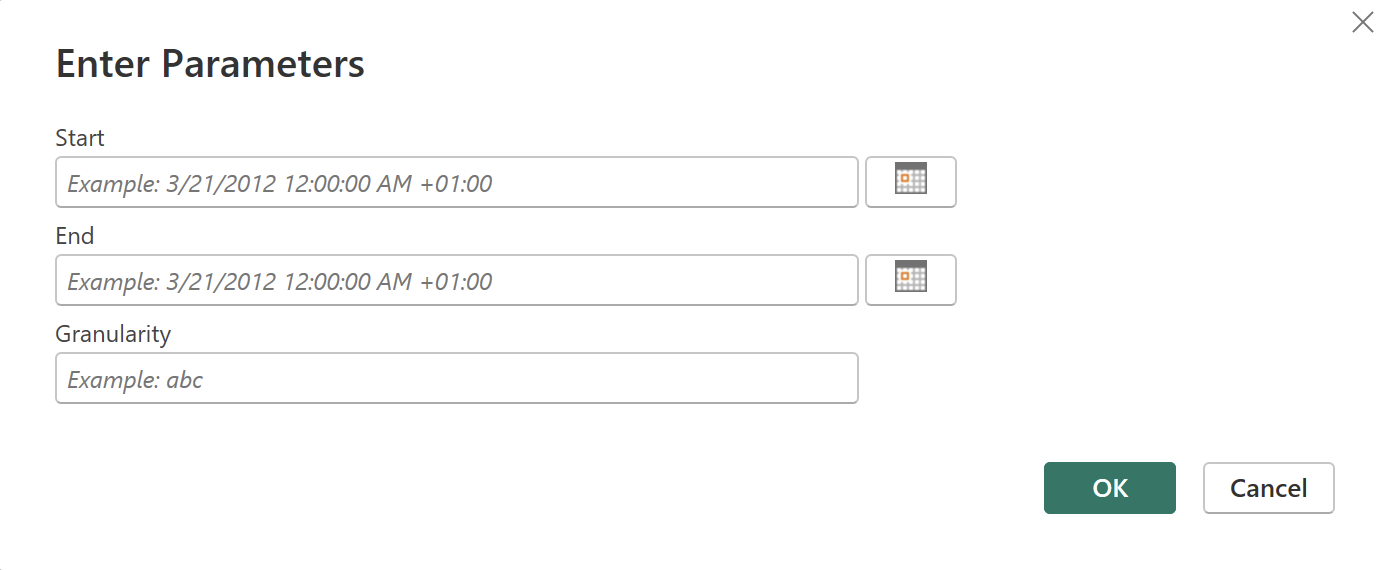
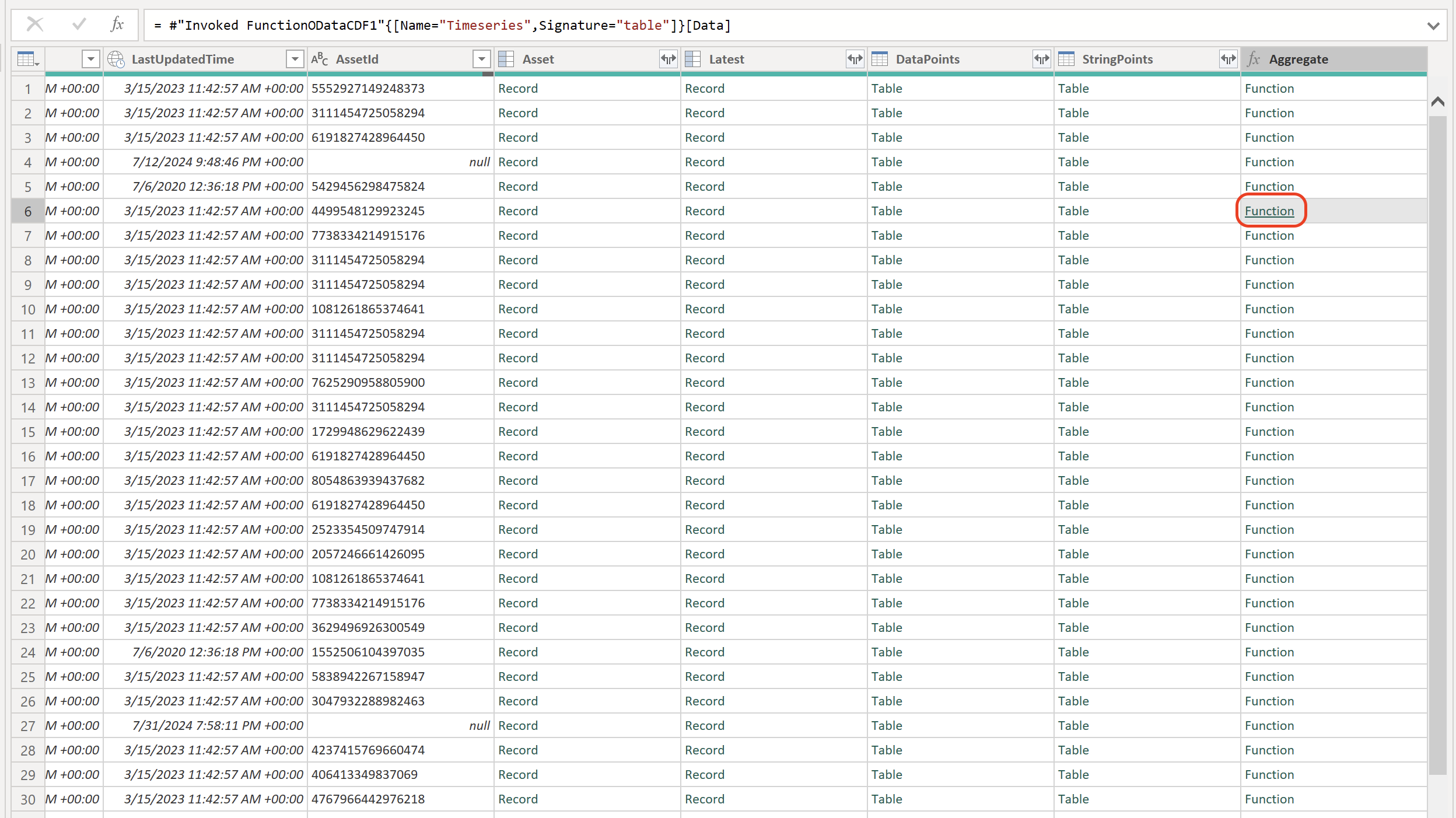 Specify the time range and granularity, and then select OK.
 The Power Query Editor displays a table with the aggregates for the specified time range. Remove the columns you don't need, then select **Close and apply**.
## Get aggregates for many time series
To retrieve aggregates from many time series in the same time range, use the **TimeseriesAggregate** function, exposed by the asset-centric OData service. Instead of calling the function on a single time series, create a time series table with all the time series you want to retrieve aggregates from.
In Microsoft Power BI:
Open a connection to the asset-centric OData service using a Cognite Power BI connector. Right-click the **Timeseries** table and the **TimeseriesAggregate** function and add them as new query.
The Power Query Editor displays a table with the aggregates for the specified time range. Remove the columns you don't need, then select **Close and apply**.
## Get aggregates for many time series
To retrieve aggregates from many time series in the same time range, use the **TimeseriesAggregate** function, exposed by the asset-centric OData service. Instead of calling the function on a single time series, create a time series table with all the time series you want to retrieve aggregates from.
In Microsoft Power BI:
Open a connection to the asset-centric OData service using a Cognite Power BI connector. Right-click the **Timeseries** table and the **TimeseriesAggregate** function and add them as new query.
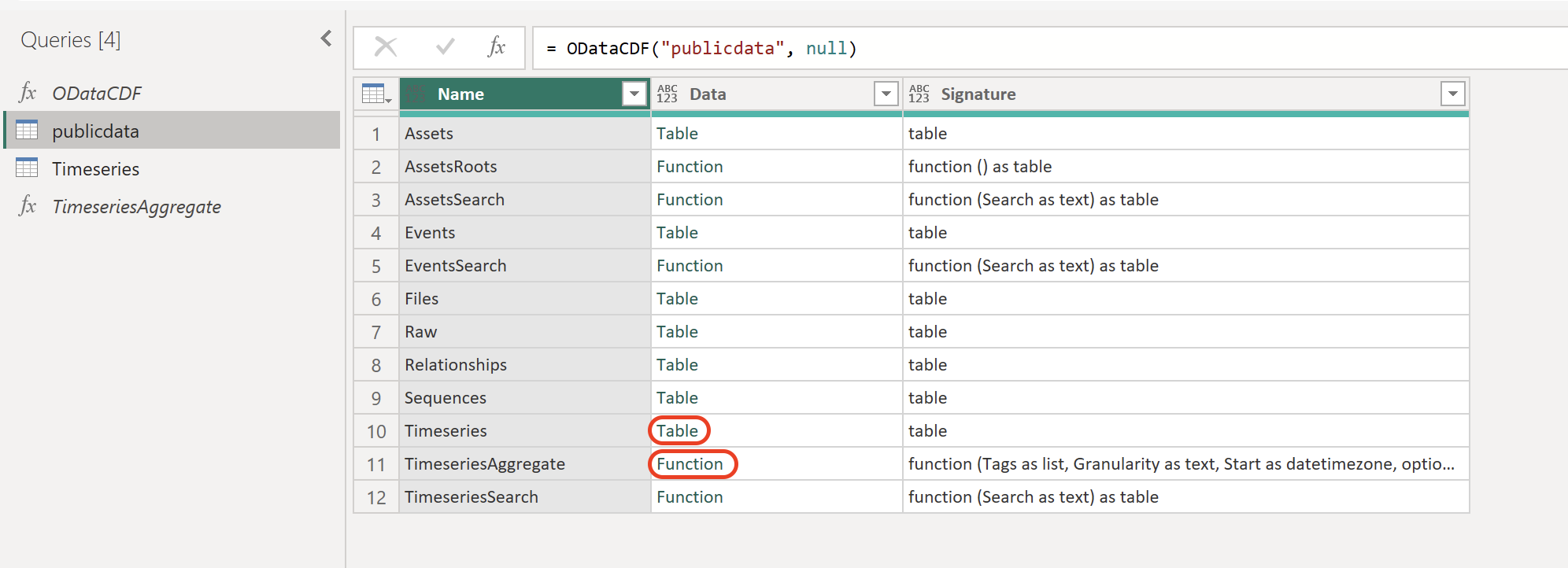 Use filtering on the Timeseries table to find the time series you want aggregates from.
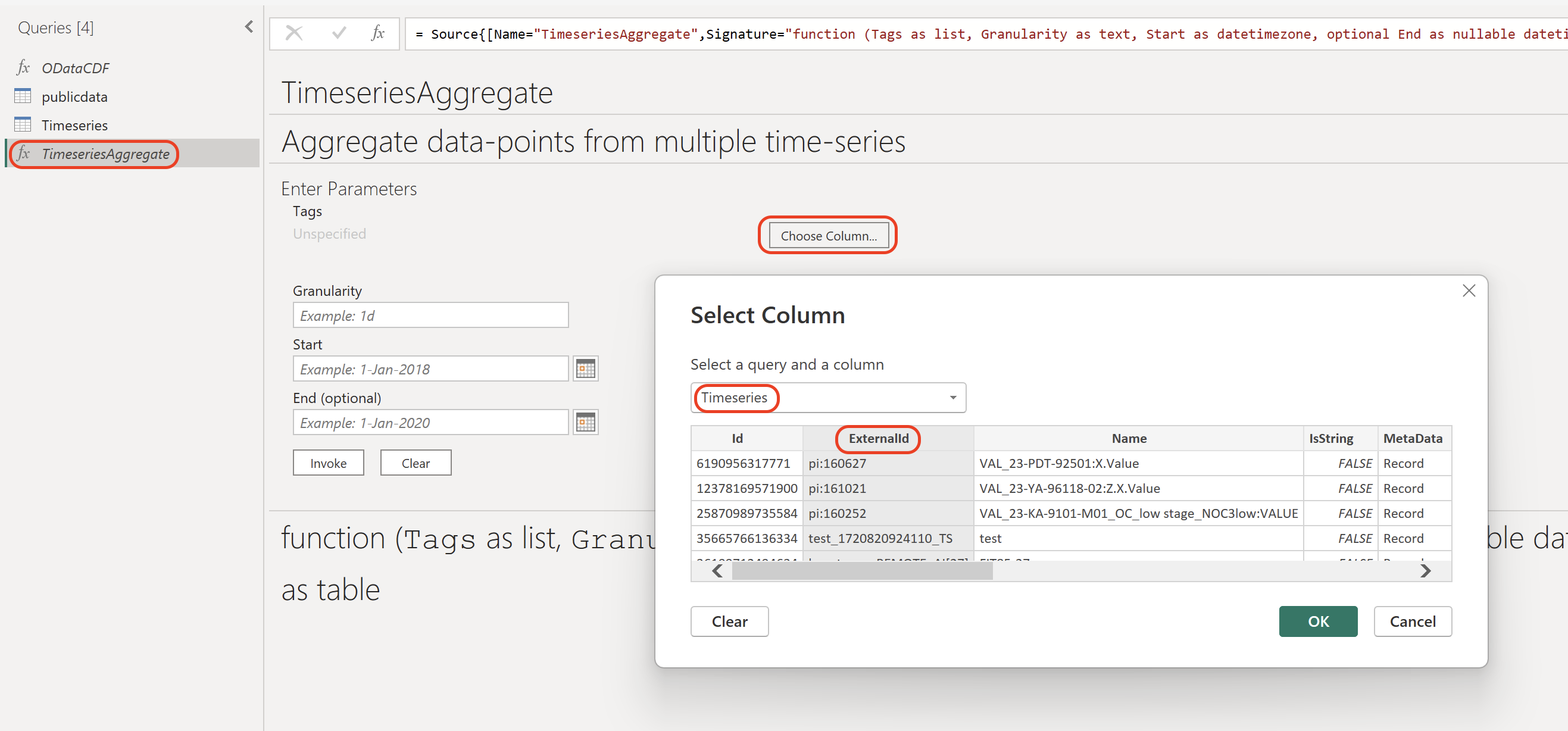
In the Queries panel, select the TimeseriesAggregate function and set the granularity, start time, and end time. Then select Choose column.
In the Select Column window, select your Timeseries table and the Id column from the table to specify which time series to fetch aggregates from in CDF.
Use filtering on the Timeseries table to find the time series you want aggregates from.
In the Queries panel, select the TimeseriesAggregate function and set the granularity, start time, and end time. Then select Choose column.
In the Select Column window, select your Timeseries table and the Id column from the table to specify which time series to fetch aggregates from in CDF.
 Select Invoke to start retrieving the aggregates.
The Power Query Editor displays a new table named Invoked Function in the Query panel with the aggregates for the specified time range. Remove the columns you don't need, then select Close and apply.
If the TimeseriesAggregate function takes a long time to finish or fails after a long time:
* Make sure you have filtered the time series table to contain only the time series you need.
* Consider if you are using the right granularity. The granularity significantly affects the query performance.
* Request a realistic number of data points. Aggregating large numbers of time series with short granularity may return vast amounts of data points, and Power BI doesn't handle many gigabytes of data in a single query.
Select Invoke to start retrieving the aggregates.
The Power Query Editor displays a new table named Invoked Function in the Query panel with the aggregates for the specified time range. Remove the columns you don't need, then select Close and apply.
If the TimeseriesAggregate function takes a long time to finish or fails after a long time:
* Make sure you have filtered the time series table to contain only the time series you need.
* Consider if you are using the right granularity. The granularity significantly affects the query performance.
* Request a realistic number of data points. Aggregating large numbers of time series with short granularity may return vast amounts of data points, and Power BI doesn't handle many gigabytes of data in a single query.