> ## Documentation Index
> Fetch the complete documentation index at: https://docs.cognite.com/llms.txt
> Use this file to discover all available pages before exploring further.
# Create templates with global variables
> Use variables to create templates in Grafana dashboards.
## Before you begin
Create a dashboard and add the Cognite Data Source for Grafana as a data source.
## Create a variable from a query
Use the `$variable` or `[[variable]]` syntax to create templates.
Navigate to your dashboard's settings, and select Variables from the left-hand side.
Set Type to Query, and select your Cognite Data Source as the Data source.
In the Query field, enter the query to fetch and filter assets from Cognite Data Fusion (CDF).
For example, this query requests assets with the parameter `parentIds=[123]` and filters the results by `name` that matches the `test-.*` regular expression:
```text theme={"languages":{"custom":["/_languages/kuiper.json","../_languages/kuiper.json"]}}
assets{parentIds=[123], name=~"test-.*"}
```
For a list of **valid parameters**, see [the API documentation](/api-reference/concepts/20230101/assets).
See [Filter time series in custom queries](/cdf/dashboards/guides/grafana/timeseries_legacy#filtering) to learn how to **filter** the results.
You can **format variables** to fit into the query, for instance, if you have a multi-value variable like `ts{assetIds=[${variable:csv}]}`.
If you select several assets from the dropdown, the variable is serialized to comma-separated values. Learn more about the variable format options in the [Grafana documentation](https://grafana.com/docs/grafana/latest/variables/advanced-variable-format-options).
Select Update.
## Use data models in variables
Use GraphQL queries against data models to populate variable values from CDF.
In the variable query editor, select the Data models tab.
Choose the data model and version you want to query.
Enter a GraphQL query and select the field to use as the variable values. The selected field should be a scalar value such as an external ID or name. The value field list is populated from your query once it is valid.
If your query returns nested structures, select the field from the list items you want to use as variable values. You can also use GraphQL variable interpolation to reference existing Grafana variables in your query.
The query supports both list results and connection-style results, so you can use queries that return items or edges. The data models variable query is backward compatible with existing asset queries in the default tab.
## Nested (chained) variables
With nested variables, you can create a template to visualize time series related to a branch of the asset subtree and let users navigate the subtree.
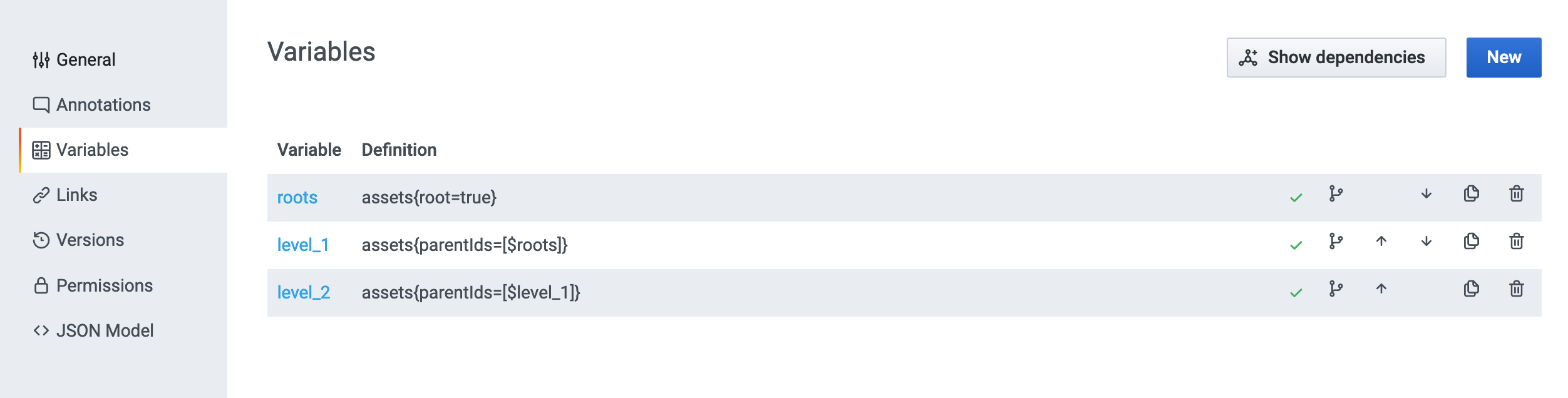
Create the necessary nested variables.
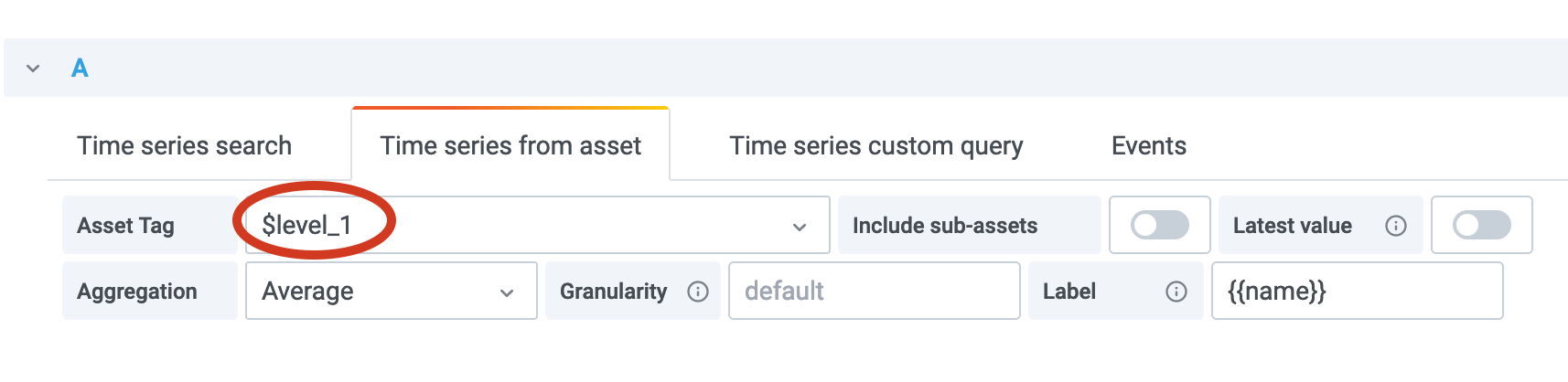
 Use the variable as the asset filter on the dashboard.
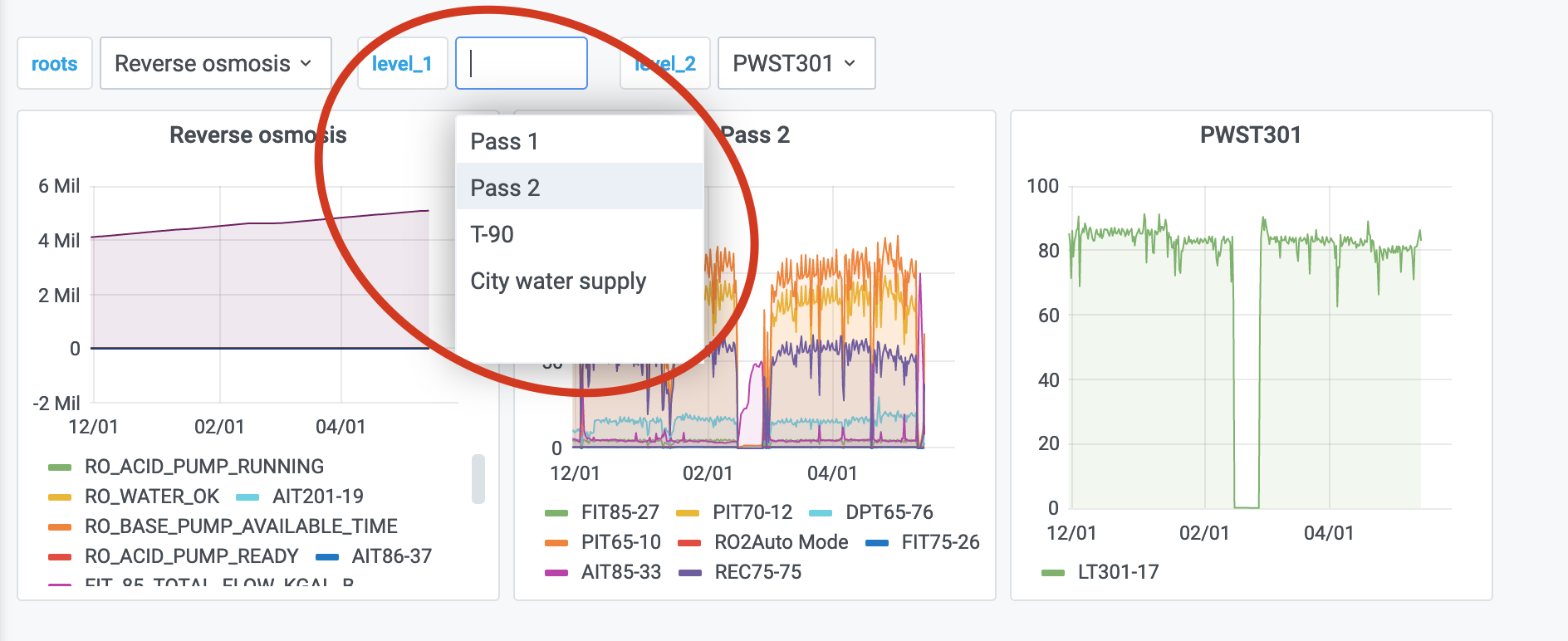
 Users can choose assets on each level of the hierarchy.