> ## Documentation Index
> Fetch the complete documentation index at: https://docs.cognite.com/llms.txt
> Use this file to discover all available pages before exploring further.
# Visualize events
> Set up and filter queries on CDF events and annotate the events to graphs on your Grafana dashboard.
You can customize the time range, the events to display, and the columns according to your needs.
## Work with events in a table
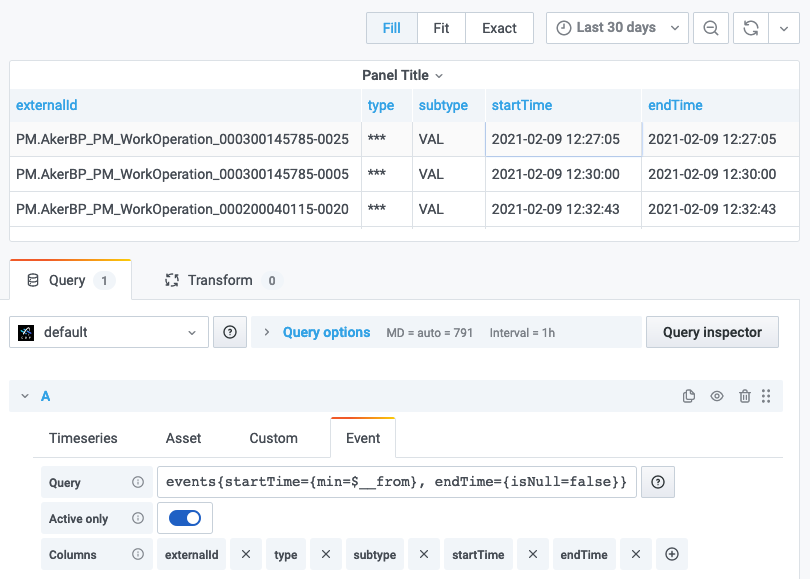
Open the Event tab in Grafana to work with the events in a table.
 ### Define a query
The `events` query uses the [events/list](/api-reference/concepts/20230101/events) endpoint to retrieve data.
**Format:** `events{someFilter=number, otherFilter="string"}`
**Example:**
```text theme={"languages":{"custom":["/_languages/kuiper.json","../_languages/kuiper.json"]}}
events{externalIdPrefix='WORKORDER', assetSubtreeIds=[{id=12}, {externalId='ext_id'}]}
```
You can filter on these properties:
`externalIdPrefix`, `metadata`, `assetIds`, `assetExternalIds`, `rootAssetIds`, `assetSubtreeIds`, `dataSetIds`, `source`, `type`, and `subtype`.
By default, the query returns active events in the time range, but you can customize a query with the additional time filters `startTime`, `endTime`, `activeAtTime`, `createdTime`, and `lastUpdatedTime`.
This example returns all finished events that started in the current time range:
```text theme={"languages":{"custom":["/_languages/kuiper.json","../_languages/kuiper.json"]}}
events{startTime={min=$__from}, endTime={isNull=false}}
```
This example returns only finished events:
```text theme={"languages":{"custom":["/_languages/kuiper.json","../_languages/kuiper.json"]}}
events{endTime={isNull=false}}
```
**Client-side filtering**
Specify more client-side filtering with the `=~`, `!~`, and `!=` operators. A comma between several filters acts as a logical `AND`.
**Format:**
* `=~` - regex equality. Returns results satisfying the regular expression.
* `!~` - regex inequality. Excludes results satisfying the regular expression.
* `!=` - strict inequality. Returns items where a property doesn't equal a given value.
**Example:**
```text theme={"languages":{"custom":["/_languages/kuiper.json","../_languages/kuiper.json"]}}
events{type='WORKORDER', subtype=~'SUB.*'}
```
Don't use the client-side filters as the primary filtering method.
Grafana applies the filters after items have been returned from CDF, and you may not see all data if CDF returns the maximum number of items (1000).
**Create templates**
Create templates by using the `$variable_name` syntax.
**Example:**
```text theme={"languages":{"custom":["/_languages/kuiper.json","../_languages/kuiper.json"]}}
events{type='WORKORDER', subtype=$variable}
```
### Rename and organize fields
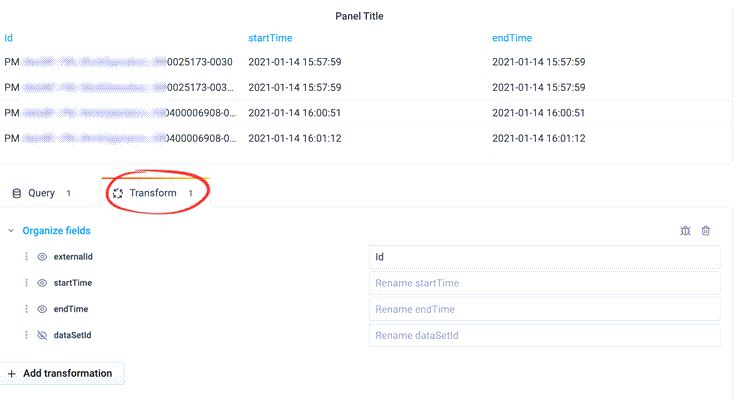
Select the Transform tab to rename and organize fields.
### Define a query
The `events` query uses the [events/list](/api-reference/concepts/20230101/events) endpoint to retrieve data.
**Format:** `events{someFilter=number, otherFilter="string"}`
**Example:**
```text theme={"languages":{"custom":["/_languages/kuiper.json","../_languages/kuiper.json"]}}
events{externalIdPrefix='WORKORDER', assetSubtreeIds=[{id=12}, {externalId='ext_id'}]}
```
You can filter on these properties:
`externalIdPrefix`, `metadata`, `assetIds`, `assetExternalIds`, `rootAssetIds`, `assetSubtreeIds`, `dataSetIds`, `source`, `type`, and `subtype`.
By default, the query returns active events in the time range, but you can customize a query with the additional time filters `startTime`, `endTime`, `activeAtTime`, `createdTime`, and `lastUpdatedTime`.
This example returns all finished events that started in the current time range:
```text theme={"languages":{"custom":["/_languages/kuiper.json","../_languages/kuiper.json"]}}
events{startTime={min=$__from}, endTime={isNull=false}}
```
This example returns only finished events:
```text theme={"languages":{"custom":["/_languages/kuiper.json","../_languages/kuiper.json"]}}
events{endTime={isNull=false}}
```
**Client-side filtering**
Specify more client-side filtering with the `=~`, `!~`, and `!=` operators. A comma between several filters acts as a logical `AND`.
**Format:**
* `=~` - regex equality. Returns results satisfying the regular expression.
* `!~` - regex inequality. Excludes results satisfying the regular expression.
* `!=` - strict inequality. Returns items where a property doesn't equal a given value.
**Example:**
```text theme={"languages":{"custom":["/_languages/kuiper.json","../_languages/kuiper.json"]}}
events{type='WORKORDER', subtype=~'SUB.*'}
```
Don't use the client-side filters as the primary filtering method.
Grafana applies the filters after items have been returned from CDF, and you may not see all data if CDF returns the maximum number of items (1000).
**Create templates**
Create templates by using the `$variable_name` syntax.
**Example:**
```text theme={"languages":{"custom":["/_languages/kuiper.json","../_languages/kuiper.json"]}}
events{type='WORKORDER', subtype=$variable}
```
### Rename and organize fields
Select the Transform tab to rename and organize fields.
 ## Annotate graphs with events
Use annotations to overlay rich event information from CDF on graphs in Grafana.
Navigate to your dashboard's settings, and select Annotations.
Select your CDF project in the Data Source field.
## Annotate graphs with events
Use annotations to overlay rich event information from CDF on graphs in Grafana.
Navigate to your dashboard's settings, and select Annotations.
Select your CDF project in the Data Source field.
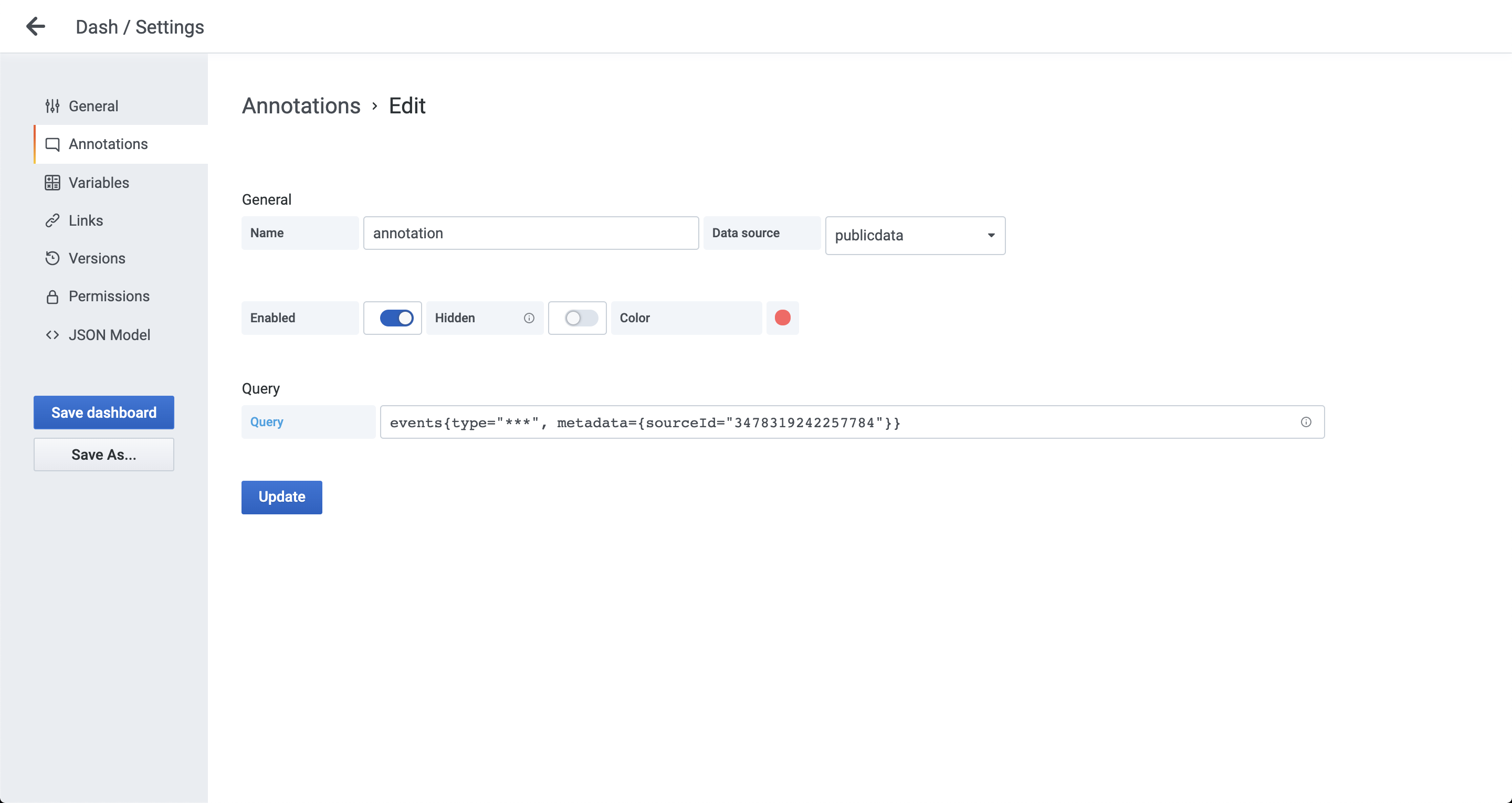 Specify the query to fetch and filter events from CDF. For example:
```text theme={"languages":{"custom":["/_languages/kuiper.json","../_languages/kuiper.json"]}}
events{type="some", subtype=~"sub.*"}
```
The query above requests events with parameter `type="some"` and filters the results by `subtype` that matches `sub.*`.
* For a complete list of **valid parameters**, see [the API documentation](/api-reference/concepts/20230101/events).
* Learn how to [**filter**](/cdf/dashboards/guides/grafana/timeseries_legacy#filtering) the results.
Specify the query to fetch and filter events from CDF. For example:
```text theme={"languages":{"custom":["/_languages/kuiper.json","../_languages/kuiper.json"]}}
events{type="some", subtype=~"sub.*"}
```
The query above requests events with parameter `type="some"` and filters the results by `subtype` that matches `sub.*`.
* For a complete list of **valid parameters**, see [the API documentation](/api-reference/concepts/20230101/events).
* Learn how to [**filter**](/cdf/dashboards/guides/grafana/timeseries_legacy#filtering) the results.