> ## Documentation Index
> Fetch the complete documentation index at: https://docs.cognite.com/llms.txt
> Use this file to discover all available pages before exploring further.
# Setup and administration for Grafana
> Use the Cognite Data Source for Grafana to connect a CDF project as a data source in Grafana with OpenID Connect authentication.
You can use OpenID Connect and your existing identity provider (IdP) framework to manage access to CDF data securely. We currently support Microsoft Entra ID, Microsoft's cloud-based identity and access management service.
Follow the steps below to connect to a CDF project with OpenID Connect and use CDF as a data source in Grafana.
To perform the steps below, you need to be an administrator of Microsoft Entra ID and your Grafana instance.
## Before you start
Make sure that you have administrator access to your Grafana instance. We support the [Enterprise](https://grafana.com/products/enterprise/grafana), [self-hosted](https://grafana.com/docs/grafana/latest/installation) and [Cloud Pro](https://grafana.com/auth/sign-up/create-user) editions of Grafana. We also support free cloud instances, but then you need to [set up a client credentials grant flow](#set-up-a-client-credentials-grant-flow) for each instance of the Cognite Data Source.
## Step 1: Register Grafana as an application in Microsoft Entra ID
The Cognite Data Source for Grafana uses the credentials you use to sign in to Grafana to connect to CDF. Therefore, you need to set up the Grafana instance to authenticate the user towards the same identity provider (IdP) as your CDF project.
The first step is to configure the Grafana instance to use OAuth2. The example below uses Microsoft Entra ID as the IdP.
Make sure that you have already [registered the Cognite API and the CDF application in Microsoft Entra ID](/cdf/access/entra/guides/configure_cdf_azure_oidc).
To enable users to sign in to Grafana with their organizational ID, follow the steps in the Grafana documentation to [register Grafana as an application in Microsoft Entra ID and enable Microsoft Entra ID authentication in Grafana](https://grafana.com/docs/grafana/latest/auth/azuread).
**Grafana Cloud**: To enable OIDC sign-in using Microsoft Entra ID with Grafana Cloud, follow the [configuration steps](https://grafana.com/docs/grafana-cloud/authentication-and-permissions/authorization#configure-oauth-with-microsoft-azure-ad).
Handle the changes to the [Grafana configuration file](https://grafana.com/docs/grafana/latest/administration/configuration#config-file-locations) by using the configuration form at [Grafana Labs](https://grafana.com) > Security > Advanced Auth.
Use these permission **scopes** in the [Grafana configuration file](https://grafana.com/docs/grafana/latest/administration/configuration#config-file-locations):
`scopes = openid email profile offline_access https://.cognitedata.com/user_impersonation https://.cognitedata.com/IDENTITY`
If you are running Grafana locally, use `http` in the **redirect URL**. For example: `http://localhost:3000/login/azuread`.
Close the Grafana configuration file after updating it and restart the Grafana service.
Sign in to Grafana to use the Microsoft Entra ID Global administrator role. The role lets you **verify** that the configuration is successful and enables you to grant admin consent.
Select **Consent on behalf of your organization**.
## Step 2: Decide access to CDF data
To decide what access users should have to **data in CDF**, follow the steps in [Link Microsoft Entra ID and CDF groups](/cdf/access/entra/guides/create_groups_oidc).
The account needs these capabilities:
* `timeSeriesAcl:READ:` **required** to find and plot time series.
* `groupsAcl:LIST:` **required** to verify Grafana connectivity.
* `projectsAcl:LIST:` **required** to verify Grafana connectivity.
* `assetsAcl:READ:` **optional** to use template variables and select time series from an asset.
* `eventsAcl:READ:` **optional** to use annotations.
## Step 3: Install the Cognite Data Source for Grafana
To install the Cognite Data Source for Grafana:
Make sure you're signed in to Grafana as an administrator in your browser.
Navigate to the [Cognite Data Source for Grafana plugin](https://grafana.com/grafana/plugins/cognitedata-datasource) and select **Install plugin**.
Follow the instructions on the [Installation](https://grafana.com/grafana/plugins/cognitedata-datasource/?tab=installation) tab to install the plugin.
## Step 4: Configure the Cognite Data Source for Grafana
To configure the Cognite Data Source for Grafana:
In your browser, sign in to Grafana as an administrator.
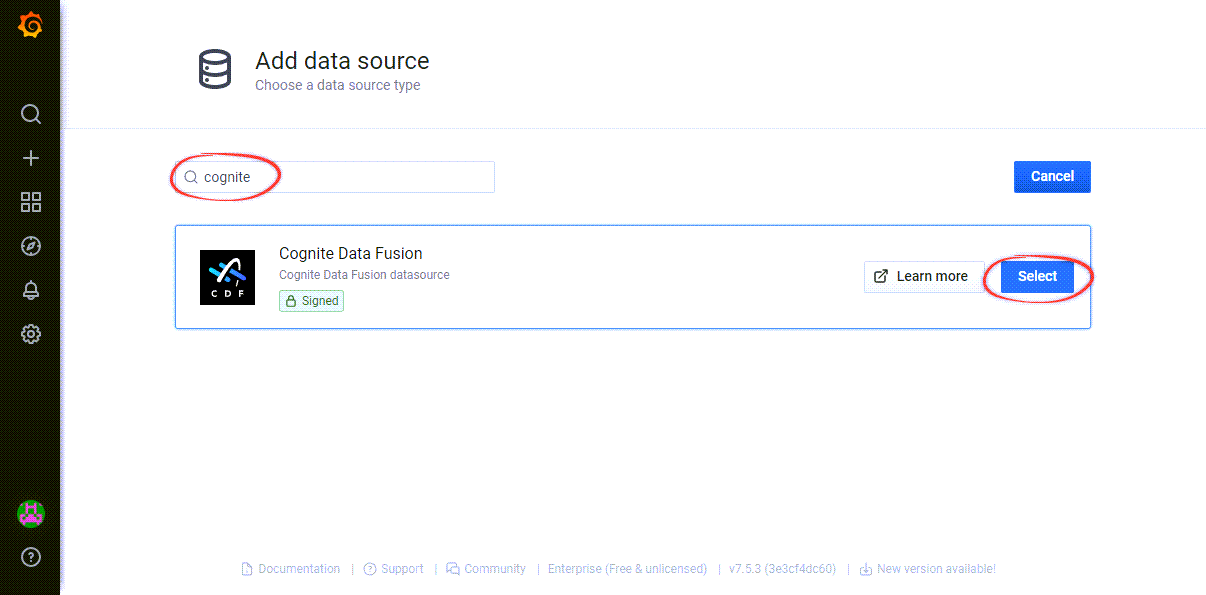
In Grafana, navigate to **Configuration** > **Data sources** > **Add data source** > Search for "**Cognite**".
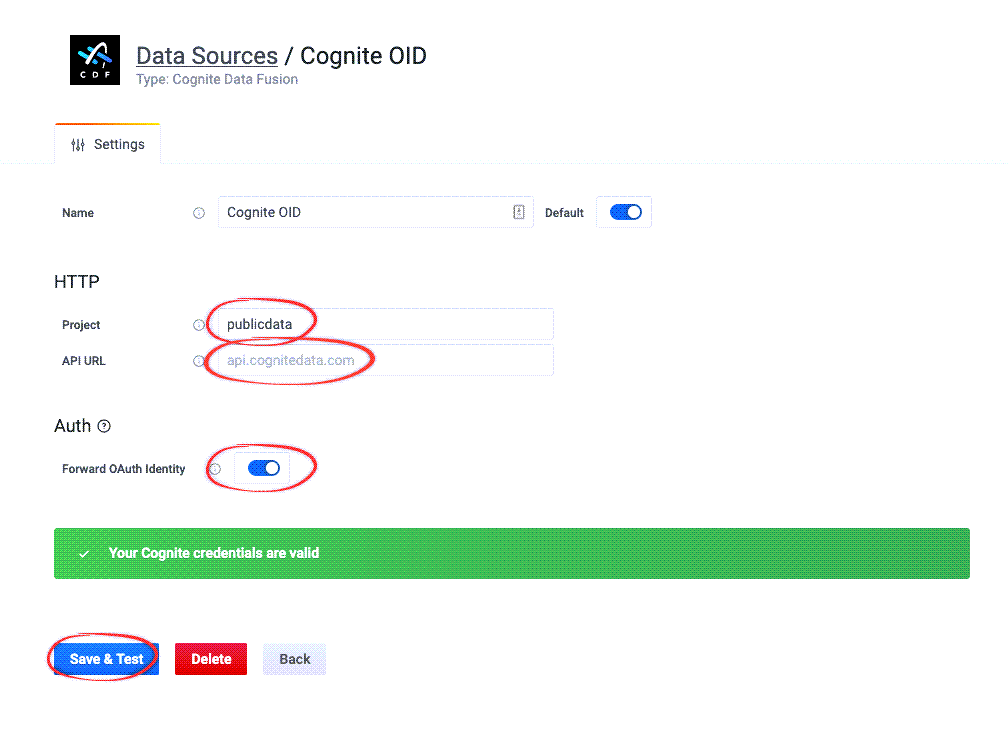
 Enter your **project name**, the **API URL** and select **Forward OAuth Identity**.
 The Grafana free tier doesn't allow you to set an identity provider for the whole Grafana instance, and you can not select a **Forward OAuth Identity**. Instead, you need to [set up a client credentials grant flow](#set-up-a-client-credentials-grant-flow) for each instance of the Cognite Data Source.
Select **Save & Test** to validate your Cognite credentials.
**Verify** that the configuration is successful: Sign in to Grafana with a non-admin identity and [create a dashboard](/cdf/dashboards/guides/grafana/timeseries#create-a-dashboard) to confirm that regular users in your Microsoft Entra ID can access Grafana and work with data from CDF.
**Learn more** about managing Grafana at [grafana.com](https://grafana.com) and [community.grafana.com](https://community.grafana.com).
## Set up a client credentials grant flow
In some cases, for example, if you're using the Grafana free tier, you can not set up an identity provider for the whole Grafana instance. Instead, follow these steps to set up a client credentials grant flow for each instance of the Cognite Data Source:
### Before you start
Use an application registration with capabilities to access the target CDF project. If you don't have an application registration, follow the guide: [Register a custom web app in Microsoft Entra ID](/cdf/access/entra/guides/register_custom_webapp).
Make sure that you have [registered the Cognite API and the CDF application in Microsoft Entra ID](/cdf/access/entra/guides/configure_cdf_azure_oidc).
Configure the [required capabilities](/cdf/dashboards/guides/grafana/admin_oidc#step-2-decide-access-to-cdf-data).
[Add the service principal to a CDF group](/cdf/access/entra/guides/add_service_principal#add-the-service-principal-to-a-cdf-group).
Navigate to [Cognite Data Source for Grafana plugin](https://grafana.com/grafana/plugins/cognitedata-datasource) and select **Install plugin**.
Follow these steps to set up client credentials grant flow:
In Grafana, navigate to Configuration > Data sources > Add data source.
Search for **Cognite** and select Cognite Data Fusion data source.
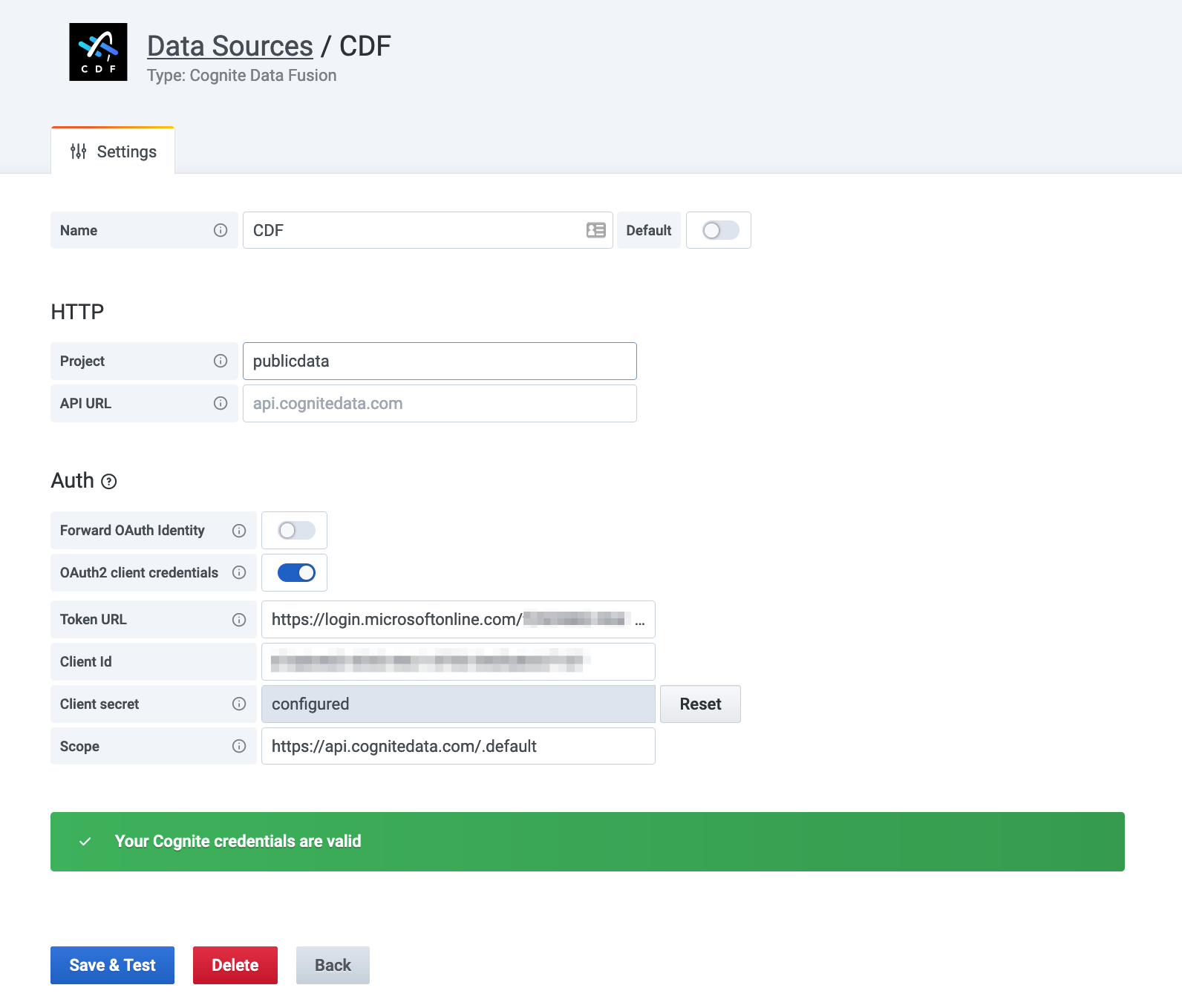
1. Disable **Forward OAuth identity**.
2. Enable **OAuth2 client credentials**.
3. Enter the credentials.
Select **Save & Test** to validate your Cognite credentials.
The Grafana free tier doesn't allow you to set an identity provider for the whole Grafana instance, and you can not select a **Forward OAuth Identity**. Instead, you need to [set up a client credentials grant flow](#set-up-a-client-credentials-grant-flow) for each instance of the Cognite Data Source.
Select **Save & Test** to validate your Cognite credentials.
**Verify** that the configuration is successful: Sign in to Grafana with a non-admin identity and [create a dashboard](/cdf/dashboards/guides/grafana/timeseries#create-a-dashboard) to confirm that regular users in your Microsoft Entra ID can access Grafana and work with data from CDF.
**Learn more** about managing Grafana at [grafana.com](https://grafana.com) and [community.grafana.com](https://community.grafana.com).
## Set up a client credentials grant flow
In some cases, for example, if you're using the Grafana free tier, you can not set up an identity provider for the whole Grafana instance. Instead, follow these steps to set up a client credentials grant flow for each instance of the Cognite Data Source:
### Before you start
Use an application registration with capabilities to access the target CDF project. If you don't have an application registration, follow the guide: [Register a custom web app in Microsoft Entra ID](/cdf/access/entra/guides/register_custom_webapp).
Make sure that you have [registered the Cognite API and the CDF application in Microsoft Entra ID](/cdf/access/entra/guides/configure_cdf_azure_oidc).
Configure the [required capabilities](/cdf/dashboards/guides/grafana/admin_oidc#step-2-decide-access-to-cdf-data).
[Add the service principal to a CDF group](/cdf/access/entra/guides/add_service_principal#add-the-service-principal-to-a-cdf-group).
Navigate to [Cognite Data Source for Grafana plugin](https://grafana.com/grafana/plugins/cognitedata-datasource) and select **Install plugin**.
Follow these steps to set up client credentials grant flow:
In Grafana, navigate to Configuration > Data sources > Add data source.
Search for **Cognite** and select Cognite Data Fusion data source.
1. Disable **Forward OAuth identity**.
2. Enable **OAuth2 client credentials**.
3. Enter the credentials.
Select **Save & Test** to validate your Cognite credentials.