> ## Documentation Index
> Fetch the complete documentation index at: https://docs.cognite.com/llms.txt
> Use this file to discover all available pages before exploring further.
# Excel: Retrieve data from CDF
> Connect a Cognite Data Fusion project as a data source and use Excel to query, transform, and visualize CDF data.
Microsoft Excel fetches data using Cognite's [OData services](/cdf/dashboards/references/odata/index). To authenticate to CDF in Excel, your CDF project must use Microsoft Entra ID as the identity provider (IdP). Before users can sign in with their organizational ID and retrieve data from CDF, an administrator must register and consent for your organization to use [**Microsoft Power Query for Excel**](/cdf/dashboards/guides/powerbi/admin) app registration.
Follow these steps to use a CDF project as a data source in Excel:
In **Excel**, select Data > Get data > From Other Sources > From OData Feed.
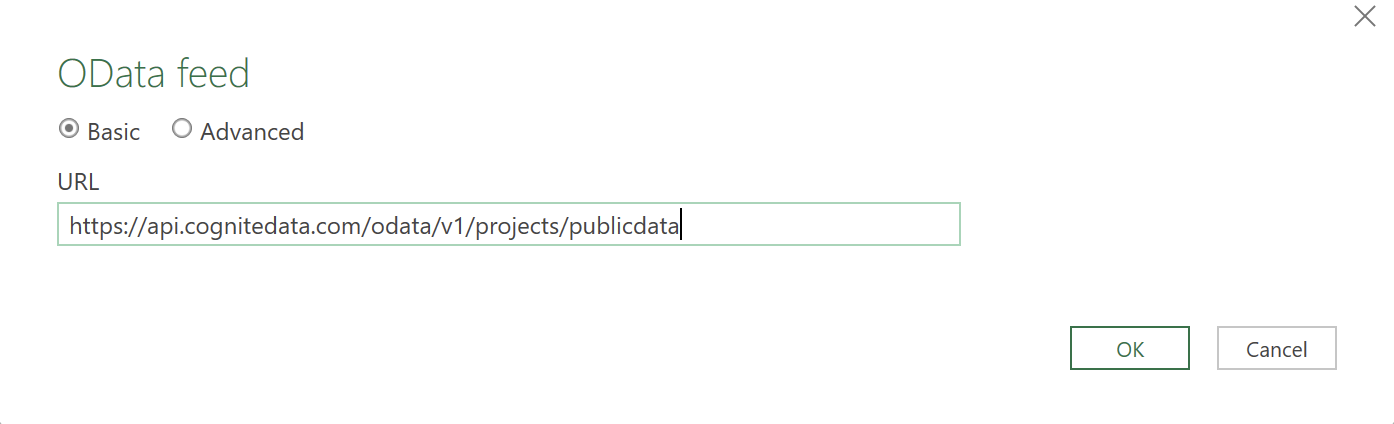
Enter the URL for the OData Feed you want to connect to. If you are a guest user in the Entra ID directory, you may also have to add the Entra tenant ID as a query variable, for example, `oDataUrl?tenantID=MyEntraIDTenant.onmicrosoft.com`.
 In the Authentication dialog, select Organizational account and then Sign in with your organizational ID.
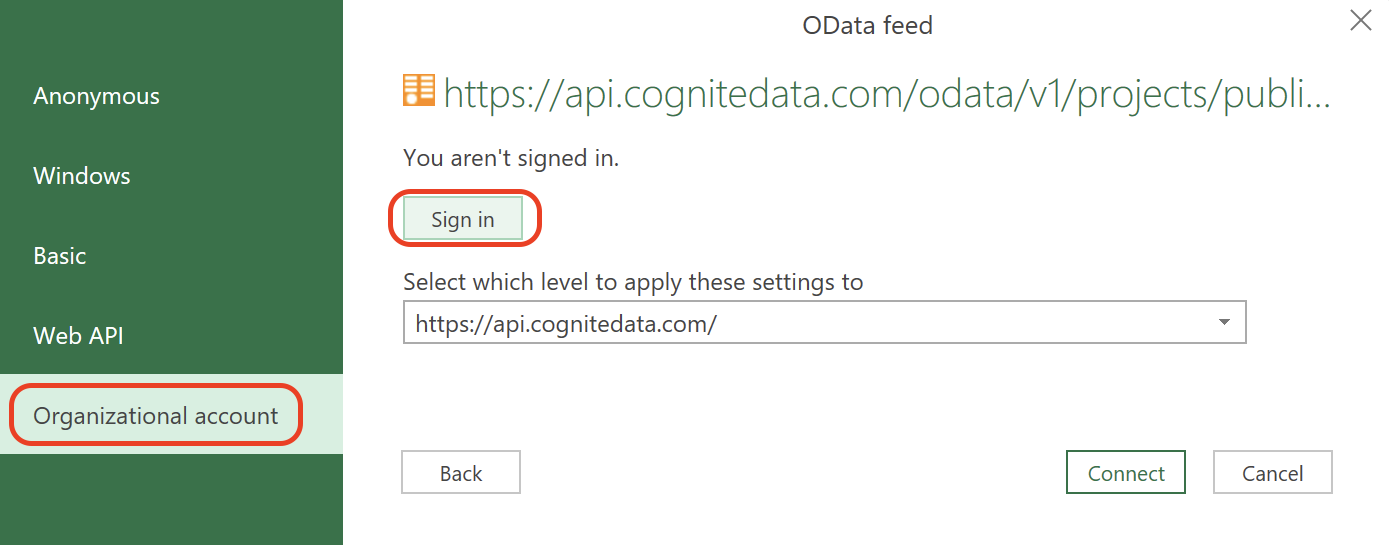 Select Connect.
Select a table, for instance, Time series, and then select Transform Data.
A table can contain hundreds of thousands of entries. Don't select Load unless you want to load all entries.
Select Connect.
Select a table, for instance, Time series, and then select Transform Data.
A table can contain hundreds of thousands of entries. Don't select Load unless you want to load all entries.
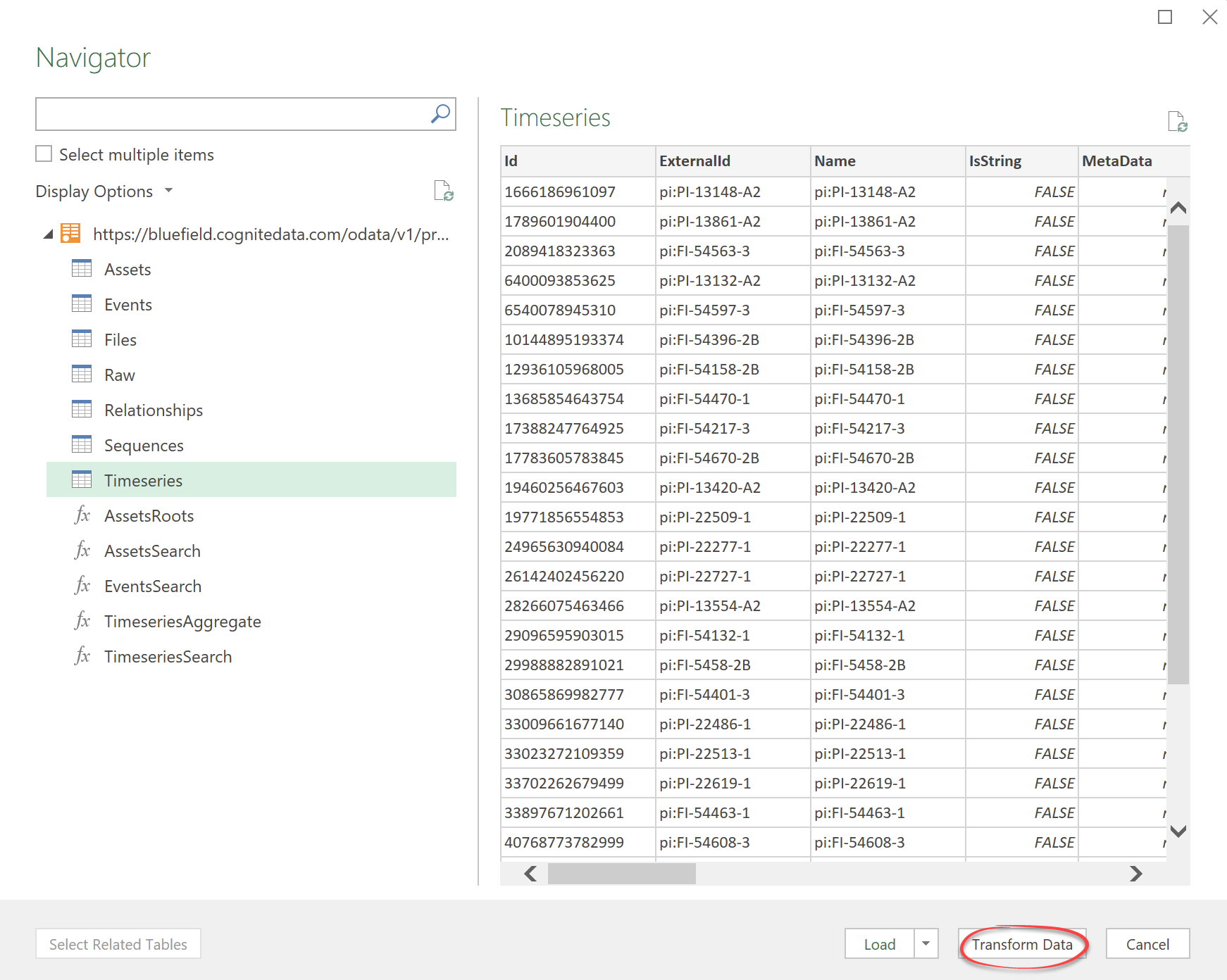 Transform the data with the Power Query Editor.