> ## Documentation Index
> Fetch the complete documentation index at: https://docs.cognite.com/llms.txt
> Use this file to discover all available pages before exploring further.
# Configure AWS PrivateLink and CDF
> Set up AWS PrivateLink to access Cognite Data Fusion (CDF) over a private connection.
[AWS PrivateLink](https://docs.aws.amazon.com/vpc/latest/privatelink/what-is-privatelink.html) lets you access CDF over a **private link**. Traffic between your virtual network and CDF uses the AWS backbone network and isn't exposed to the public internet.
Follow the steps in this article to set up a PrivateLink VPC endpoint to access the Cognite API. The steps include submitting information to Cognite to configure your CDF projects to reject traffic from sources other than the PrivateLink service.
Currently, you can only request PrivateLink to be enabled for **new CDF projects**, not for existing ones.
Make sure that you exchange confidential information through a secret and encrypted channel, for example, via [Yopass](https://yopass.cogheim.net).
## Before you start
To complete the configuration, you need to be a network administrator or use infrastructure-as-code automation, with permission to create AWS VPC endpoints.
## Step 1: Request a PrivateLink service name from Cognite
Contact Cognite customer support and request a **PrivateLink service name** for your CDF projects.
Make a note of the alias you receive from Cognite. It'll look similar to this:
`com.amazonaws.vpce.eu-west-1.vpce-svc-06c768f583a9af42a`
## Step 2: Create a VPC endpoint in AWS
Follow the [AWS documentation](https://docs.aws.amazon.com/vpc/latest/privatelink/create-interface-endpoint.html) to create a VPC endpoint.
When prompted to select a **Type** under **Endpoint settings**, select **Endpoint services that use NLBs and GWLBs**.
In the **Service name** field under **Service settings** enter the **PrivateLink service name** you received from Cognite.
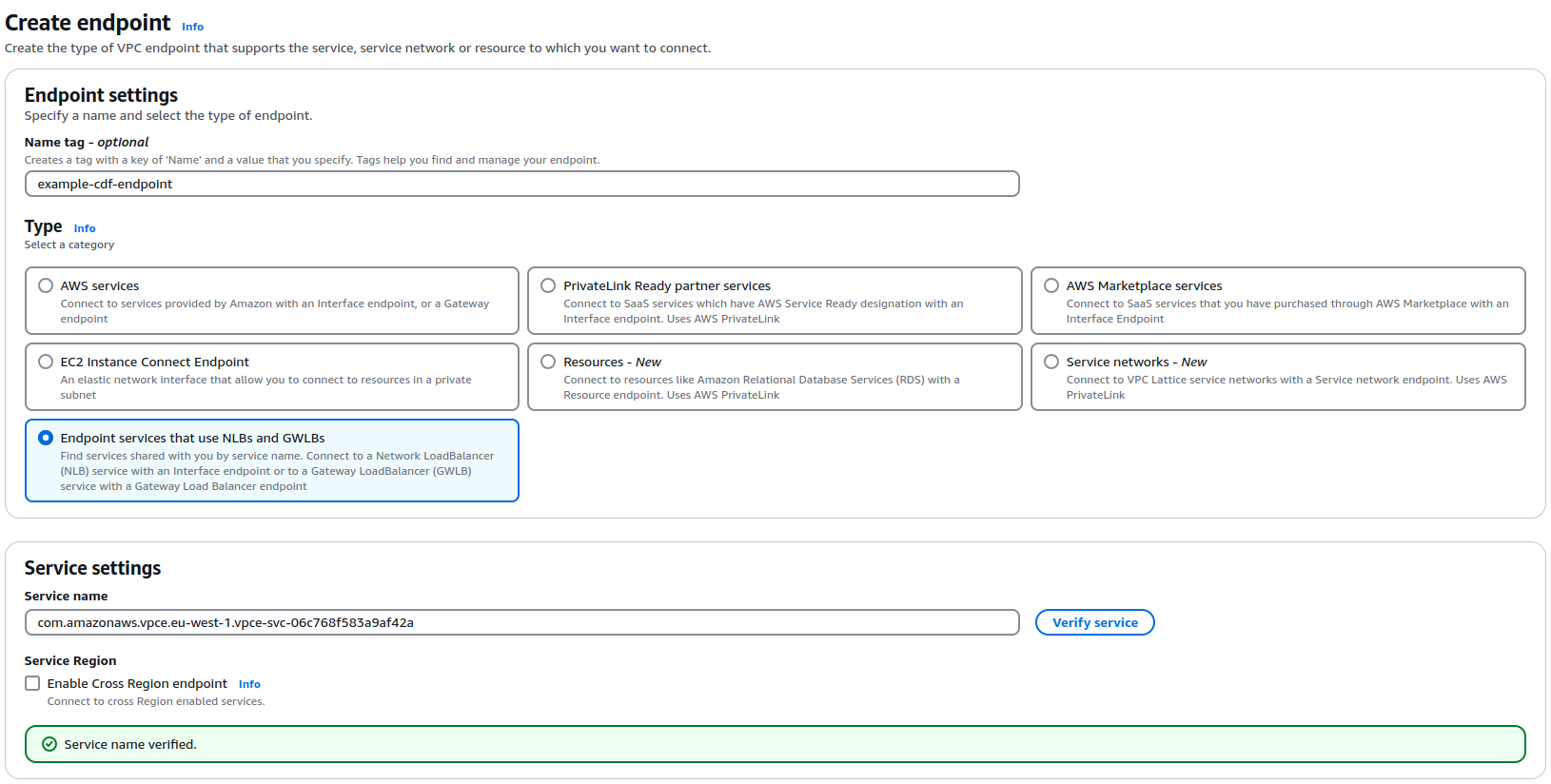 Configure the **Network settings**, **Subnets**, and **Security groups**, according to your organization's preferences and create the VPC endpoint.
## Step 3: Provide the VPC endpoint details to Cognite
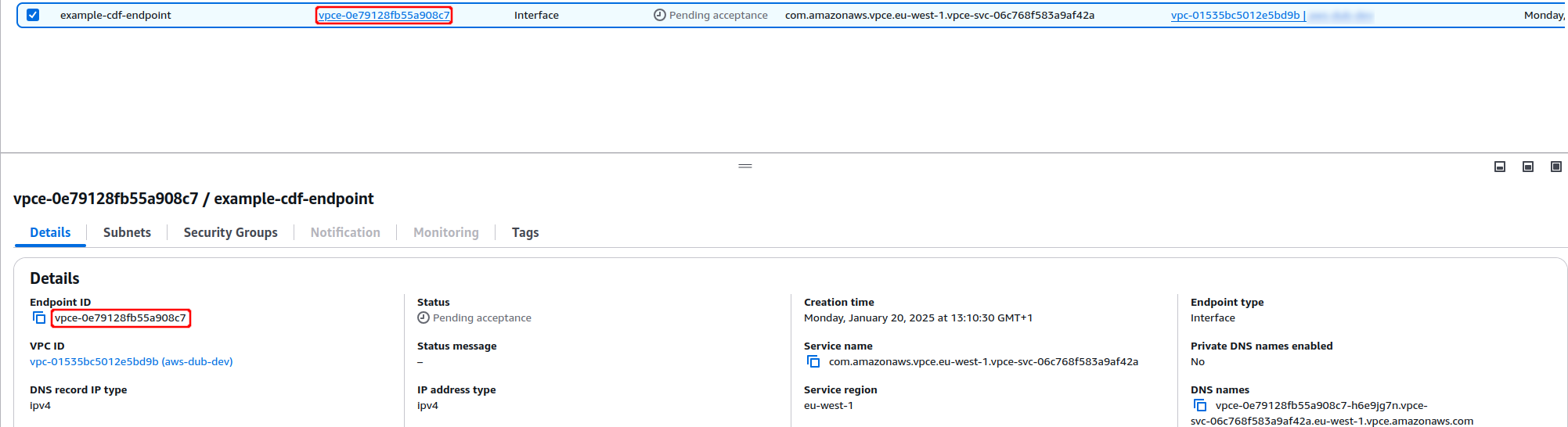
Contact Cognite customer support and provide **the VPC endpoint details** to configure your CDF projects:
* The **VPC Endpoint ID** of the endpoint:
Configure the **Network settings**, **Subnets**, and **Security groups**, according to your organization's preferences and create the VPC endpoint.
## Step 3: Provide the VPC endpoint details to Cognite
Contact Cognite customer support and provide **the VPC endpoint details** to configure your CDF projects:
* The **VPC Endpoint ID** of the endpoint:
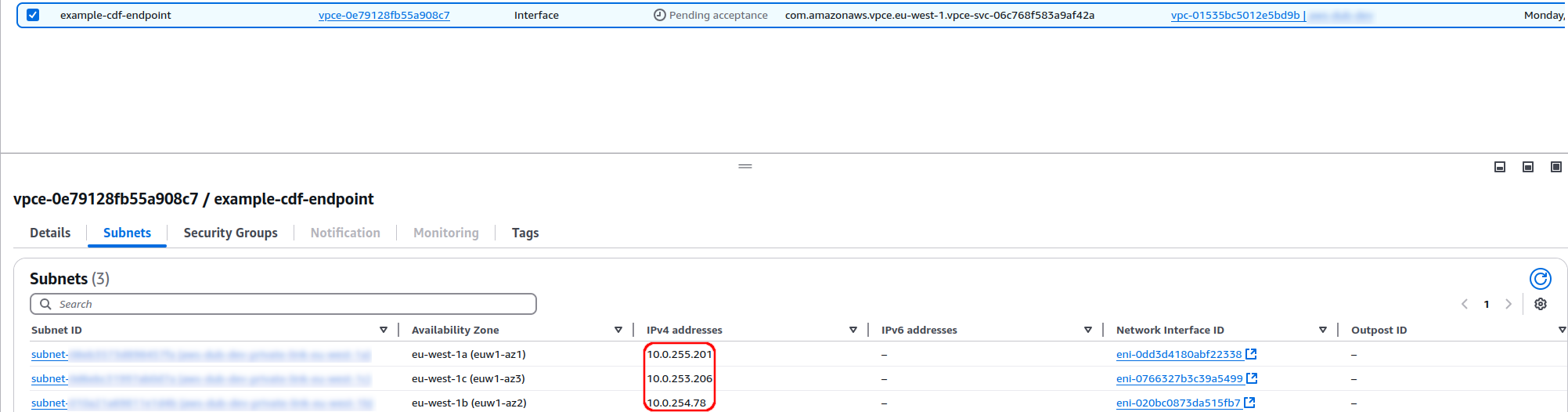
 * The **Private IPv4 addresses** of the VPC endpoint network interface controllers (NIC):
 ## Step 4: Receive the base URL from Cognite
Make a note of the **base URL** you receive from Cognite. It'll be in this format:
`pNNN.plink..cognitedata.com`
Use the base URL to register [the Cognite API and applications](/cdf/access/aws/guides/configure_cdf_cognito) and to register and configure [other applications and components](/cdf/access/aws/guides/register_custom_webapp_cognito).
## Step 4: Receive the base URL from Cognite
Make a note of the **base URL** you receive from Cognite. It'll be in this format:
`pNNN.plink..cognitedata.com`
Use the base URL to register [the Cognite API and applications](/cdf/access/aws/guides/configure_cdf_cognito) and to register and configure [other applications and components](/cdf/access/aws/guides/register_custom_webapp_cognito).