> ## Documentation Index
> Fetch the complete documentation index at: https://docs.cognite.com/llms.txt
> Use this file to discover all available pages before exploring further.
# Add a service account to a CDF group
> Create a client secret in Microsoft Entra ID and add the service principal to a Cognite Data Fusion (CDF) group.
## Create a client secret in Microsoft Entra ID
Sign in to the [Azure portal](https://portal.azure.com) as an admin.
If you have access to multiple tenants, use the Directory + subscription filter in the top menu to select the tenant in which you want to register an application.
Search for and select **Microsoft Entra ID**.
Under **Manage**, select **App registrations** > **New registrations**.
In the **Register an application** window, enter the app name, and then select **Register**.
Specify the **name** and select the supported **account types**.
Copy and make a note of the **Application (client) ID**. This value is required for authentication.
1. Under **Manage**, select **Certificates & secrets** > **New client secret**.
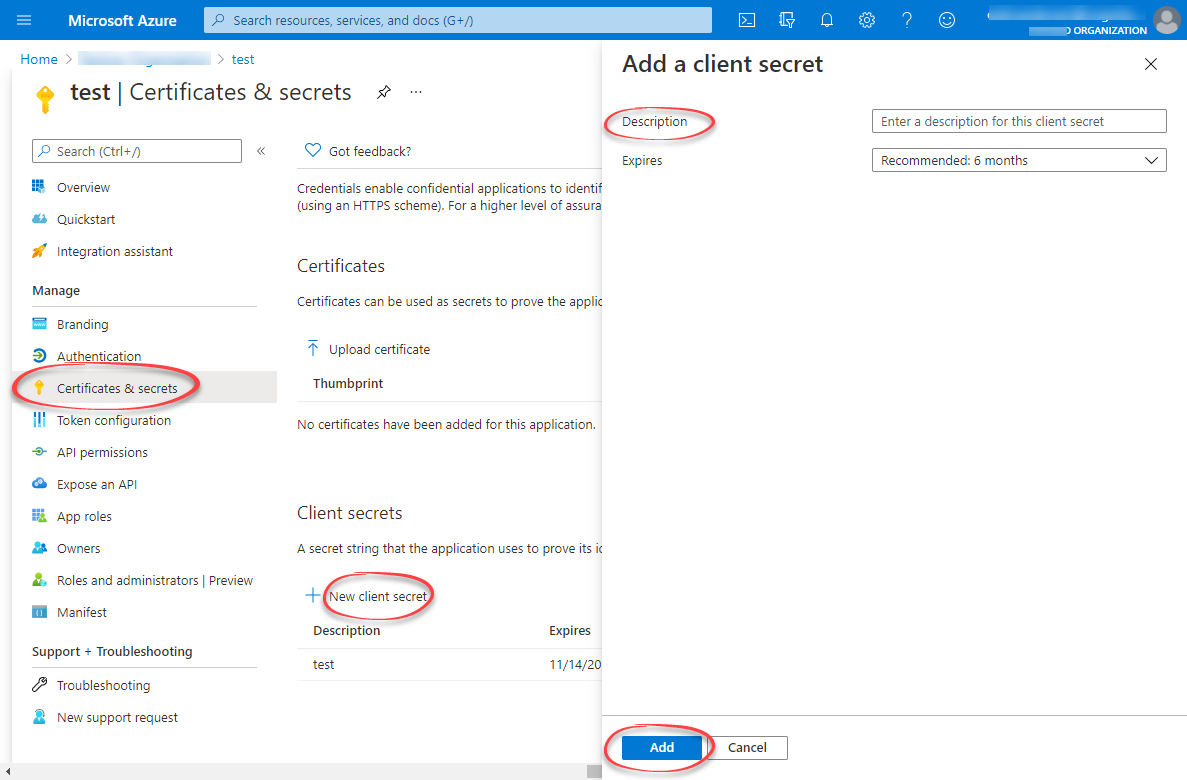 2. Enter a client secret description and an expiry time, and then select **Add**.
Copy and make a note of the client secret in the **Value** field.
Make sure you copy this value now. This value will be hidden after you leave this page.
## Add the service principal to a CDF group
You need to link your newly created app in Microsoft Entra ID to a group in CDF. For more information, see [Create a group in CDF and link it to Microsoft Entra ID group](/cdf/access/entra/guides/create_groups_oidc#step-2-create-a-group-in-cdf-and-link-it-to-the-azure-ad-group).
To add the service principal, navigate to your Microsoft Entra ID group.
Under **Manage**, select **Members** > **Add members**.
2. Enter a client secret description and an expiry time, and then select **Add**.
Copy and make a note of the client secret in the **Value** field.
Make sure you copy this value now. This value will be hidden after you leave this page.
## Add the service principal to a CDF group
You need to link your newly created app in Microsoft Entra ID to a group in CDF. For more information, see [Create a group in CDF and link it to Microsoft Entra ID group](/cdf/access/entra/guides/create_groups_oidc#step-2-create-a-group-in-cdf-and-link-it-to-the-azure-ad-group).
To add the service principal, navigate to your Microsoft Entra ID group.
Under **Manage**, select **Members** > **Add members**.
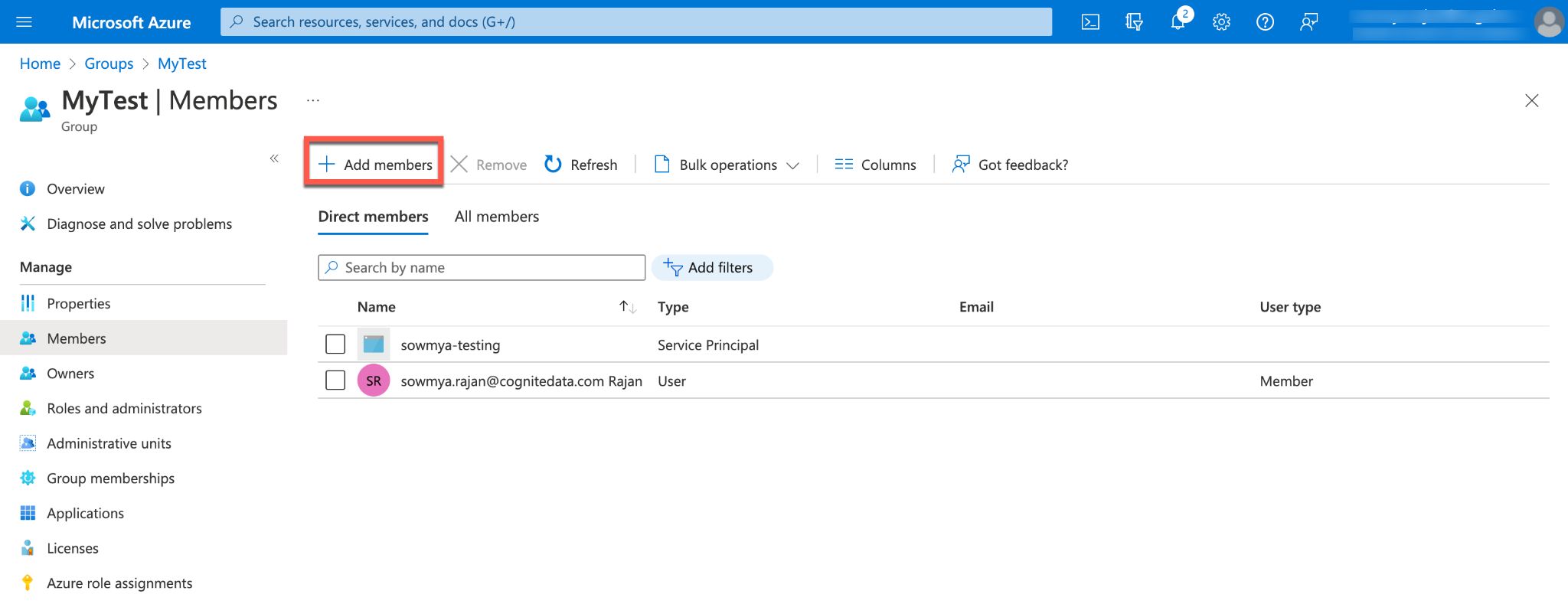 Search for your service principal in the search box and **Select**.
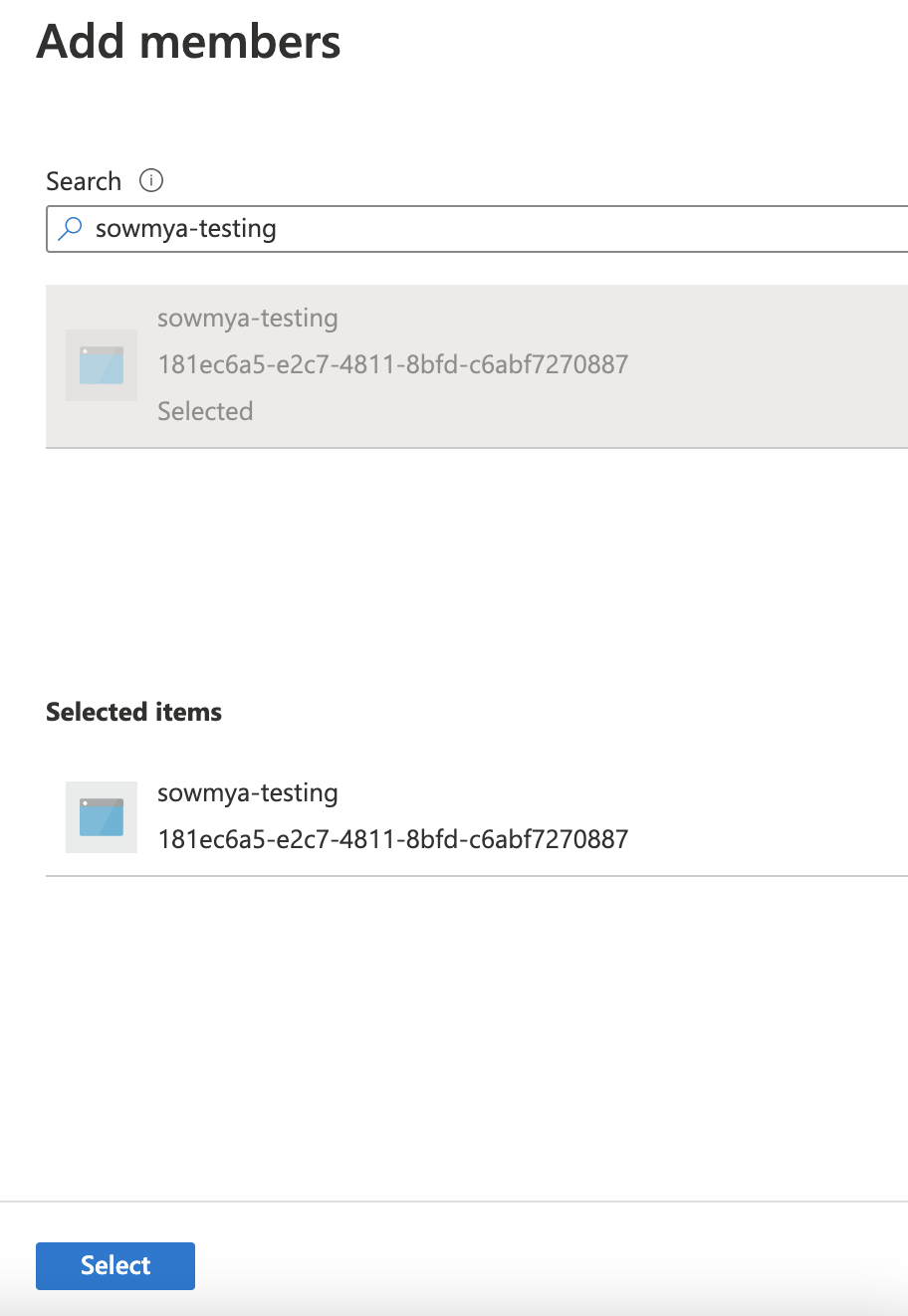 Verify that the service principal is added to your Microsoft Entra ID group.
The service principal, as a member of the Microsoft Entra ID group, is automatically a member of the linked CDF group with the associated capabilities.
For more information on service principals, see [How to create a service principal](https://learn.microsoft.com/en-us/entra/identity-platform/howto-create-service-principal-portal).
Verify that the service principal is added to your Microsoft Entra ID group.
The service principal, as a member of the Microsoft Entra ID group, is automatically a member of the linked CDF group with the associated capabilities.
For more information on service principals, see [How to create a service principal](https://learn.microsoft.com/en-us/entra/identity-platform/howto-create-service-principal-portal).