> ## Documentation Index
> Fetch the complete documentation index at: https://docs.cognite.com/llms.txt
> Use this file to discover all available pages before exploring further.
# Manage groups and group membership
> Create groups in Cognite Data Fusion (CDF) and link them to Amazon Cognito groups to manage group membership.
Instead of assigning capabilities to individual users and service accounts, you use **groups** in CDF to define what **capabilities** members (users or applications) have to work with different CDF resources.
Follow the steps below to manage CDF group **membership** from Amazon Cognito.
When you create users in Amazon Cognito, the *email* and *name* user attributes are mandatory.
## Step 1: Create a group in Amazon Cognito
Sign in to the [Amazon Cognito console](https://console.aws.amazon.com/cognito/home) as an admin. If prompted, enter your AWS credentials.
Select User Pools and select an existing user pool from the list, or create a user pool.
1. Select the **Groups** tab.
2. Select **Create group**.
3. Under **Group information**, enter a **Group name**.
4. **Copy and make a note** of the **Group name**. You'll use this name to [link the group to a group in Cognite Data Fusion](#step-2).
5. Select **Create group**.
Select the newly created group and **add users** to the group.
## Step 2: Create a group in CDF and link it to the Amazon Cognito group
Sign in to [Cognite Data Fusion](https://fusion.cognite.com) as an admin.
Select the **Admin** workspace, and then **Access management** > **Groups** > **Create group**.
Enter a **Unique name** for the group and **Add capabilities**.
In **Members** select **Externally managed** and in **Source ID** field, enter the **Group name** you copied from Amazon Cognito in [Step 1](#step-1).
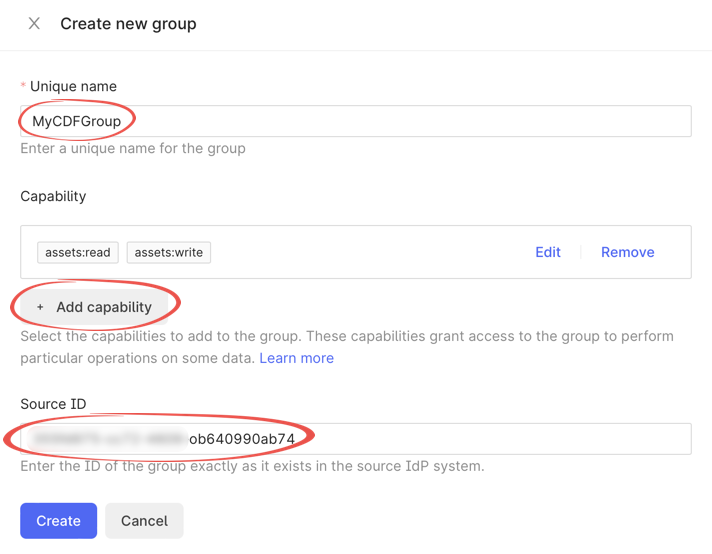 The members of the Amazon Cognito group automatically become members of the linked CDF group with the associated capabilities.