> ## Documentation Index
> Fetch the complete documentation index at: https://docs.cognite.com/llms.txt
> Use this file to discover all available pages before exploring further.
# Set thresholds
> Create rule-based color overlays in 3D models to visualize threshold conditions for assets and time series data.
The overlays highlight the objects in the 3D model and change the colors of nodes based on selected thresholds for contextualized data on assets and time series.
For example, the 3D nodes are *green* when the metadata, `pipe_pressure` of the linked pipe pressure assets, indicates low values, *yellow* indicates medium values, or *red* when the thresholds are breached.
You can create nested thresholds with AND or OR operations. You can also create nested operations and groups of expressions for a specific type of output.
You can set thresholds for metadata fields from assets and time series contextualized in 3D.
## Before you start
Make sure you create and set up a data model the first time you create a rule.
## Set a threshold
1. Navigate Data fusion > Configure > 3D.
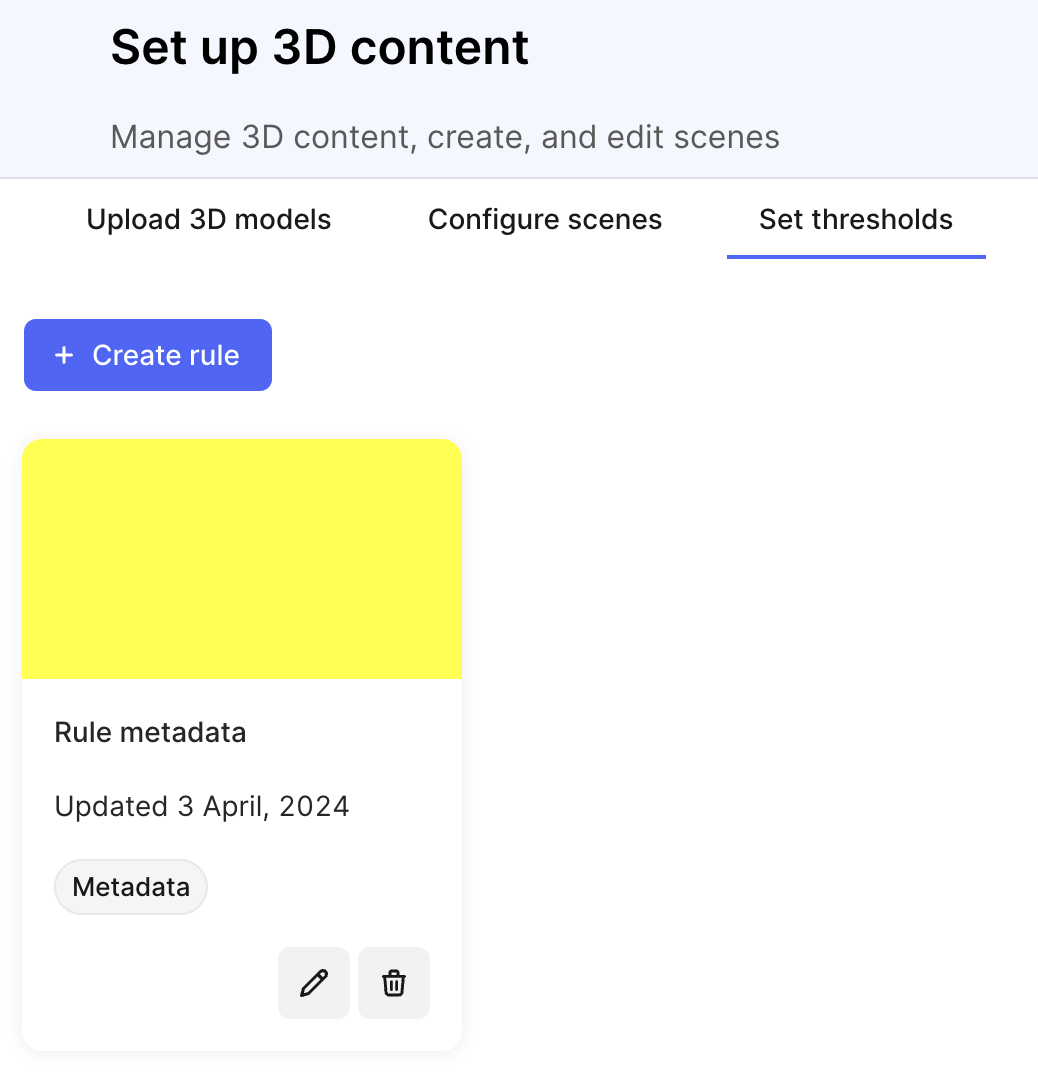
2. Switch to Set thresholds and select **+ Create rule**.
3. Name the threshold.
You have now created an empty threshold and can continue setting the rules.
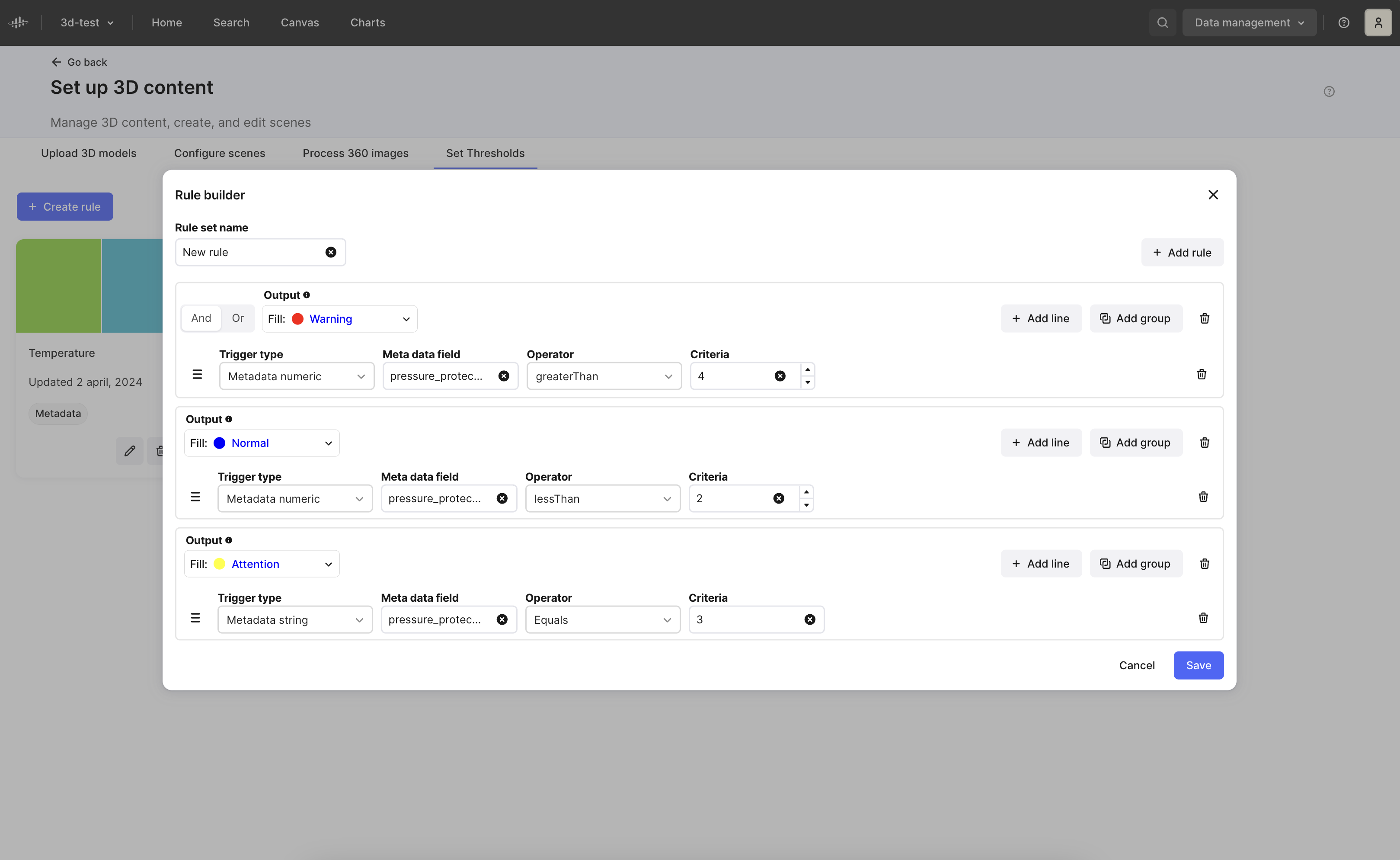
 A threshold can consist of a rule, a group of rules, or nested rules. When you name a threshold, you are naming a threshold that contains rules. When you set a threshold, it consists of triggers that activate when the rule is true.
Define the rules for your thresholds.
1. Select **+ Add rule**.
2. If the rule is valid, select the color the overlay should give the 3D node from the **Fill** dropdown.
3. Select the **trigger type**: *Asset metadata string*, *Metadata numeric*, *Time series*, or *Data model*.
The data type for a data model supports only `string`, `boolean`, `numeric`, and `date time`.
4. Add the metadata or time series field. When you start typing, you can view the first five items retrieved from CDF based on the metadata prefix. For *data model* trigger type, select the **Data model**, **Category**, and **Property**.
5. Select **Operator**.
6. Define the **Criteria**.
7. Select **+ Add line** to add another line to create nested operations or **Add group** to add another group to build a rule for scenarios with diverse conditions.
8. Select **Save** to publish the rule. The rule is now accessible in search.
To view the new rule, navigate to **Search** and select the **Color overlay** menu/settings.
A threshold can consist of a rule, a group of rules, or nested rules. When you name a threshold, you are naming a threshold that contains rules. When you set a threshold, it consists of triggers that activate when the rule is true.
Define the rules for your thresholds.
1. Select **+ Add rule**.
2. If the rule is valid, select the color the overlay should give the 3D node from the **Fill** dropdown.
3. Select the **trigger type**: *Asset metadata string*, *Metadata numeric*, *Time series*, or *Data model*.
The data type for a data model supports only `string`, `boolean`, `numeric`, and `date time`.
4. Add the metadata or time series field. When you start typing, you can view the first five items retrieved from CDF based on the metadata prefix. For *data model* trigger type, select the **Data model**, **Category**, and **Property**.
5. Select **Operator**.
6. Define the **Criteria**.
7. Select **+ Add line** to add another line to create nested operations or **Add group** to add another group to build a rule for scenarios with diverse conditions.
8. Select **Save** to publish the rule. The rule is now accessible in search.
To view the new rule, navigate to **Search** and select the **Color overlay** menu/settings.
 ### Nested operations
To create a nested operation, select **+ Add line**. Nested operations for threshold rules are useful in complex scenarios when:
* Multiple conditions must be met simultaneously.
* Thresholds depend on variable relationships.
* Criteria are hierarchical.
* You need to combine logical operators.
* Scalability {/*and modifiability*/} is required.
### Grouped rules
By grouping threshold rules, you can easily manage diverse conditions and ensure clarity in situations with different scenarios.
To group the thresholds, select **Add group**. It is best if you group the threshold rules for the below scenarios where:
* Different sets of conditions govern distinct outcomes or actions.
* Thresholds vary based on specific categories or contexts.
* Rules need organization for clarity and management.
* Complex decision-making requires segmented criteria.
* Scalability and modifiability are essential for rule management and updates.
You can delete a line, group, or rule. Use the icon across the respective parameter to delete a line, group or rule.
### Nested operations
To create a nested operation, select **+ Add line**. Nested operations for threshold rules are useful in complex scenarios when:
* Multiple conditions must be met simultaneously.
* Thresholds depend on variable relationships.
* Criteria are hierarchical.
* You need to combine logical operators.
* Scalability {/*and modifiability*/} is required.
### Grouped rules
By grouping threshold rules, you can easily manage diverse conditions and ensure clarity in situations with different scenarios.
To group the thresholds, select **Add group**. It is best if you group the threshold rules for the below scenarios where:
* Different sets of conditions govern distinct outcomes or actions.
* Thresholds vary based on specific categories or contexts.
* Rules need organization for clarity and management.
* Complex decision-making requires segmented criteria.
* Scalability and modifiability are essential for rule management and updates.
You can delete a line, group, or rule. Use the icon across the respective parameter to delete a line, group or rule.